
Magi-2 Video Generator
Magi-2 generates video and sound together. Start with a shot description, animate a still image, or combine visual and audio references to direct a 4–30 second clip.
Magi-2 workspace
My results
Compare the opening image with the optional ending image. Applying a study places these exact stills in the frame inputs.

Suggested prompt
Keep the first frame’s face and glasses sharp. Let the hand settle the glasses and lower out of frame while the camera stays still.
Magi-2 results from three generation modes
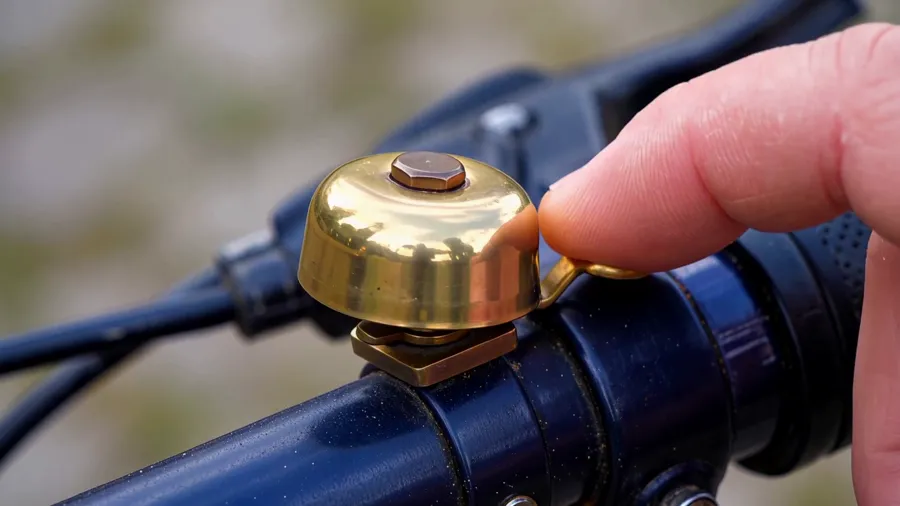
Each Magi-2 example runs for four seconds. In text-to-video mode, a description of a bicycle bell was the only input. The frame-based clip used two photos of a wooden box. The reference clip combined an image, a camera move and a four-beat audio track. Select a mode to compare the inputs with the result.
- Inputs supplied to Magi-2
- Magi-2 prompt: ring the brass bell once. No media was uploaded.
- Magi-2 clip settings
- 4 sec
- 1920 × 1080 (16:9)
- 25 fps
- H.264
- AAC
- Seed 197
- What the clip shows
- In the Magi-2 result, a finger presses the lever of a gold-coloured bell on a blue handlebar. Play with sound and compare the ring’s onset with the movement of the lever.
- Inputs supplied to Magi-2
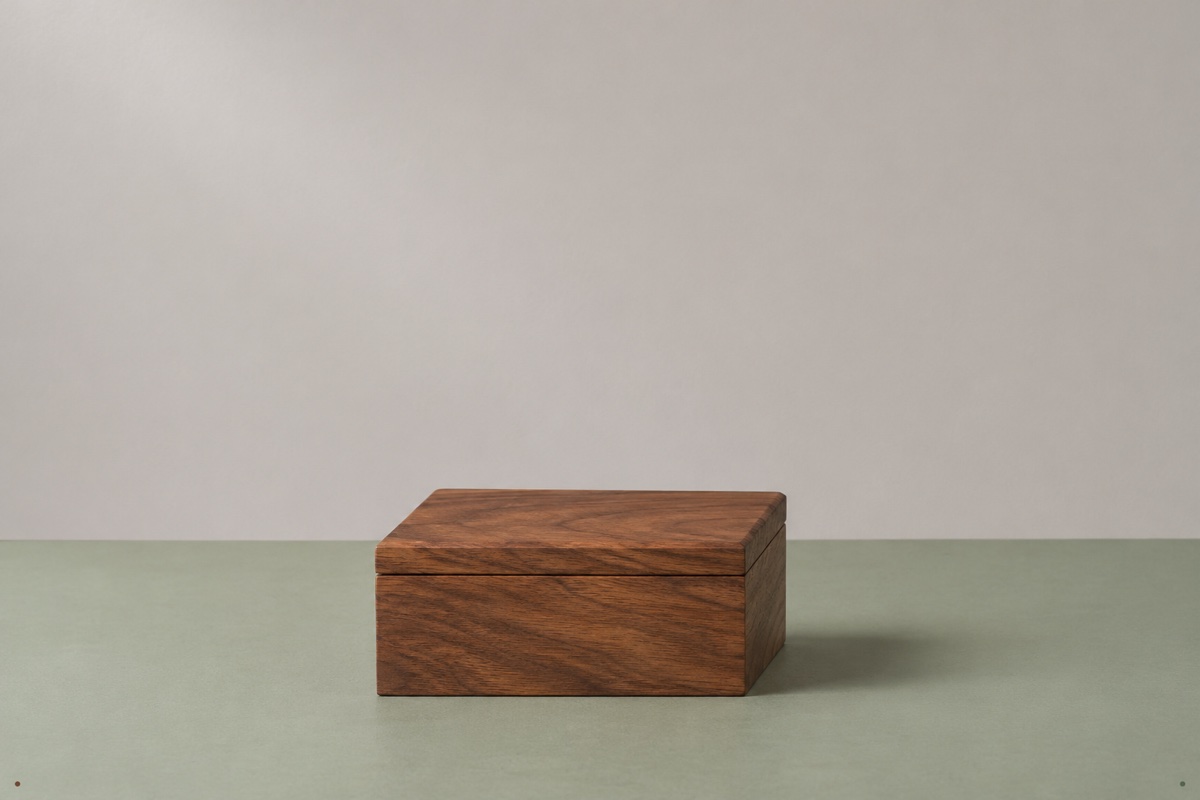
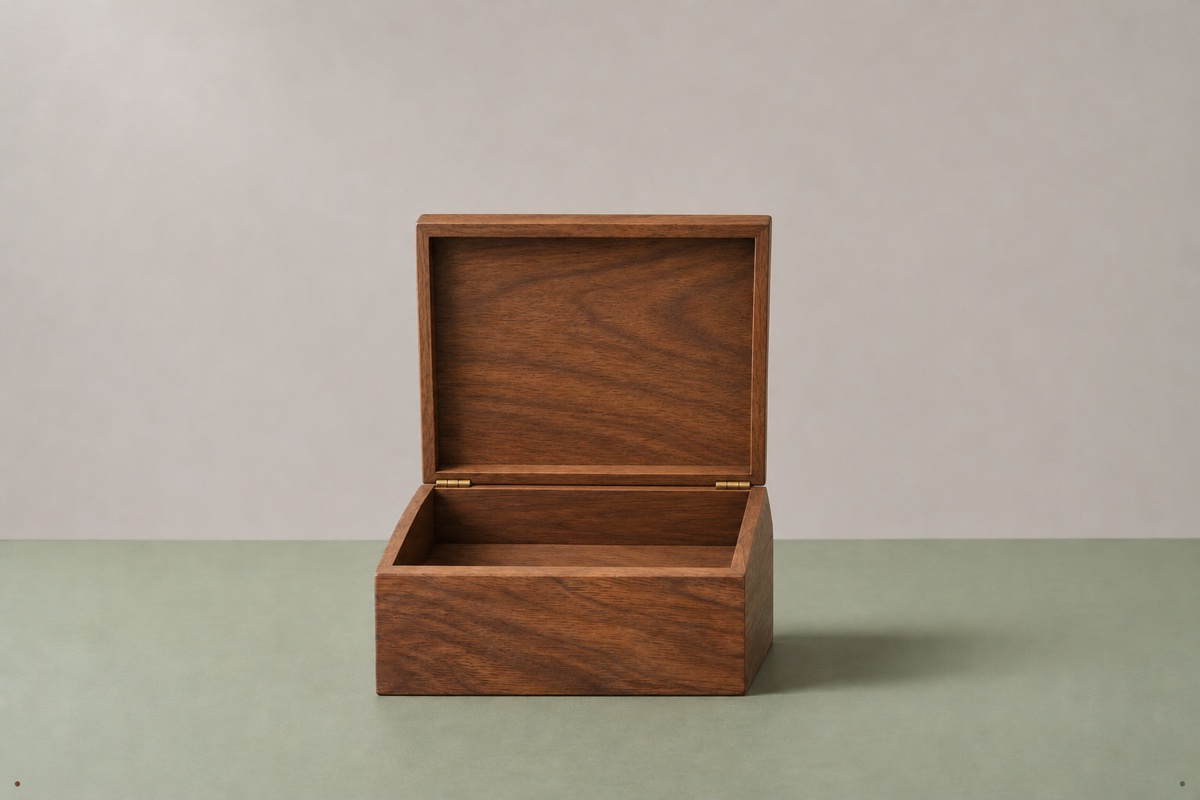
- Two photographs of the same wooden box, closed in the opening frame and open in the ending frame.
- Magi-2 clip settings
- 4 sec
- 1764 × 1176 (3:2)
- 25 fps
- H.264
- No audio track
- Seed 0
- What the clip shows
- The lid lifts while the wooden box sits on the table. Compare the angle of the lid with the two photos. The output retains their 3:2 framing and has no audio track.
- Inputs supplied to Magi-2
- One photograph of the wooden box for appearance, a light-tunnel clip for camera motion and a four-tap WAV for rhythm.
- Magi-2 clip settings
- 4 sec
- 1920 × 1080 (16:9)
- 25 fps
- H.264
- AAC
- Seed 123
- What the clip shows
- A drumstick approaches the closed box from the upper right. The first four strong audio peaks follow the reference beats. A fifth appears at 3.51 s, during the silence at the end of the source WAV.
How to generate a video with Magi-2
If a still sets the composition and a clip supplies the movement, the Magi-2 guide to reference inputs explains how to describe each one in the prompt.
Choose the starting material
Start with text-to-video for a scene you can describe. For image-to-video, upload the first frame and add a last frame if the shot must end on a particular image. Choose multimodal references when you want one source to guide the subject and another to guide movement or sound.
Describe movement and sound
Specify who or what moves, where the camera stands and what should be audible. In reference mode, identify which input supplies the subject, motion or sound.
Review the output settings
Choose the duration and aspect ratio, check the credit estimate and submit. A completed clip appears in your results with its audio track if sound was enabled.
Motion and framing study for Magi-2 prompts
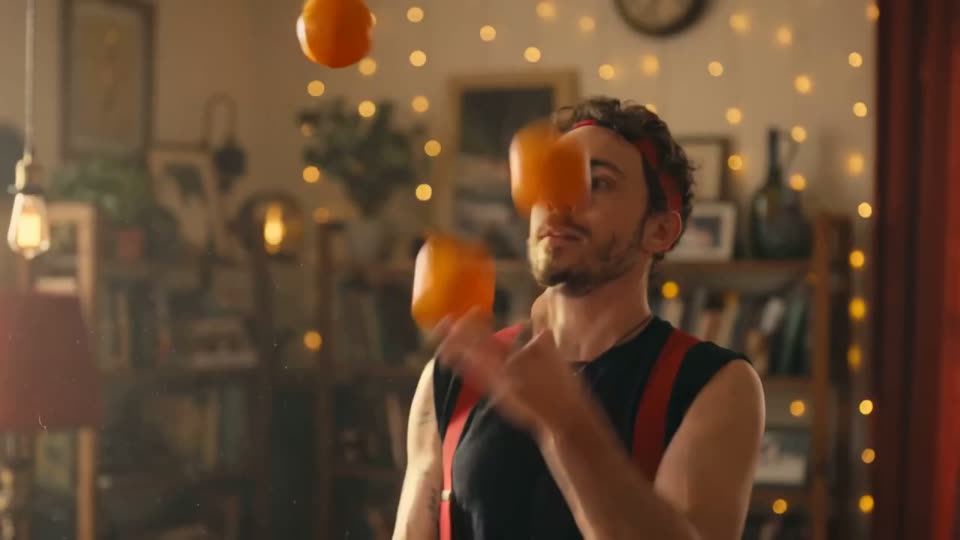
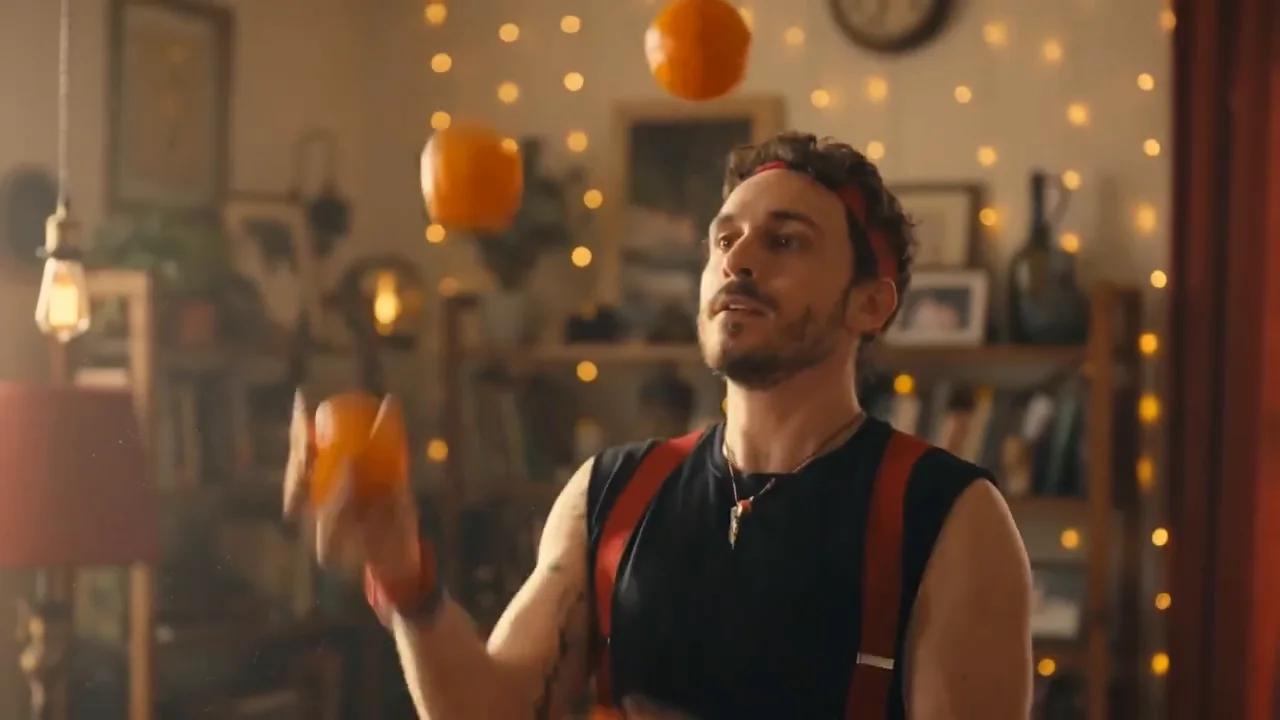
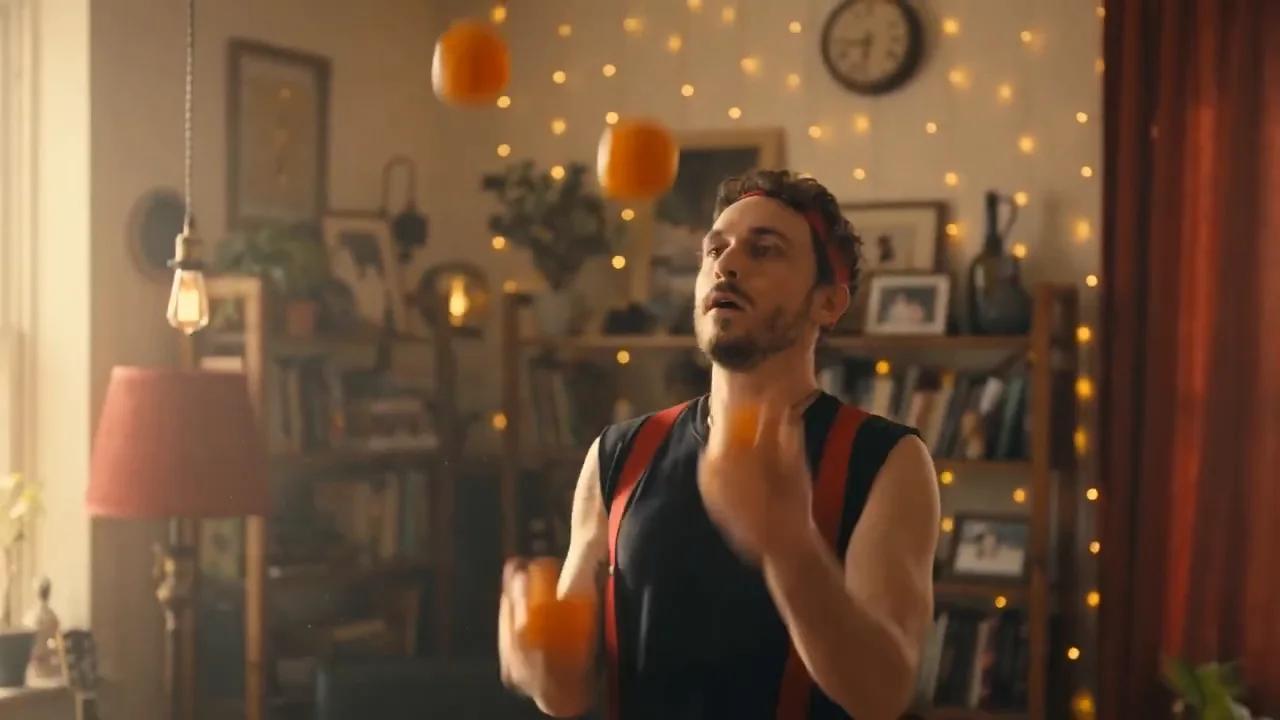
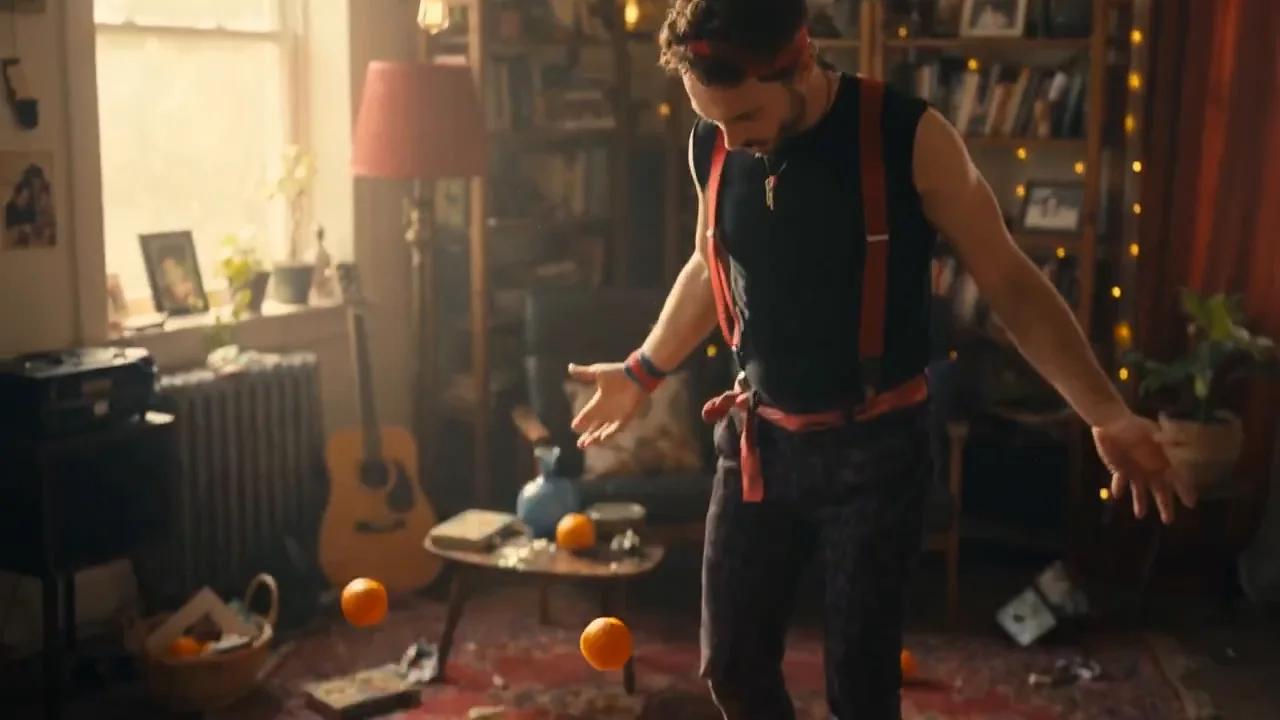
Watch the whole clip once, then follow one orange from its release to its descent. Use the three stills to check whether the wider framing preserves the route between the performer’s hands.
Magi-2 output settings
Choose the framing before you choose the Magi-2 input. A portrait can start from a description, a product with fixed opening and closing positions needs two photos, and a performance can use a motion reference.
| Deliverable | Mode and settings | What to check |
|---|---|---|
| Vertical portrait | Magi-2 text-to-video · 9:16 · 6 s. Frame the face and hands in a medium shot. Enable sound for a spoken line. | Keep both eyes visible and leave space for the hand gesture at its widest point. |
| Product opening and closing positions | Magi-2 first and last frames · 6 s · sound off. Use a matched pair of product photos. The first image sets the aspect ratio. | Compare a fixed corner in the first and last frames. The moving part can turn while the base stays in place. |
| Movement from a reference clip | Magi-2 multimodal references · 16:9 · 5 s. Attach a trimmed clip as @video_1 and describe the motion to retain. | Follow one joint or object from start to finish. Check whether it changes direction at the same point as in the reference. |

Keep a portrait consistent across a vertical series in Magi-2
For a Magi-2 generation, this 9:16 first frame places the fingers close to the right edge. To repeat the portrait across a series, use the same opening image, hold the camera still and specify just the glasses adjustment. If the hand is cut off before the gesture finishes, supply a wider opening image.
Preview the portrait first frameSound and motion in Magi-2
This four-second WAV contains four separate taps. Use it as the only Magi-2 reference for a shot of a drumstick tapping a table. Listen to each onset before generating.
In Magi-2 reference mode, attach the WAV as @audio_1, set four seconds and turn on sound. Ask for a fixed camera, one visible tap on each beat and a pause after the fourth.
In the source WAV, the taps start at 0.50, 1.25, 2.00 and 2.75 seconds. In the Magi-2 result, compare each onset with the first frame where the tip touches the table. For an extra contact, check whether the stick bounced.
Preview the four-tap exerciseTests you can repeat in Magi-2
When working with Magi-2, keep the source files, duration, aspect ratio and sound setting fixed. Optionally enter the same integer seed from 0 to 2147483647 for both takes. Change one instruction, such as the width of the shot. Frames can still differ between takes using the same seed.
If you generate two takes of the same shot with Magi-2, budget for the duration of both. At the same rate, two four-second tests use the same credits as one eight-second take. Check each estimate before generating.
Magi-2 video FAQ
Generate your next video with Magi-2
When working with Magi-2, choose a mode, enter the shot description and check the estimated credits for the selected duration.