
Motion Control AI Video Generator
Give a character image the movement in your reference video
Motion Control AI combines a movement reference with a character image. Upload both, choose the available output settings and use the Kling Motion Control AI workflow to create a video you can review.
Kling Motion Control AI Video Generator
Reference Video
URL Reference
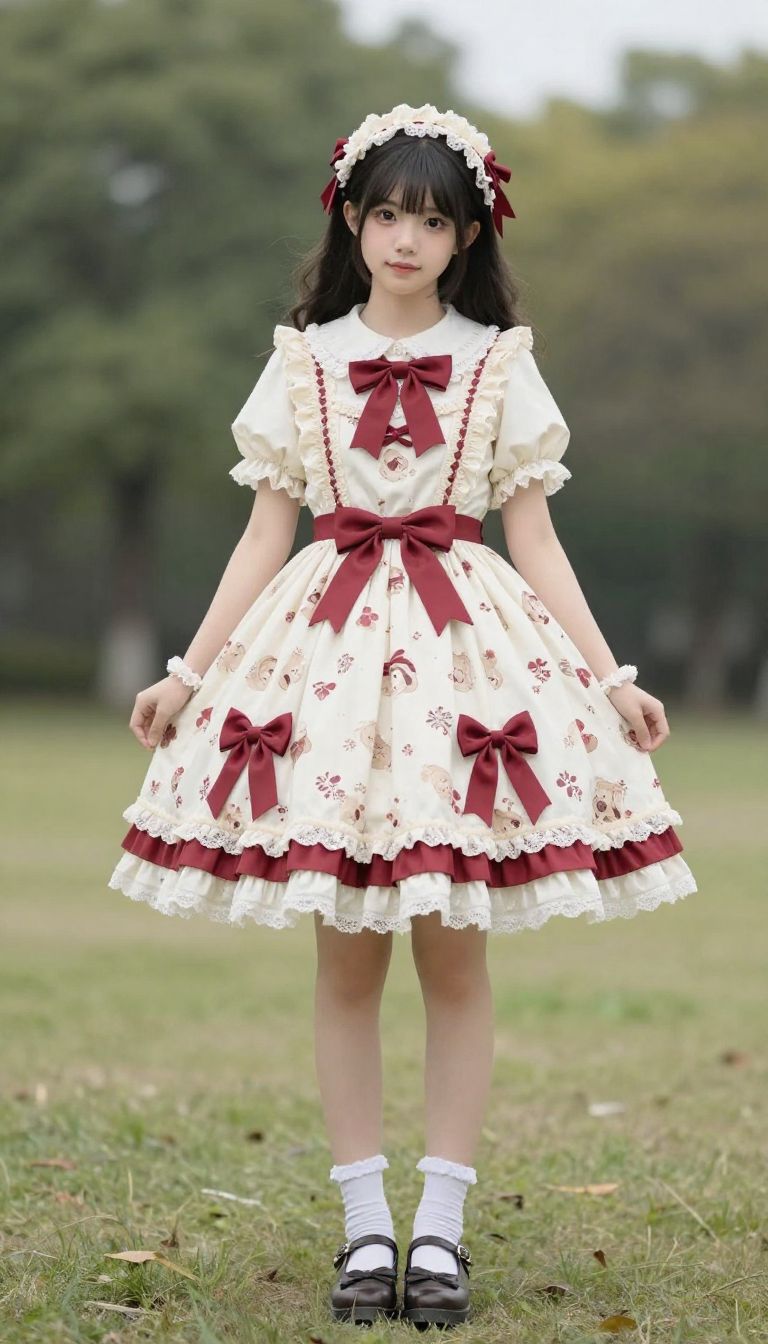
Character Image
URL Reference
5s × 11 credits/s
Due to uncontrollable cost factors, Motion Control pricing has increased by 50%.
Your videos
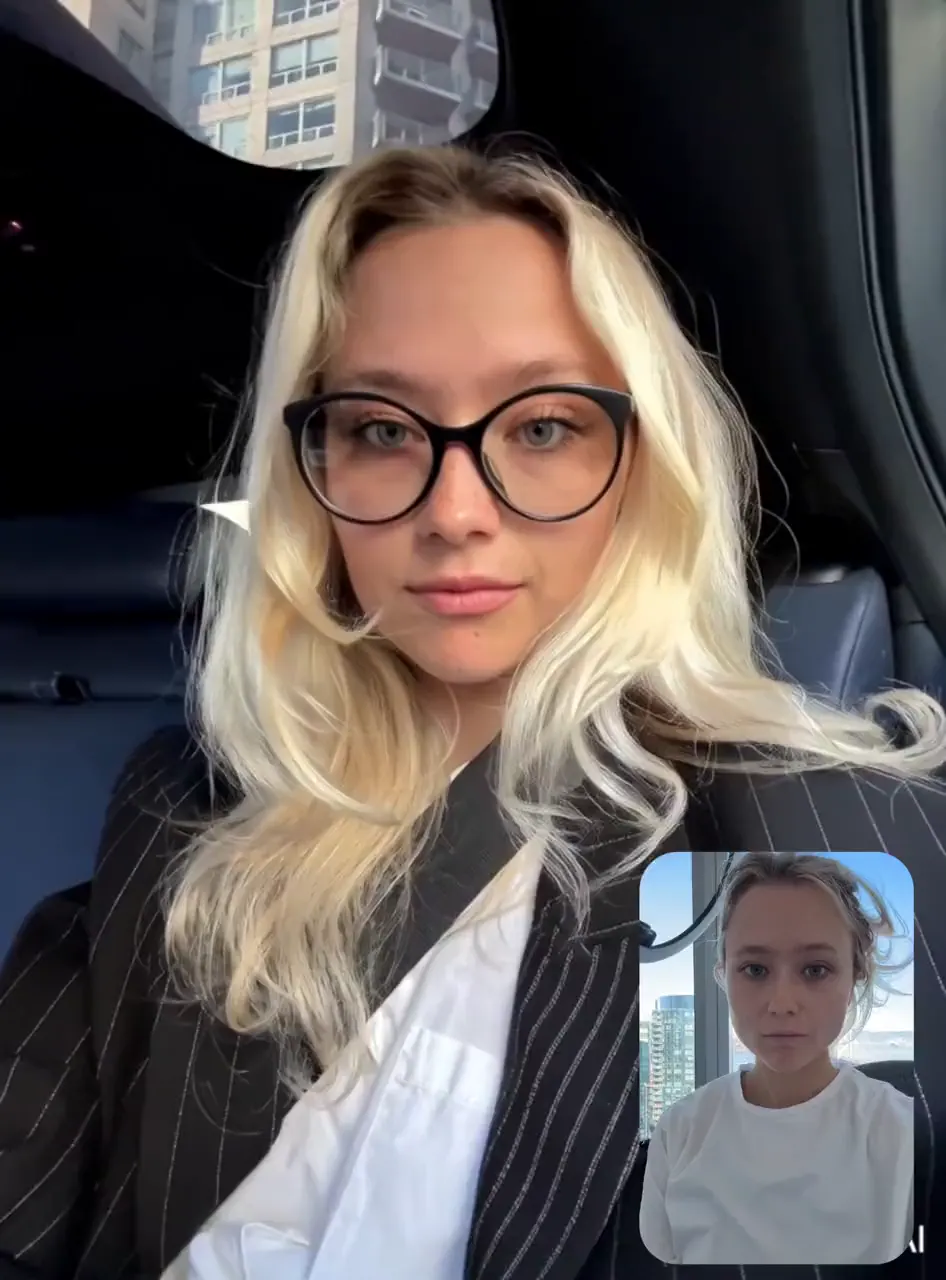
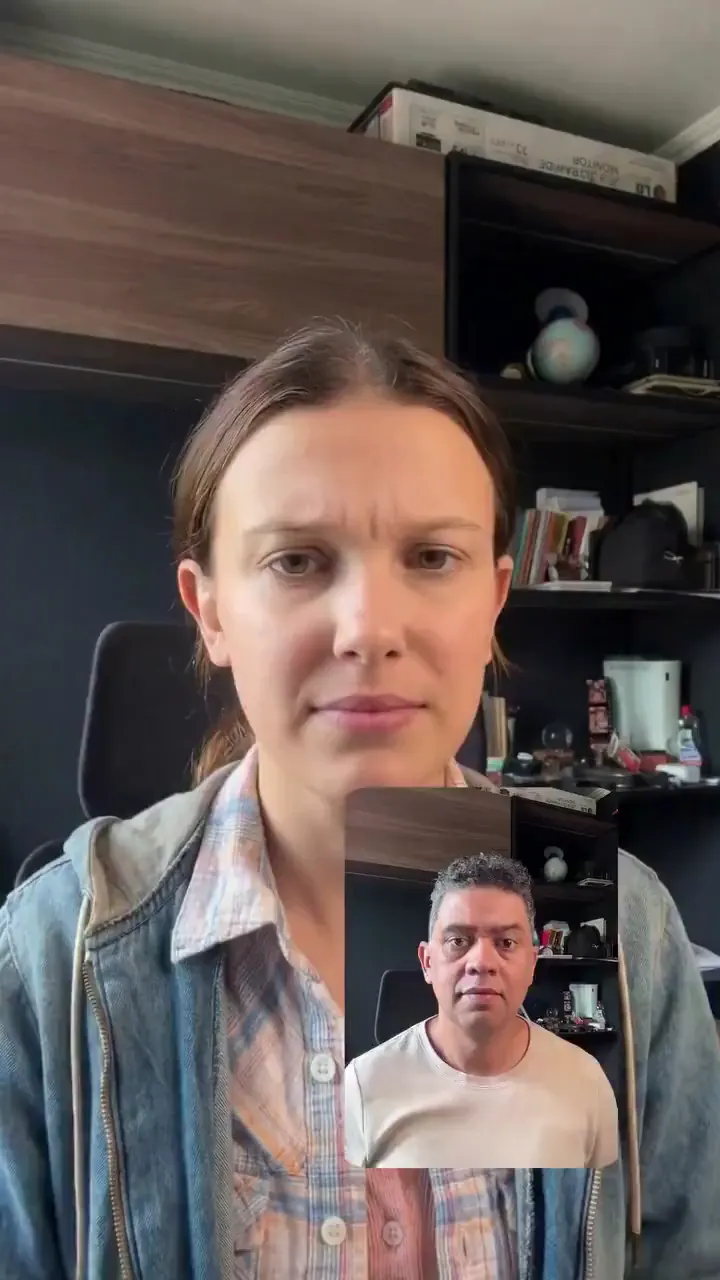
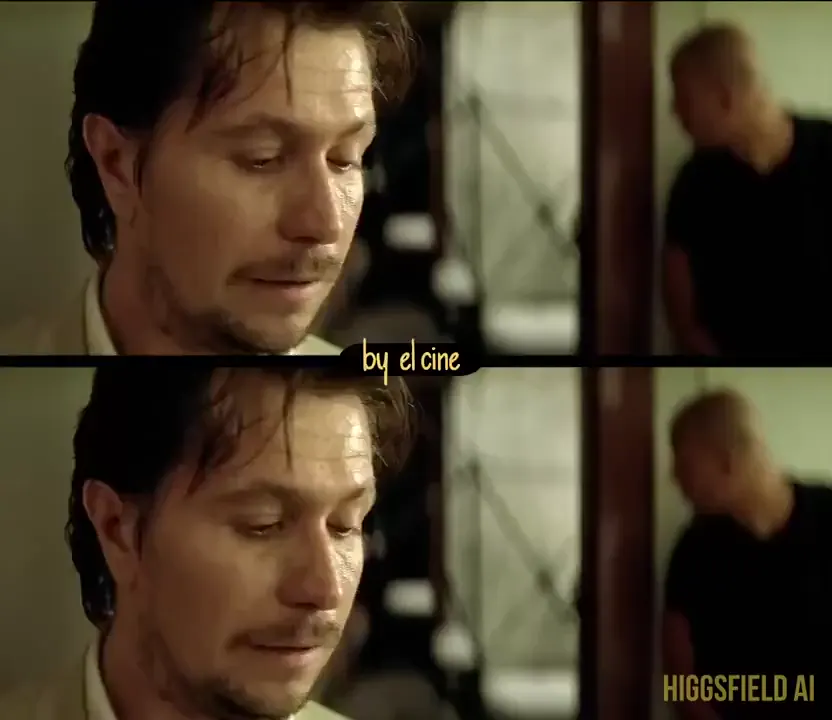
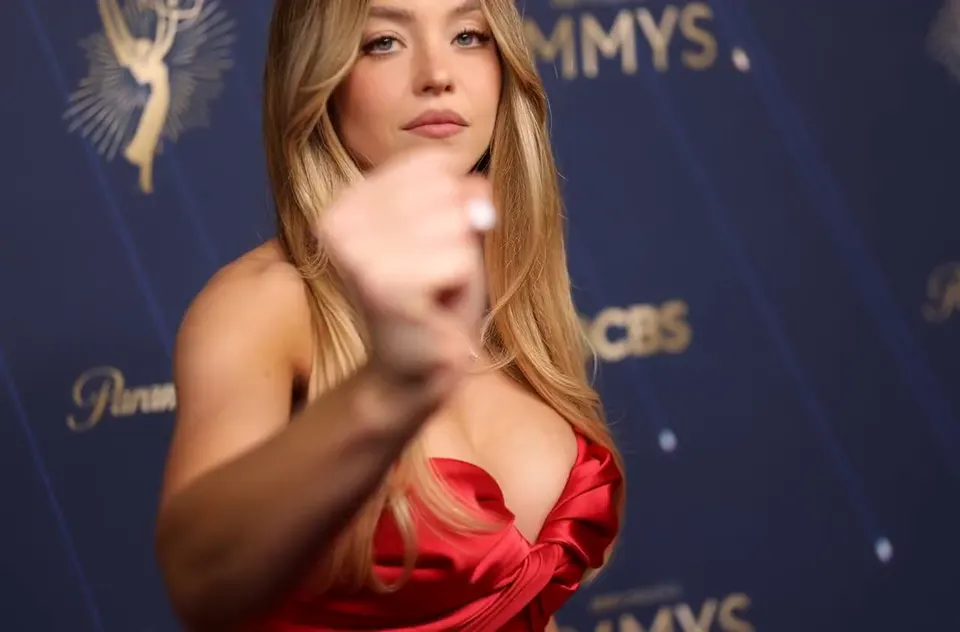
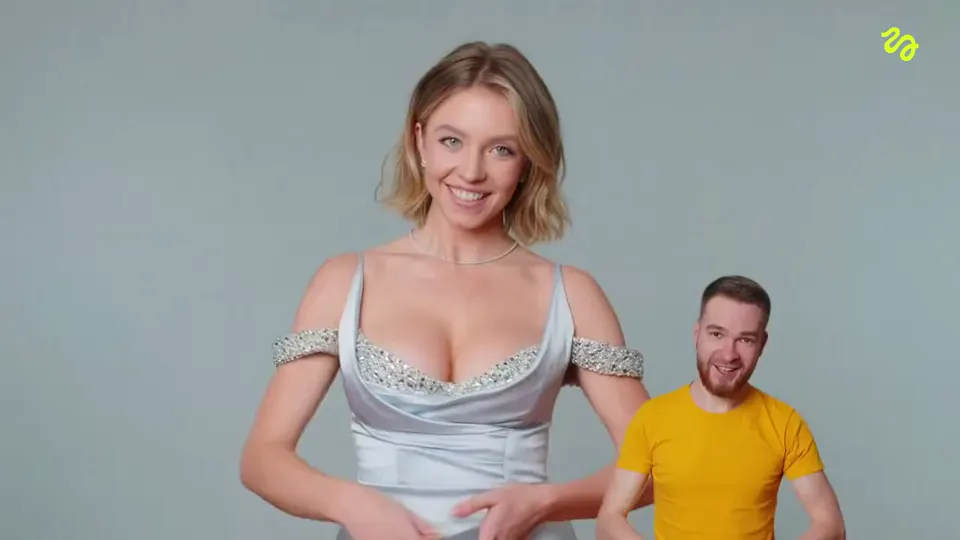
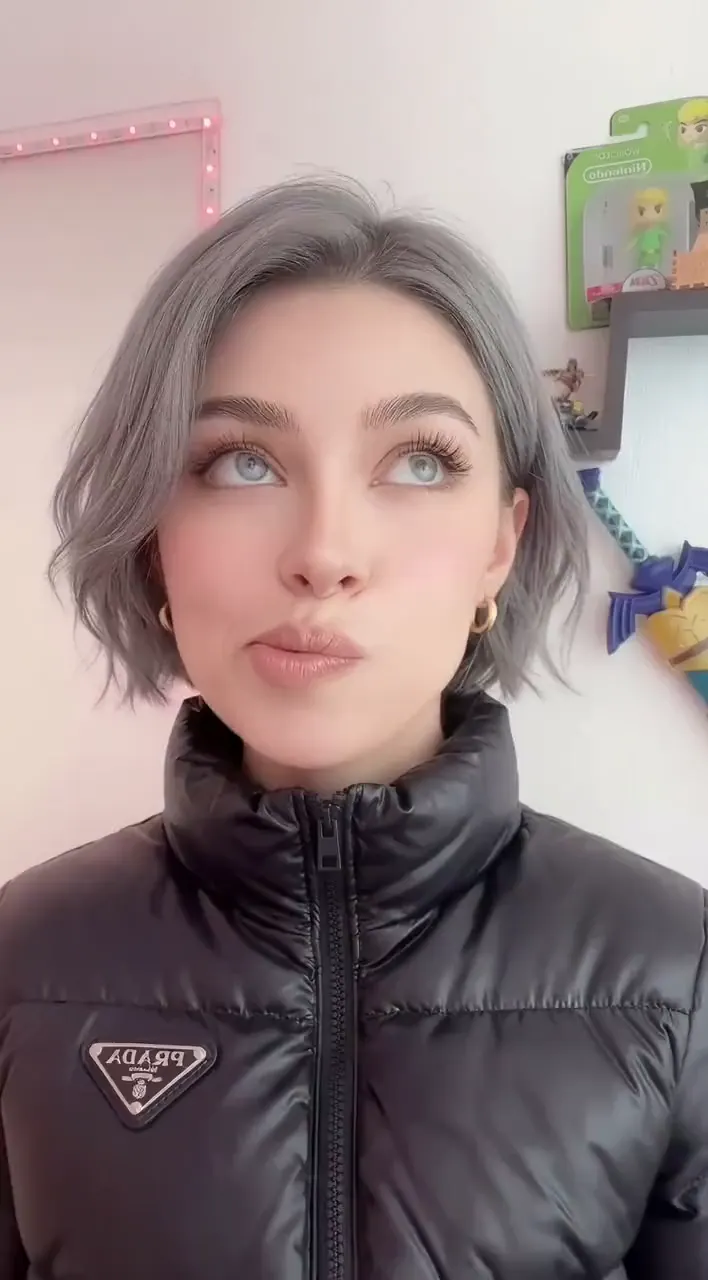
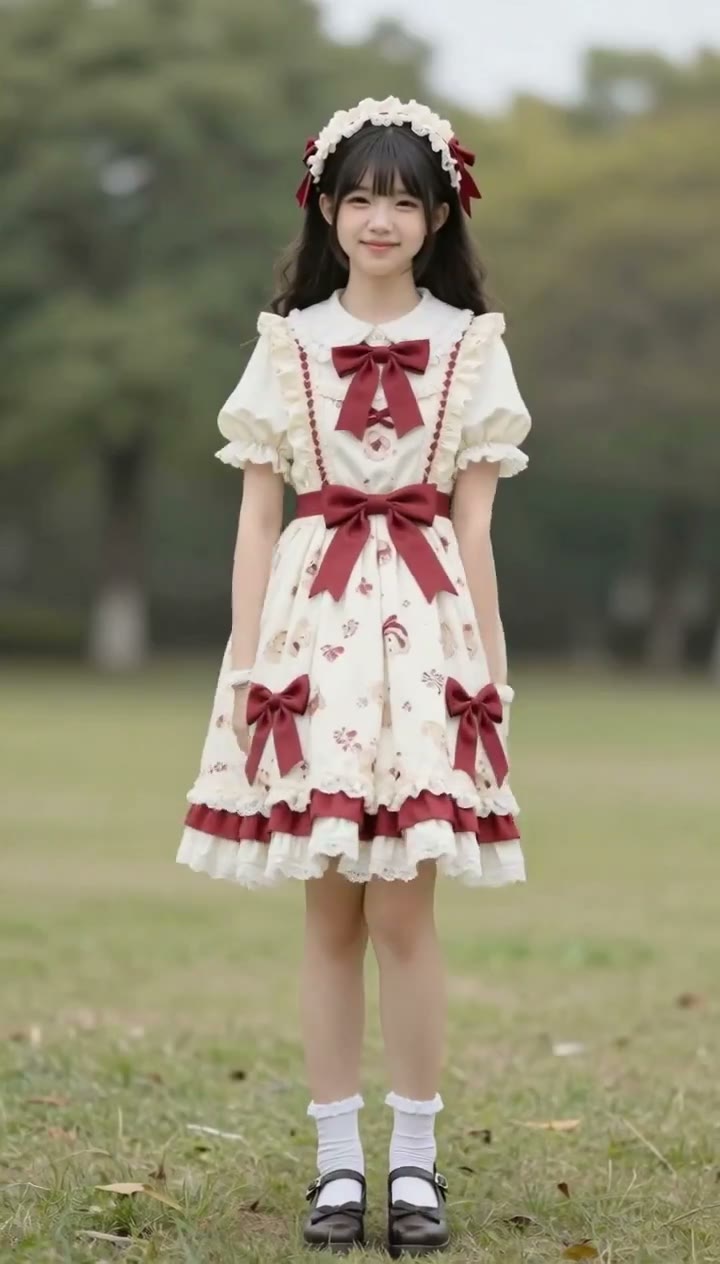
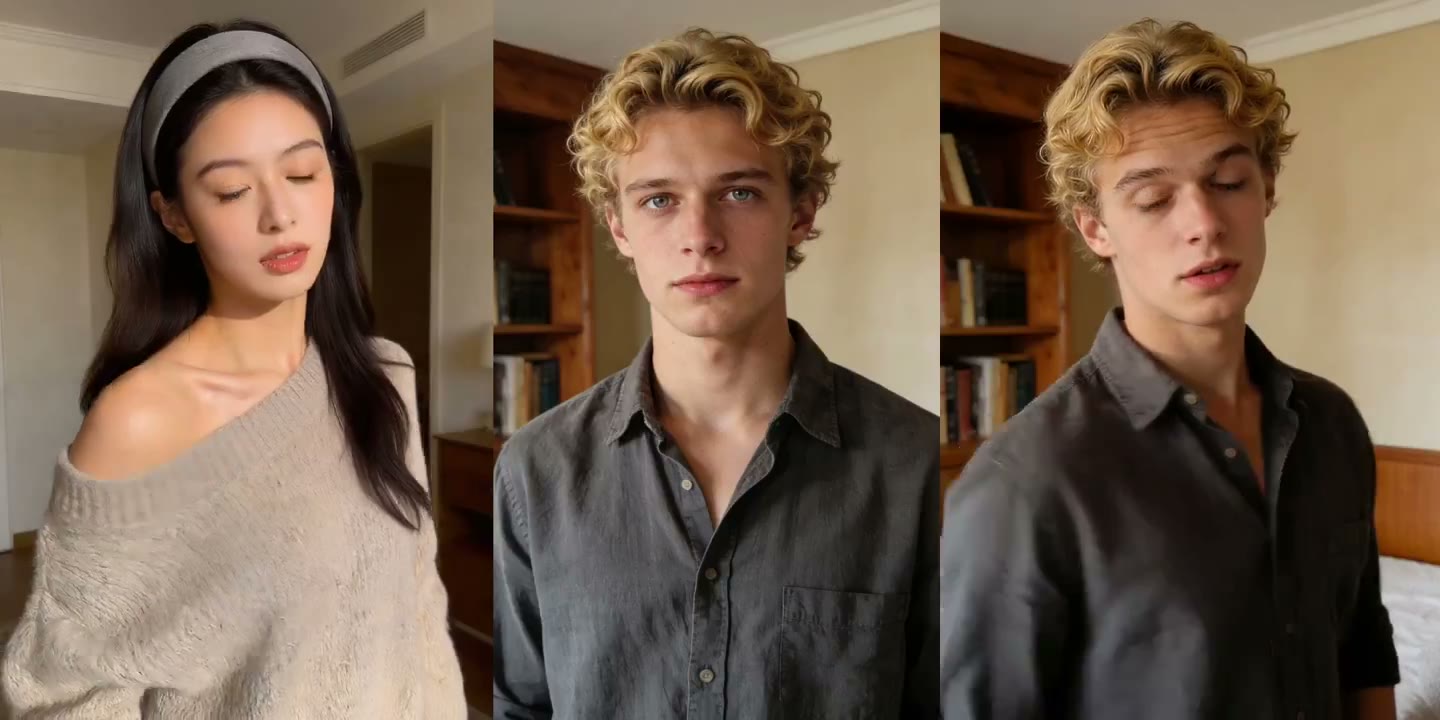
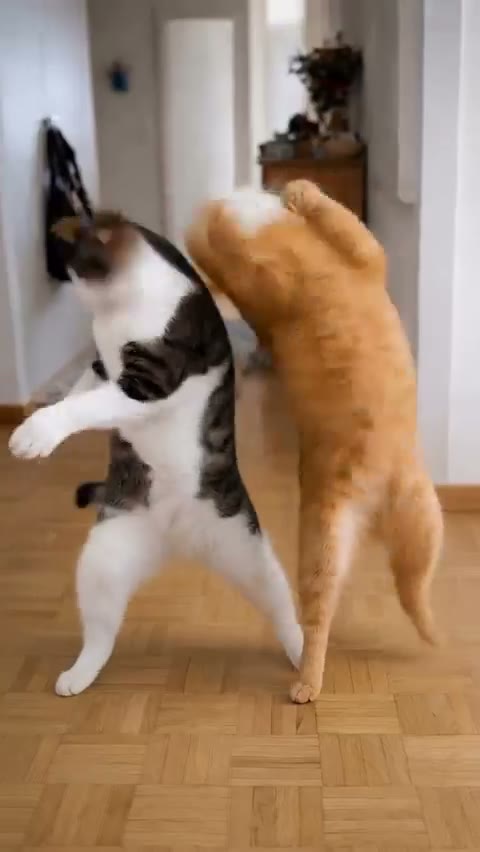
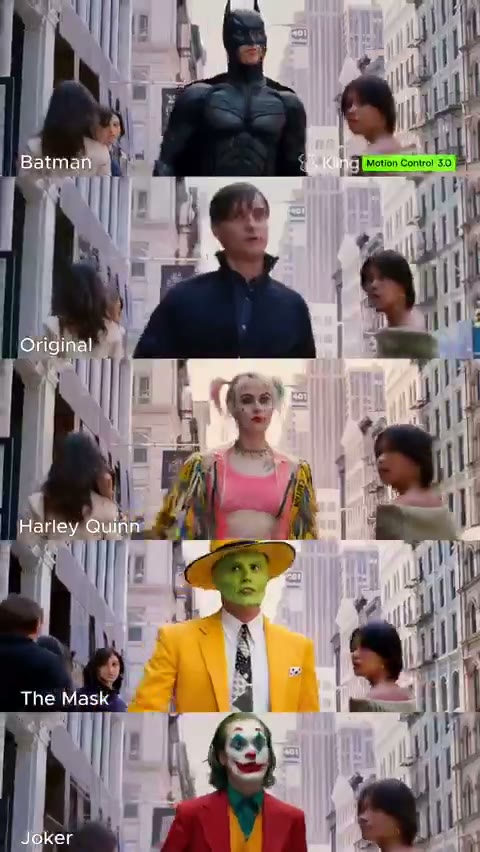
See reference motion and character images together
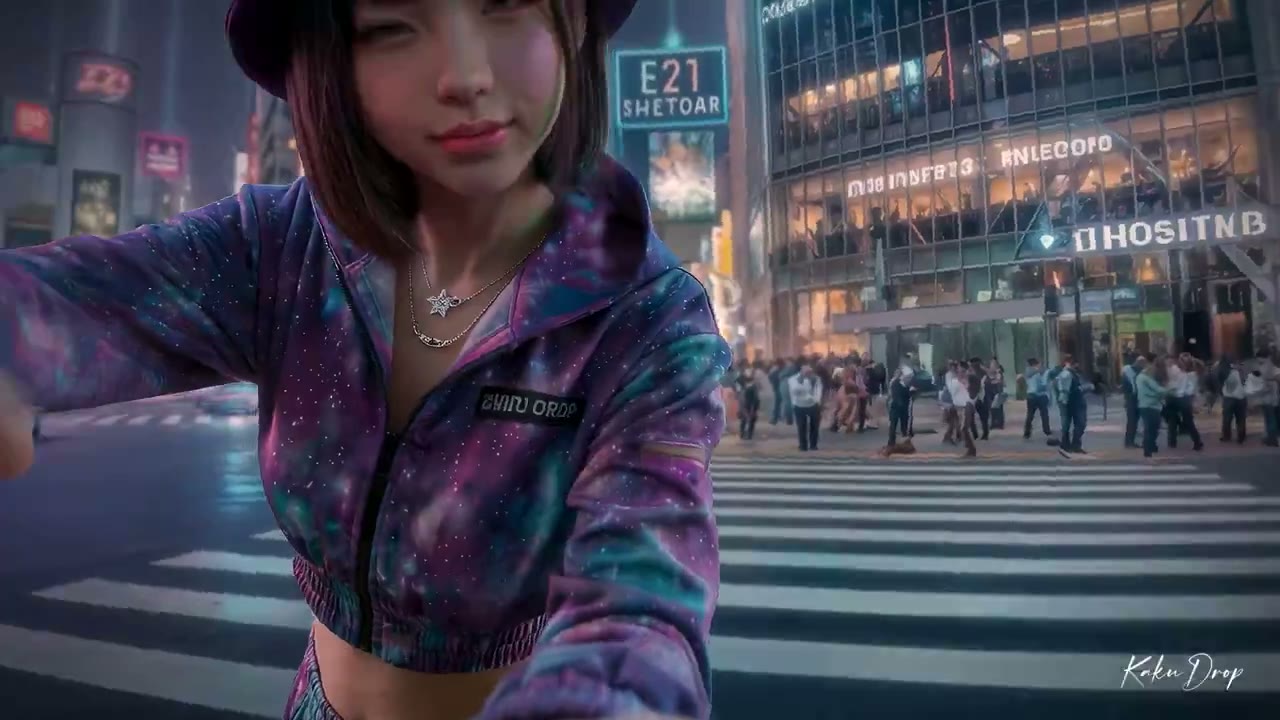
Choose a reference with a clear subject and visible movement. Match the character framing to the action, then review hands, body position and scene continuity in the generated result.
Reference video
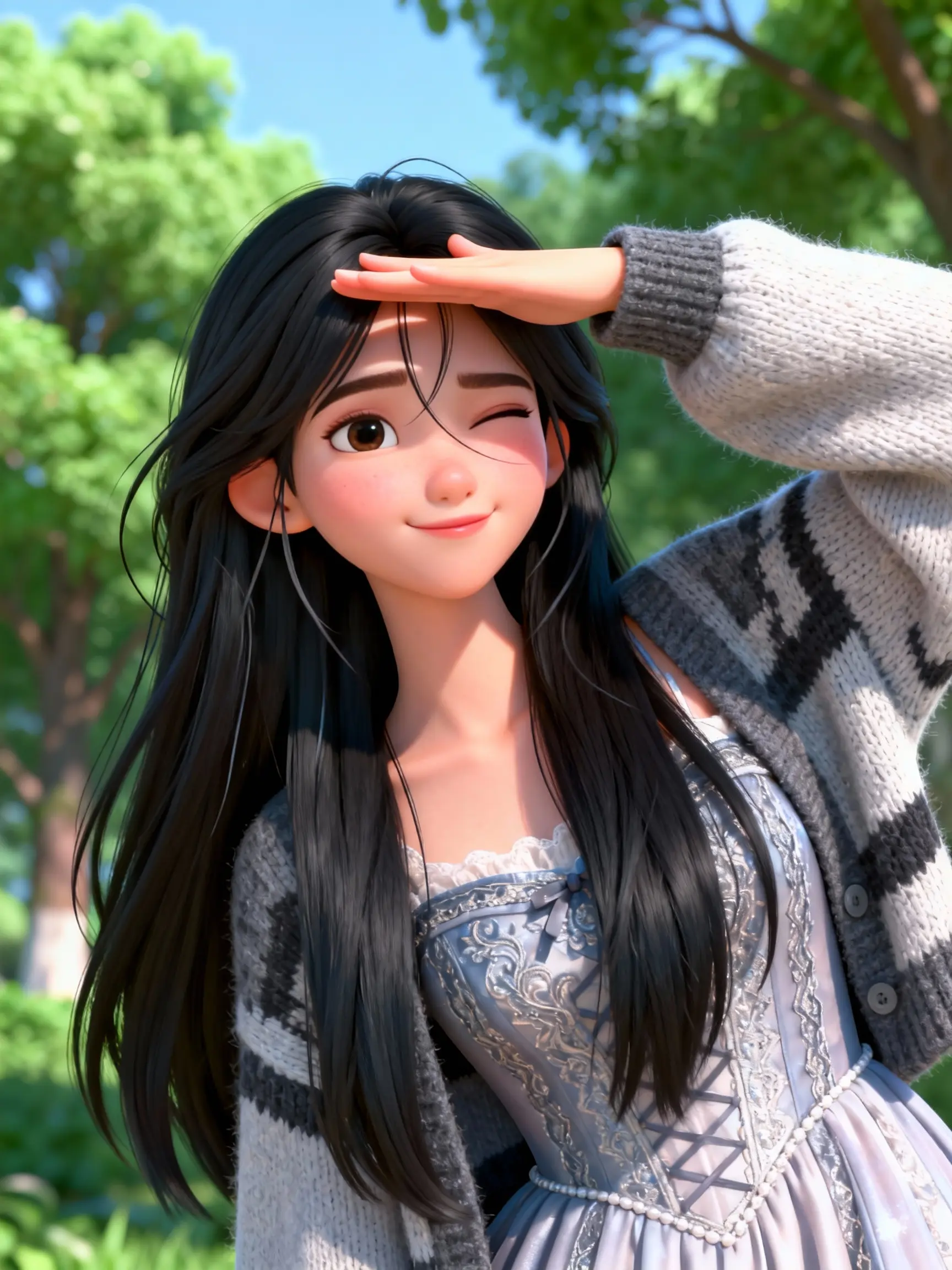
Character image
Preview results
Reference video
Character image
Preview results
What is Motion Control AI?
Motion Control AI is a video workflow that uses a reference clip to guide movement in a character image. The reference supplies the action; the image supplies the appearance you want to animate.
Whether you choose Motion Control or Motion Control 3.0 in Motion Control AI, use a reference with a clear subject and visible movement. Match the character framing to the action, then review hands, body position and scene continuity. If you have a scene idea rather than a recorded performance, Kling AI also brings together options such as Kling 4.0 text and image video inputs, where your brief sets the intended action and camera direction.
Kling Motion Control AI Video Generator
Give a character image the movement in your reference video
Pair a reference video with a character image when the action matters more than a text description. Choose a clear movement and keep the subject visible.
Choose a character image with a clear outline and a reference clip with limited occlusion. Simpler inputs make movement easier to evaluate.
Use the orientation control to follow the image or the video reference. Compare the framing in both inputs before choosing the setting.
Preview the whole clip and check motion, subject details and the ending. Download the version that works for your project or adjust the inputs and generate again.
Guide motion with a reference
Choose a reference with a clear subject and visible movement. Match the character framing to the action, then review hands, body position and scene continuity in the generated result.
Follow a motion reference
Pair a reference video with a character image when the action matters more than a text description. Choose a clear movement and keep the subject visible.
Give your scene a visual reference
Use an image to establish the character, product or composition where the selected model supports image input. Describe the motion you want to add.
Choose character orientation
Use the orientation control to follow the image or the video reference. Compare the framing in both inputs before choosing the setting.
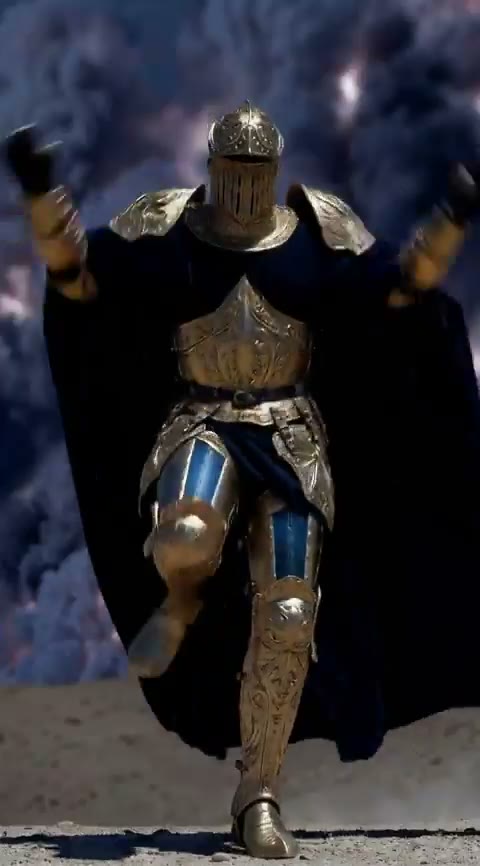
Motion Control AI features
Give a character image the movement in your reference video
Follow a motion reference
Pair a reference video with a character image when the action matters more than a text description. Choose a clear movement and keep the subject visible.
Keep source material easy to read
Choose a character image with a clear outline and a reference clip with limited occlusion. Simpler inputs make movement easier to evaluate.
Create short social video concepts
Explore character introductions, expressive gestures and short scenes. Choose a composition that fits the platform where you plan to share your edit.
Give your scene a visual reference
Use an image to establish the character, product or composition where the selected model supports image input. Describe the motion you want to add.
Choose character orientation
Use the orientation control to follow the image or the video reference. Compare the framing in both inputs before choosing the setting.
Review before you download
Preview the whole clip and check motion, subject details and the ending. Download the version that works for your project or adjust the inputs and generate again.
Choose inputs and settings
Choose a reference with a clear subject and visible movement. Match the character framing to the action, then review hands, body position and scene continuity in the generated result.
Workflow
Reference video
Output
Input
Orientation
Workflow
Why use a motion reference?
Give a character image the movement in your reference video
Check the cost before creating
Use the credit estimate shown by the selected generator. Cost and available controls can change with model, duration and output settings.
Give your scene a visual reference
Use an image to establish the character, product or composition where the selected model supports image input. Describe the motion you want to add.
Create short social video concepts
Explore character introductions, expressive gestures and short scenes. Choose a composition that fits the platform where you plan to share your edit.
Review before you download
Preview the whole clip and check motion, subject details and the ending. Download the version that works for your project or adjust the inputs and generate again.
Motion ideas for your next project
Give a character image the movement in your reference video
Create short social video concepts
Explore character introductions, expressive gestures and short scenes. Choose a composition that fits the platform where you plan to share your edit.
- Follow a motion reference
- Explore a visual direction
- Review before you download
Plan one shot at a time
Break a story into a small set of clear actions. Use the multi-shot and draft tools when you want to develop a sequence from individual ideas.
- Describe framing and camera movement
- Choose character orientation
- Review before you download
Develop a product or campaign idea
Start from a product image or a written brief. Explore camera movement and scene variations, then review the result before using it in your campaign.
- Give your scene a visual reference
- Explore a visual direction
- Review before you download
How to use Motion Control AI
Give a character image the movement in your reference video
Add a reference video
Upload a video or add its URL. Choose a clip with clear movement and a visible subject.
Add the character image
Upload an image or add its URL. Match the character framing to the movement in your reference.
Choose controls and generate
In Kling Motion Control AI, choose resolution and orientation, add an optional prompt, and review the credit estimate before generating.
Review the transferred movement
Preview the result and check body position, hands and framing. Download the clip or adjust the references for another attempt.
Motion Control AI · Questions and answers
Motion Control AI uses a reference video to guide movement in a character image. Add the two inputs, choose the available controls and generate a clip to review.
You need a reference video and a character image. You can upload files or use the URL inputs shown in the generator.
Choose a clear image with visible body details and framing that fits the reference action. Avoid heavy cropping or obstructions when the movement needs the full body.
Use a clip where the subject remains visible and the action is easy to follow. Review the reference before submitting and choose the duration accepted by the generator.
The orientation setting lets you choose whether to follow the image or the video reference. Match the setting to the framing and direction you want to preserve.
Kling Motion Control AI Video Generator offers an optional prompt for concise scene instructions. The reference video and character image remain the main inputs.
The displayed credit estimate depends on the duration and resolution you choose. Review it before submitting and check the pricing page if you need additional credits.
Review the reference framing, subject visibility and character image. Try a simpler movement or closer matching inputs, then generate another version.
Kling Motion Control AI, ready when you are
Give a character image the movement in your reference video