Kling AI video features
Kling 4.0 Flash
Explore text, image and reference-led video creation. Shape a short scene, then bring your brief into the workspace.
Bring your brief into the video workspace
Use the existing Flash and Pro creation modes, reference controls and result history. Switch modes without losing the prompt you are working on.
This Kling3.io workspace uses the creation modes and settings shown in its panel. Official Flash specifications on this page describe the Kling AI model; the panel's available inputs, durations and credit quote apply to your task.


Your video drafts
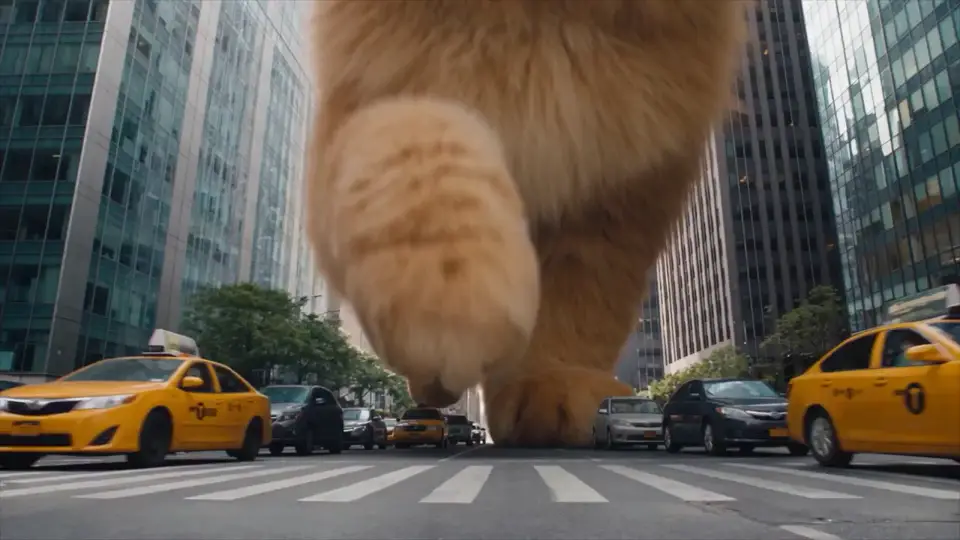
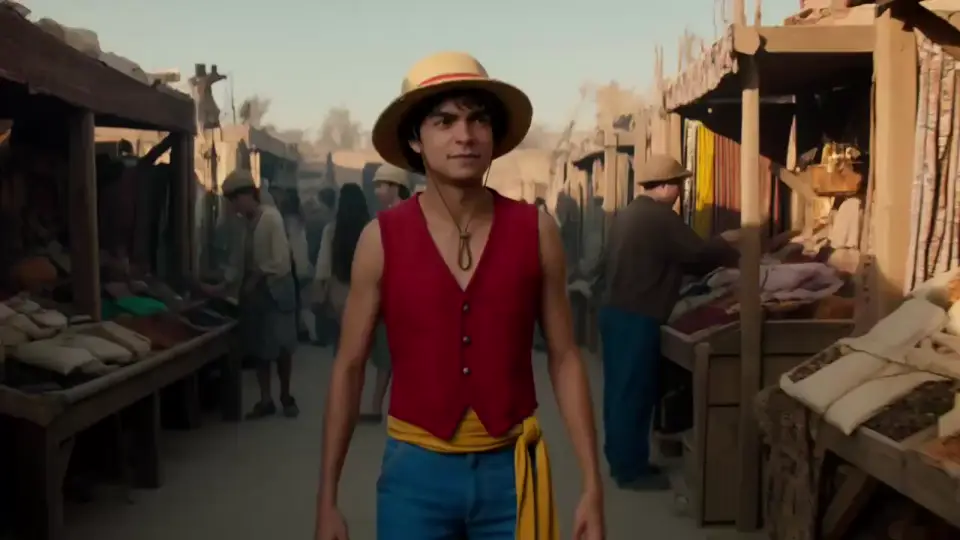

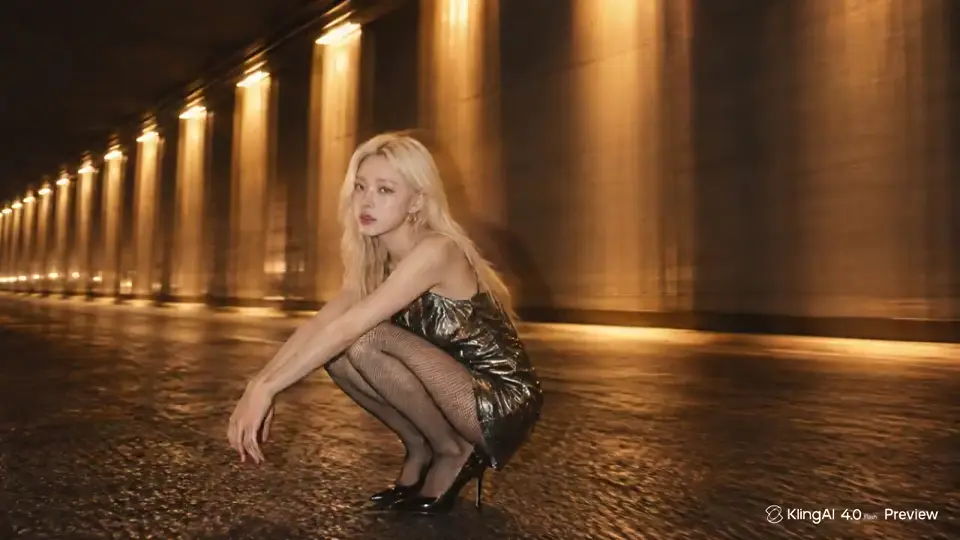



- Official clip duration
- 3–20 s
- Maximum Flash resolution
- 720p
- Generation approaches
- 3
- Official output format
- 8-bit SDR
What is Kling 4.0 Flash?
Kling 4.0 Flash is the lighter, faster member of the Kling 4.0 video family, designed for everyday creation and repeated creative drafts.
Also called Kling 4 Flash, it supports text-to-video, image-to-video and Omni Reference. The official Flash specification is 3 to 20 seconds per generation, up to 720p, with 8-bit SDR output. Its practical role is to explore a scene, test an action or animate a visual idea before committing to a more elaborate sequence.
Start with the creative decision you need to make: a camera move, a product reveal, a character action or a change in mood. A focused brief makes it easier to compare drafts. If you need an exact ending frame, a timeline with several keyframes or a 4K finishing workflow, compare the full Kling 4.0 model before choosing Flash.
Three ways to turn an idea into motion
Choose the input that already contains the most useful information. Write a scene from scratch, animate a composed image, or use references to guide the result.
Text-to-video: write the scene you want to see
Use text-to-video when the location, subject and action are still open. Describe one visible event, then specify how the camera sees it. A subject, a setting, an action and a camera direction give the generation a clear visual brief.
For a motion study, keep the subject and setting fixed while changing only the camera instruction. Comparing a locked shot with a slow tracking shot is more informative than rewriting the entire scene. Add lighting and texture after the main action is clear.
Check the subject's movement, contact with the ground and direction of travel.

Image-to-video: make a still composition move
Use image-to-video when the product, wardrobe, lighting or framing already exists in a picture. Let the image establish appearance and use the prompt to describe what changes over time: a hand entering frame, a head turn, a gentle camera move or light crossing a surface.
Choose a sharp image with an unobstructed subject. Begin with a modest action that fits the composition. Large rotations can expose details the reference does not show, so a small push-in or single gesture is a useful first draft.
Check that the product shape, fingers and important visual details remain coherent.
Omni Reference: give the scene a visual direction
Omni Reference adds reference-guided generation to Flash. Use the reference controls available in your account to communicate a subject or visual direction, then state the new action in the prompt. It is useful when appearance matters as much as the scene description.
Tell the model which details should carry through, such as a red coat, the main subject or a coastal setting, and which details should change. Start with a small, clearly related set of assets. Flash-specific reference counts and media combinations are not stated in the public specification; use the limits shown by your selected panel.
Check recognizable appearance across the clip rather than only judging the first frame.
Make the short clip earn its time
A 20-second ceiling is room for a compact scene, not a reason to fill every second. Plan a beginning, one main action and a readable finish. These beats are prompt guidance rather than timeline keyframe controls.
Establish
Show the subject clearly. Set the location and choose the camera's starting view.
Act
Give the subject one meaningful movement. Keep camera movement compatible with the action.
Resolve
Let the movement finish and leave a moment to read the result. Avoid stacking a second unrelated scene.
Official Flash does not support first/last-frame combinations or multi-keyframes. For prescribed frame positions and complex shot sequencing, compare the full Kling 4.0 workflow.
Useful briefs for a first creative draft
These illustrated briefs are starting points for your own scenes. They help you test a specific creative choice; they are not official Flash output samples.
Image-to-videoA product reveal with one precise gesture
A product reveal with one precise gesture
Begin with a clean product image. Keep the camera calm and give the hand one action so the viewer can read the bottle and the gesture.
What to reviewLook at the cap, hand contact and bottle silhouette. If the motion overwhelms the product, shorten the action before adding another camera move.
An amber perfume bottle stands on a pale stone plinth in a dark studio. A hand gently lifts the cap once. Slow camera push-in, soft side light, restrained reflections. Keep the bottle shape and the position of the plinth stable.
Reference-led videoA character moment with a clear visual anchor
A character moment with a clear visual anchor
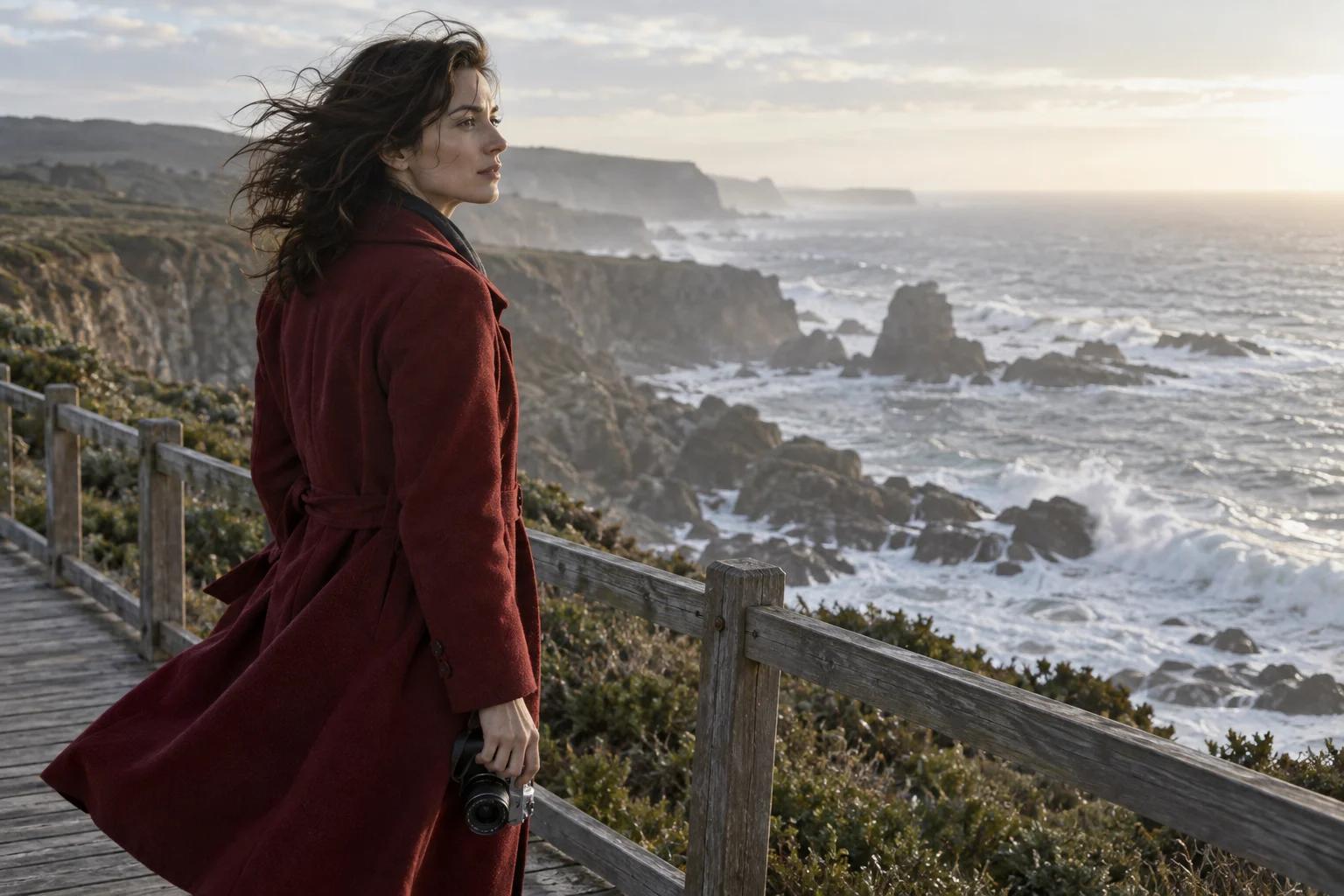
Use the red coat and the coastal setting as the visual anchors. Ask for a small action rather than a full transformation of the scene.
What to reviewCompare the face, coat and camera across the whole clip. Remove competing actions if recognizable details drift.
A woman in a red coat stands on a coastal boardwalk with a camera in her hands. Wind moves the coat gently. She looks toward the ocean, then raises the camera. Medium shot, overcast daylight, a subtle sideways camera move. Preserve the red coat and coastal mood.
Text-to-videoA motion study before a bigger sequence
A motion study before a bigger sequence
A single tracking shot lets you test direction, camera pace and environmental motion without introducing cuts or several subjects.
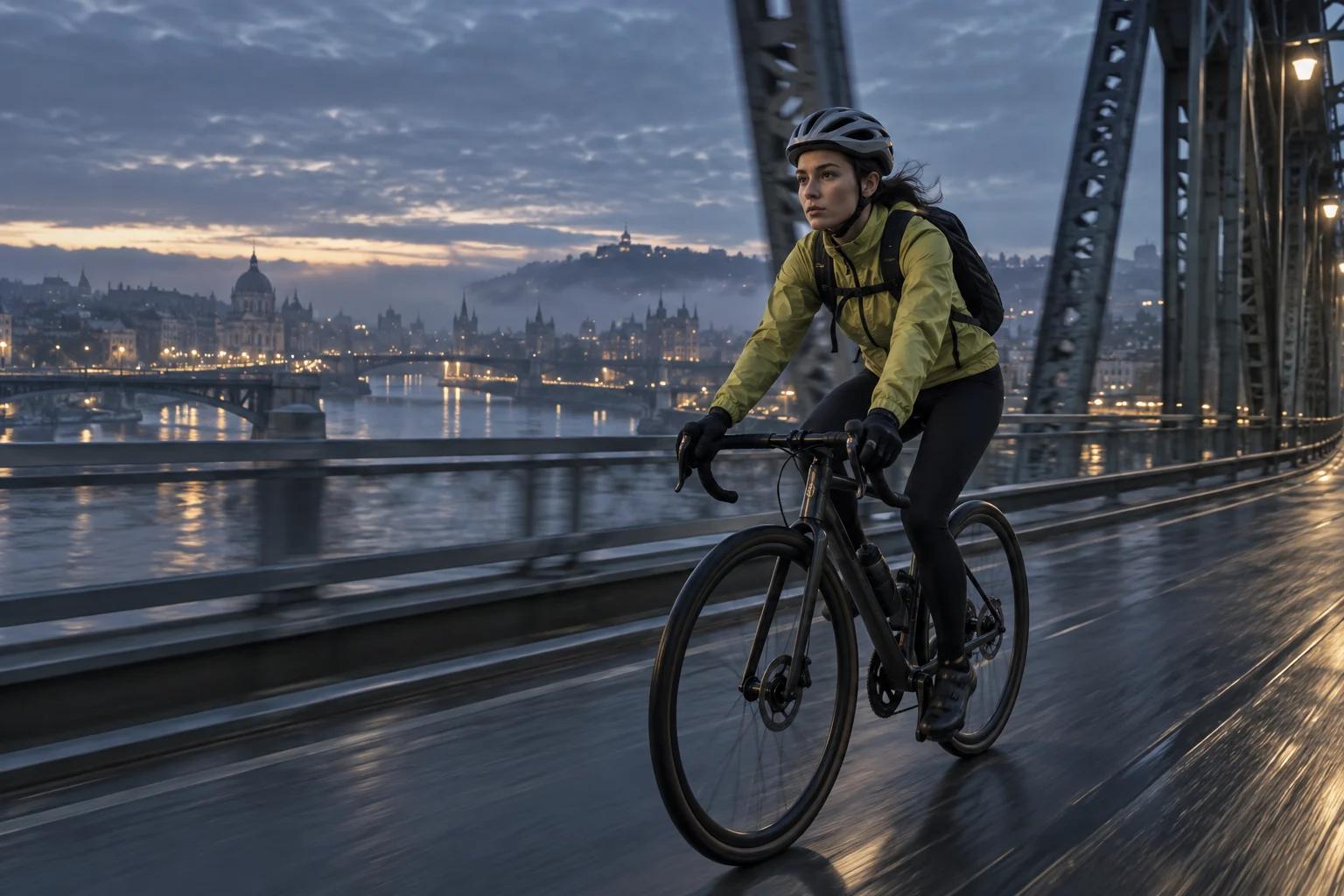
What to reviewWatch pedaling, wheel contact and the camera's relative speed. Change one movement instruction at a time to see which version reads most clearly.
A cyclist in a lime jacket rides across a steel bridge at blue hour. The camera tracks alongside at a steady pace. Mist hangs over the river; bridge lights reflect on the wet road. One continuous shot, natural pedaling and a stable horizon.
Kling 4.0 Flash vs Kling 4.0
Flash covers a narrower short-video workflow. For longer scenes, prescribed keyframes and higher-resolution finishing, Kling 4.0 Guide explains the capabilities to consider in the full Kling 4.0 model. The table separates official model specifications from the settings in this page’s workspace.
| Capability | Kling 4.0 Flash | Full Kling 4.0 |
|---|---|---|
| Clip duration | 3–20 seconds | 3–30 seconds |
| Output resolution | Up to 720p | Up to 4K |
| Dynamic range | 8-bit SDR | 1080p / 4K 10-bit HDR announced |
| Generation approaches | Text-to-video, image-to-video, Omni Reference | Broader multimodal creation and editing |
| First/last-frame combinations | Not supported | Part of the fuller frame-control workflow |
| Multi-keyframe control | Not supported | Up to 10 keyframes |
| Official rollout | Limited early access | October launch announced |
Availability and announced features can change. Check the current model entry in your account for access and supported settings. The official Flash and full-model specifications are not interchangeable.
From a focused brief to a usable draft
Use the workspace to test the visual decision that matters most, then refine from the result instead of adding more instructions at once.
Choose your input and a single goal
Decide whether you are exploring a new scene or preserving a reference. Use a text brief for an open concept and an image or reference when appearance is already decided.
Set the task in the workspace
Select Flash or Pro, add your prompt and any accepted references, then choose duration, ratio and resolution from the available controls. Check the displayed credit quote before creating.
Generate and review the whole clip
Sign in when prompted and submit the task. Review motion, subject details and camera behavior from beginning to end. Keep the strongest draft and adjust one instruction for the next version.
Access, generation speed and credits
How to check official Flash access
The official announcement describes a limited rollout, with early access beginning on September 28 for Ultra Yearly subscribers. Open your Kling AI account to check the model options available to you. This access announcement refers to Kling AI, not a Kling3.io subscription.
What “Flash” means for speed
Kling describes Flash as a lighter, faster option for everyday creation. It has not published a universal generation-time guarantee or a fixed speed multiplier. Queue conditions, clip settings and the task itself can affect turnaround; compare drafts using the same brief and settings.
How to read the task price
Use the credit quote shown for your selected workspace mode, duration, resolution and references. A longer clip or a different setting can change the quote. Public Flash materials do not establish one universal per-video price, so check the task before you submit it.
Kling 4.0 Flash questions
Give the next scene a clear direction
Start with one action, one camera decision and the visual details that matter. Use a brief above or write your own in the workspace.