Kling 3.0 Turbo AI Video Generator
Generate fast AI videos from text and images
Turn a prompt or reference image into short AI video previews online. Use Kling 3.0 Turbo to test ideas, compare motion styles, and refine the best take before final output.


My Videos


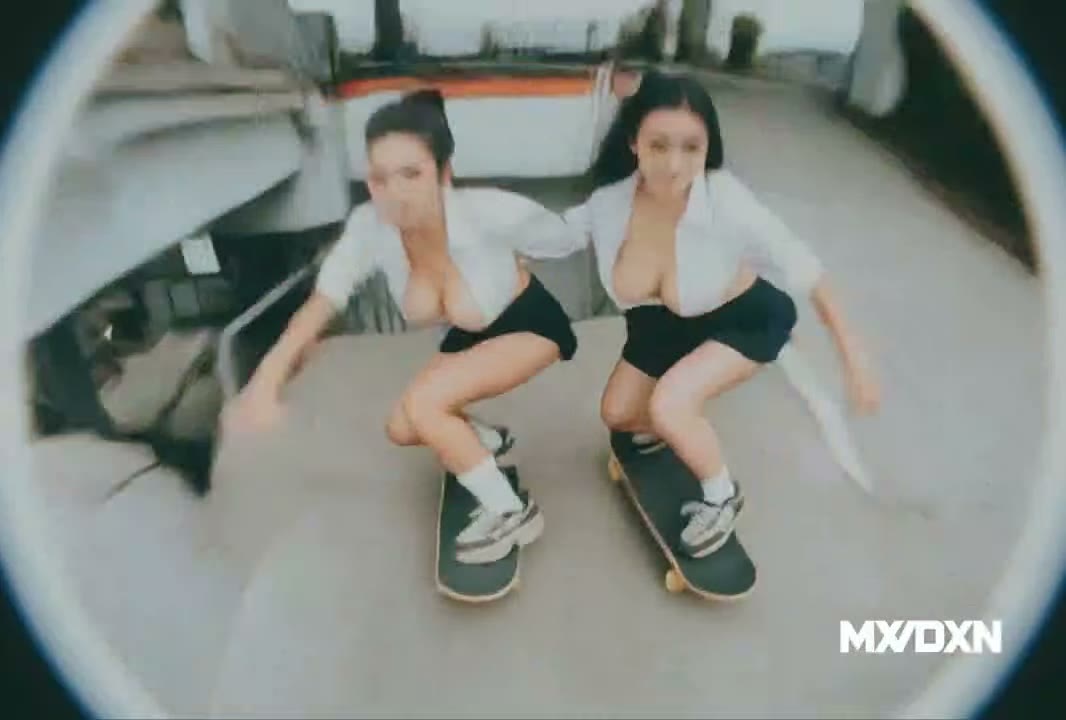
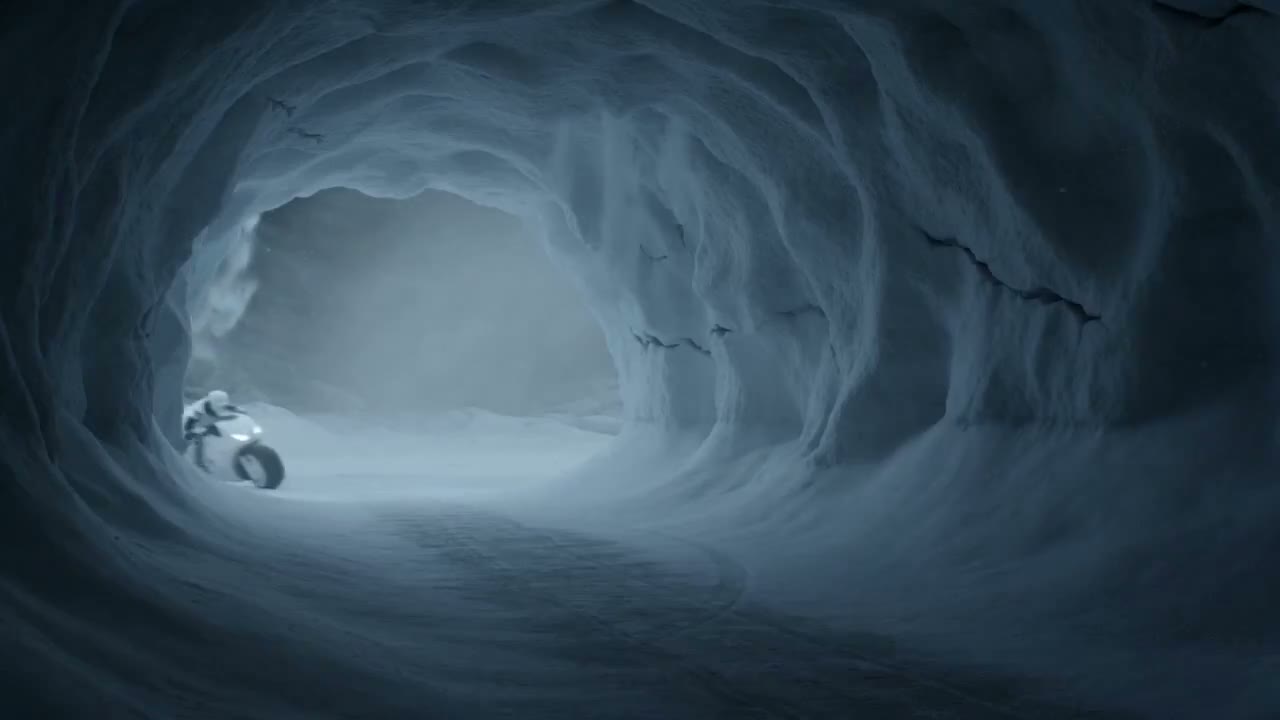


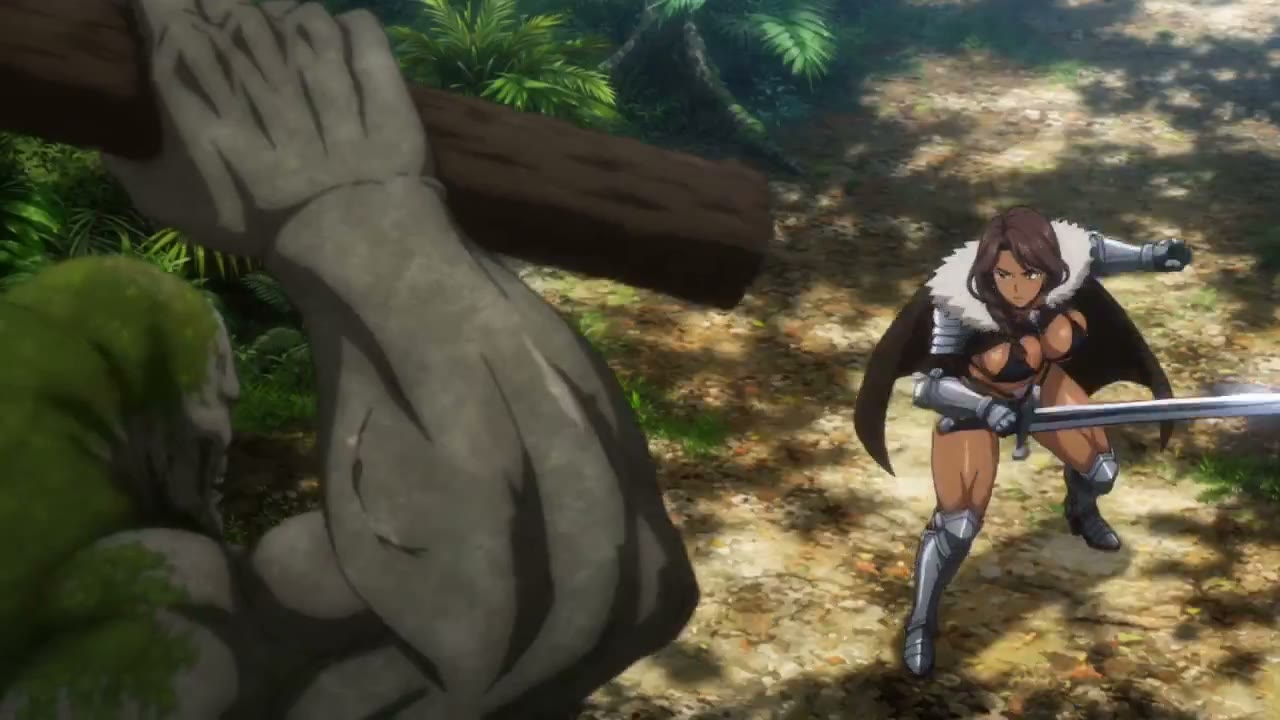

A fast way to shape AI video ideas
Kling 3.0 Turbo helps creators move from concept to preview quickly, then refine the strongest result.
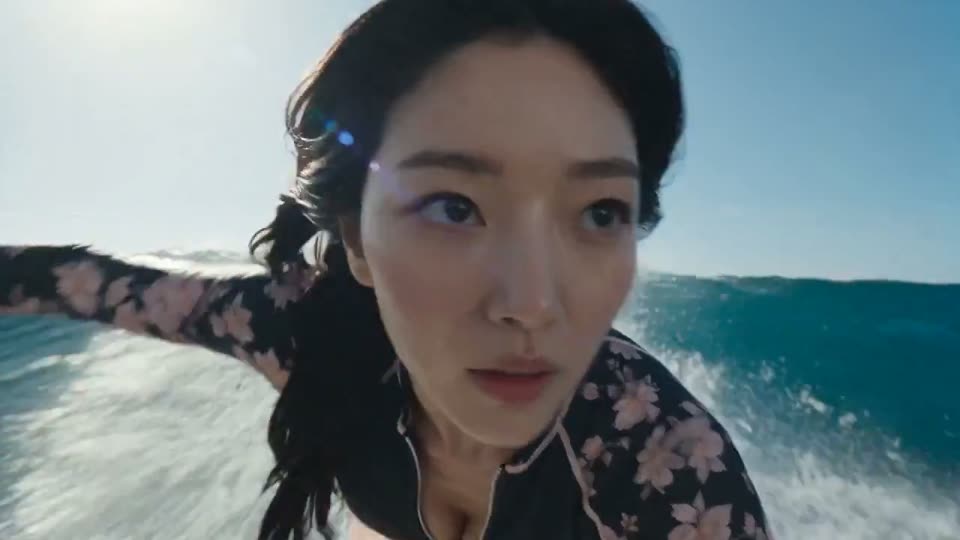
Short previews, prompt tests, image-to-video motion, ad hooks, social variants, and storyboard ideas.
Text prompts, reference images, camera notes, visual style, aspect ratio, and review feedback.
A clear preview clip that helps you decide what to refine next.
Generate quickly, compare versions, keep the best take, then polish the final result.
Create videos for every fast-moving idea
Use Kling 3.0 Turbo when you need a quick visual answer: will this hook, product shot, character beat, or storyboard moment work as video?
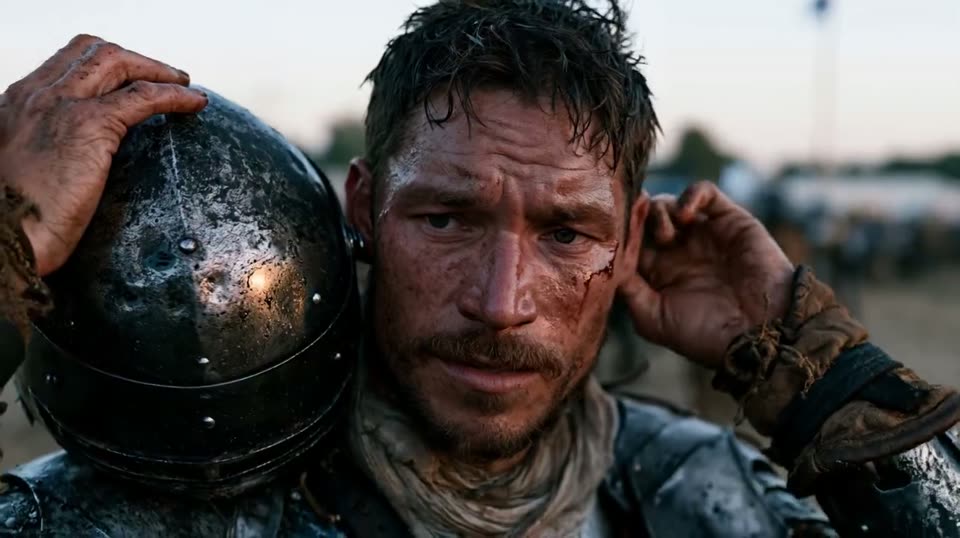
Ad concepts and hooks
Generate opening shots, product reveals, before-and-after moments, and landing-page hero clips before investing in a polished campaign edit.

Social video variants
Create vertical, square, or widescreen ideas for creator posts, announcements, memes, teasers, and short-form content calendars.
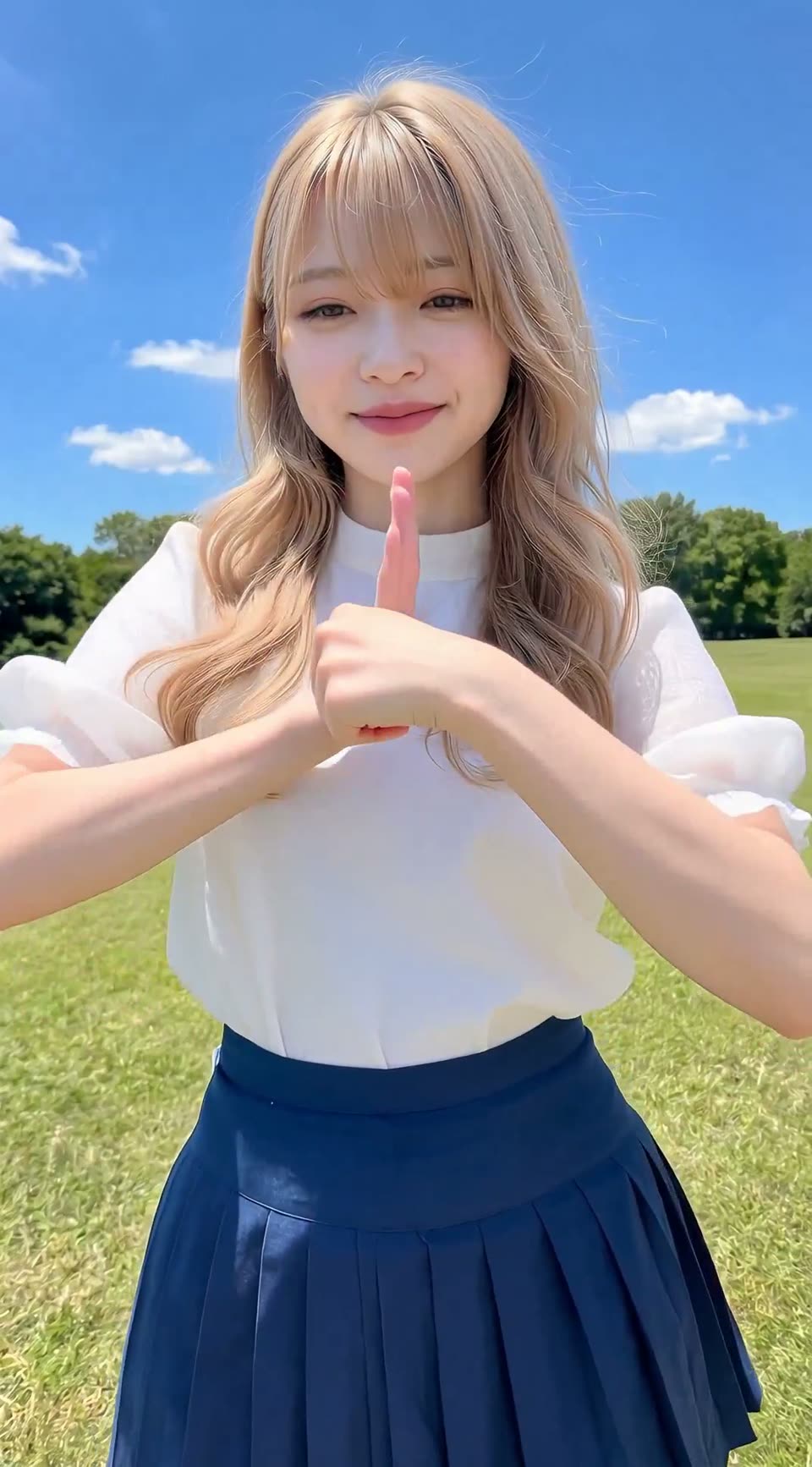
Product showcases
Upload a reference image to test rotations, packaging reveals, ecommerce motion, lifestyle scenes, and clean product-centered framing.
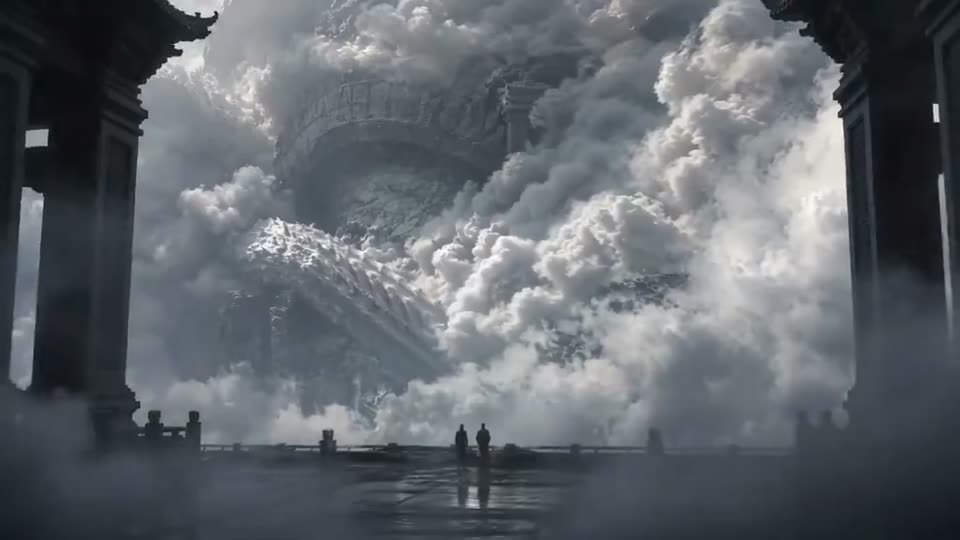
Storyboards and scenes
Turn rough scene notes into quick motion studies so editors, clients, and creative teams can align on camera angle, rhythm, and mood.
Core Kling 3.0 Turbo features
A fast generator page should help you move from idea to useful preview without hiding the controls creators need: prompt direction, image input, ratios, variants, and handoff notes.
Text to video drafts
Describe the subject, scene, camera move, and style to generate a short motion preview directly from text.
Image to video input
Use a product, character, scene, or composition image when the output needs to stay close to a visual reference.
Fast preview workflow
Generate a quick take, inspect the motion, then decide whether to refine, retry, or move the idea into final output.
Prompt control
Guide the result with camera language, motion verbs, lighting notes, visual style, duration, and aspect ratio.
Creative iteration
Create multiple versions of the same idea so you can compare framing, pace, action, and mood side by side.
Refine and export path
Keep the winning prompt, reference image, aspect ratio, and review notes together for a cleaner final render workflow.
How to generate with Kling 3.0 Turbo
Move from idea to preview in three simple steps, then keep iterating until the clip has a clear subject, readable motion, and the right format.
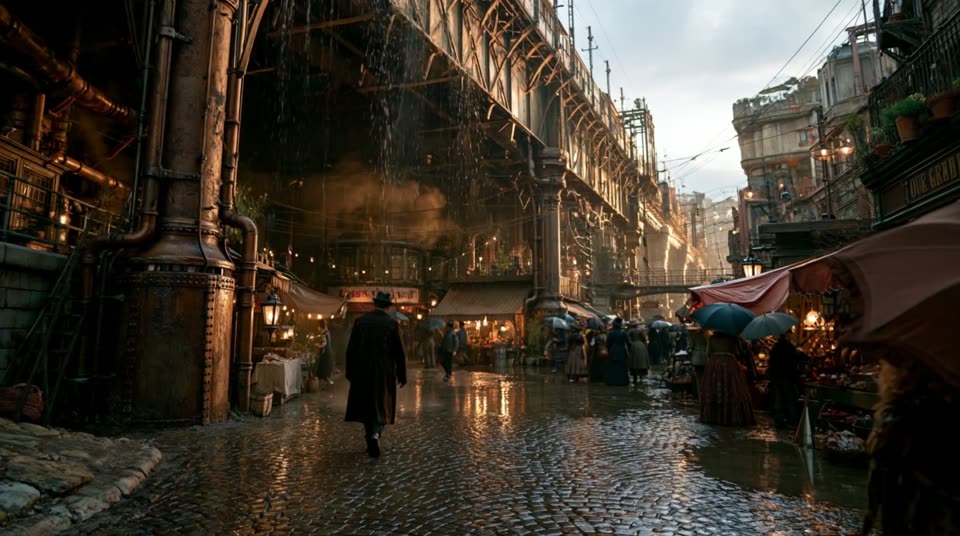
Enter a prompt or upload an image
Start with a short scene description, a product or character image, or both. Add the subject, setting, camera move, style, and target format.
Generate a fast preview
Run the generator and review the clip for subject clarity, motion readability, composition, pacing, and whether it matches the intended platform.
Refine, save, or export
Adjust one variable at a time, keep the best version, and use the strongest take as the base for final output or client review.
How to get better AI video results
Short prompts can work, but specific video direction works better. Give the generator a subject, one main action, a camera move, and the details that must remain stable.
Name the shot and movement: close-up push-in, handheld follow shot, overhead product orbit, locked tripod, slow dolly, or wide establishing shot.
Use one dominant action first: walks, turns, reveals, floats, rotates, dissolves, expands, accelerates, or moves toward the camera.
For image-to-video, state what should stay stable: face, product shape, logo placement, pose, lighting direction, costume, or layout.
A practical structure for video prompts
Change one detail per generation so you can see what improved the clip.
Put platform needs in the prompt, such as vertical framing, product close-up, or clean space for text.
Save the strongest prompt and reference image before moving to final output.
Tips for better results
Use this quick pass before each generation to reduce vague outputs and make every preview easier to judge.
A strong preview has a recognizable subject, one clear motion idea, stable framing, and a format that matches where the video will be used.
Define the subject
Name the hero object, character, product, or scene clearly. If it matters visually, include it early in the prompt.
Choose one camera move
Pick one primary camera direction instead of stacking too many moves. Simple camera language is easier to preview and refine.
Match the platform
Plan for vertical, square, or widescreen output and make sure the key moment happens early enough for ads or social clips.
Keep review notes
Track what worked, what failed, and what must stay consistent so the next generation starts from useful feedback.
Which Kling workflow should you use?
Use Turbo for fast previews and creative iteration. Move to Pro, 4K, or another workflow when the goal shifts toward polish, resolution, or a different editing style.
When a draft is ready for a different production path, continue with Cling AI video creation and compare the result in context.
Kling 3.0 Turbo FAQ
Answers for creators who want to generate fast AI videos, use images, improve prompt quality, and choose the right workflow.
Kling 3.0 Turbo is presented here as a fast AI video generation workflow for creating short previews from prompts or images. It is designed for testing ideas, comparing motion, and refining the best take before final output.
Yes. Image-to-video is useful when a product, face, character, pose, or scene layout should remain close to a visual reference while you test motion and camera direction.
The best prompts describe the subject, setting, camera move, main action, style, duration, aspect ratio, and anything that must stay consistent. Keep the first version simple, then refine one detail at a time.
Yes. It is a strong fit for short-form concepts, vertical previews, product hooks, teaser clips, and fast variant testing before you choose a final direction.
No local setup is needed for the page experience. Start from a prompt or image and review previews online.
Use Turbo when you need speed and iteration. Use Pro or 4K when you already know the winning direction and want to focus on polish, presentation quality, or higher-detail output.
Start generating with Kling 3.0 Turbo
Open the generator, test a prompt or image, preview the motion, and keep refining until the video direction is clear.