Kling 4.0 AI Video Generator — Create Your Next Scene
Text to Video · Image to Video · Creative Iteration
Explore Kling 4.0 and create videos for product campaigns, social posts, and visual stories. Turn a written brief or reference image into a scene, direct the movement, and refine your next take.

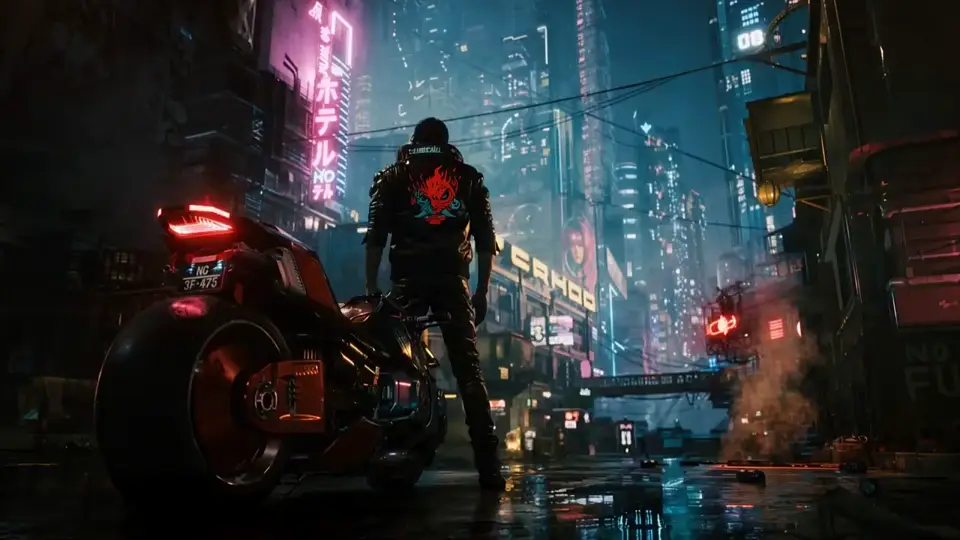

Text to Video
Start with an idea
Image to Video
Animate your own frame
Creative Iteration
Shape the next take


Your videos

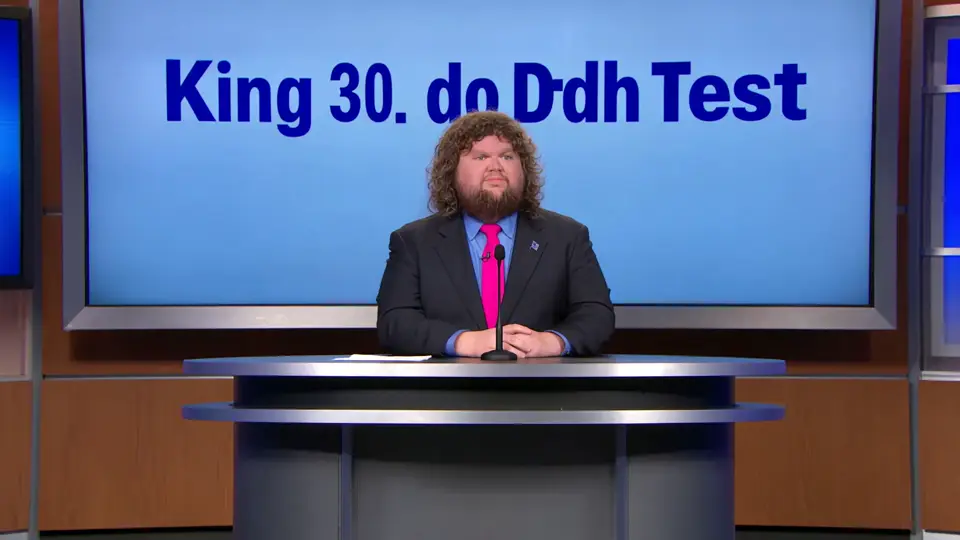


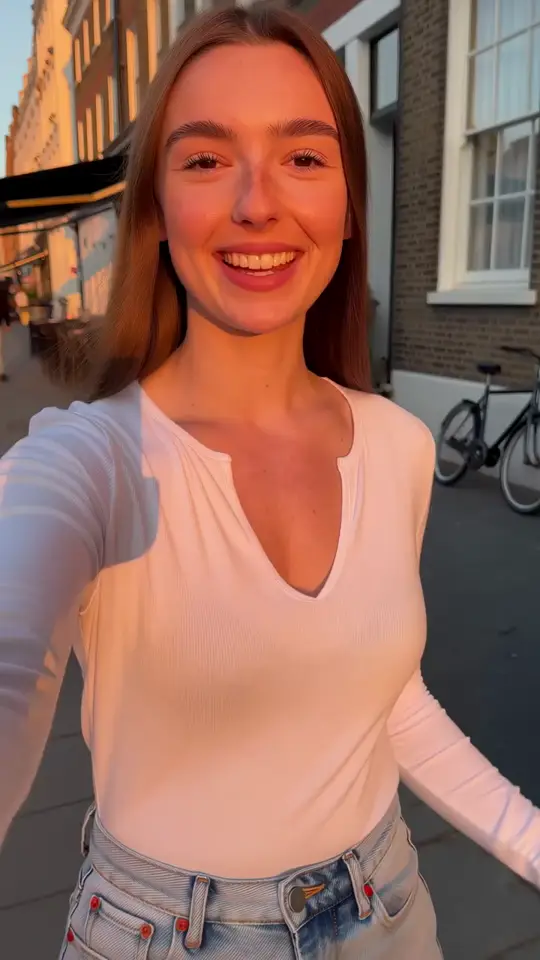
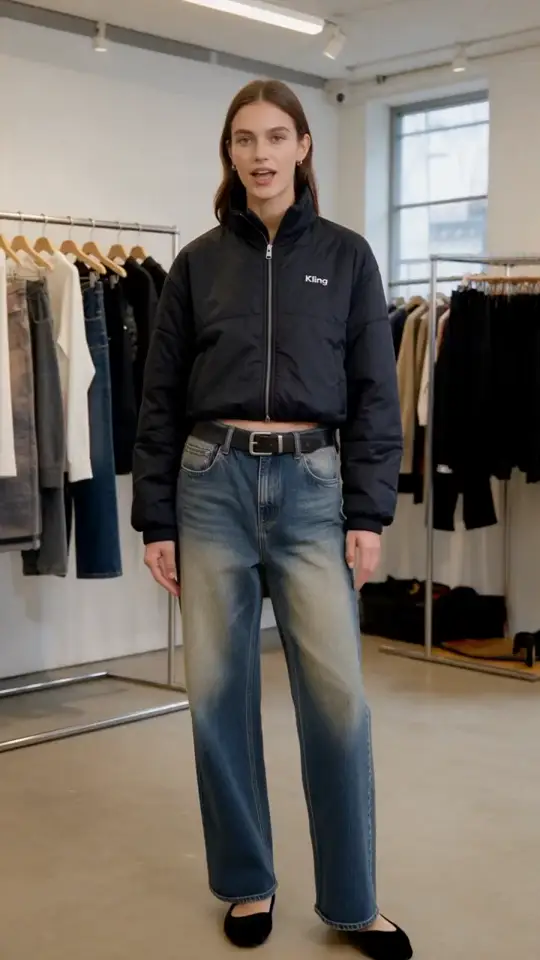


Kling 4.0 inspiration for your next video
Explore three Kling 4.0 AI video directions: a car-to-film-set montage, a dance through warm lights, and a conversation near a cliff. Each scene gives movement and setting a different role.
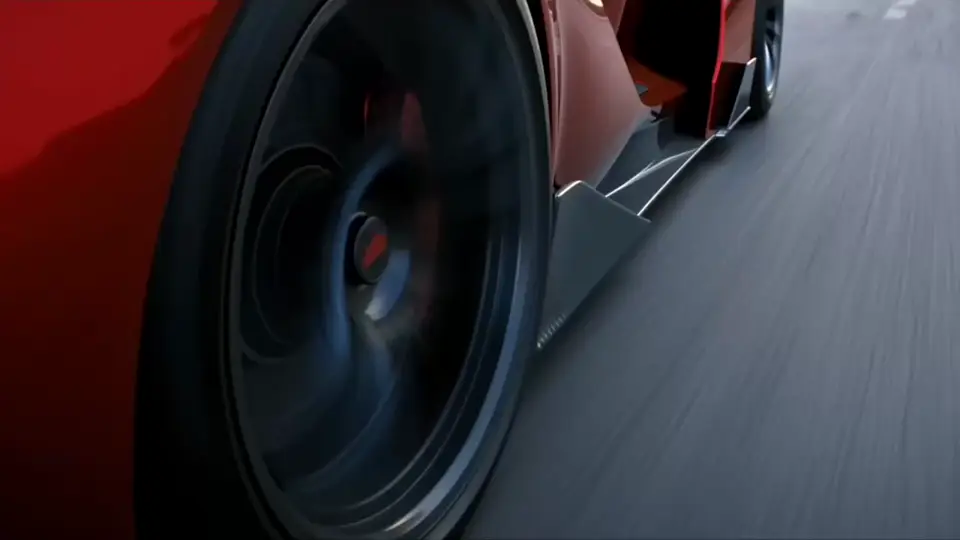
A car scene that changes pace
Build a Kling 4.0 AI video idea around a sports-car wheel, then shift to the human action on a film set. The change in scale gives a short sequence a clear progression.
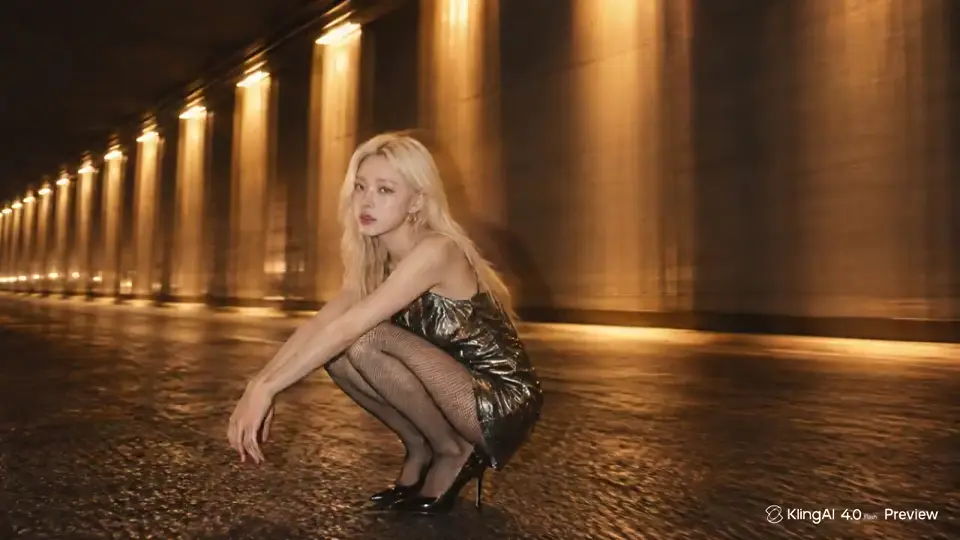
One dancer, a whole visual rhythm
Find Kling 4.0 AI video inspiration in a performer moving through a warmly lit tunnel. Repeating lights and a sequined dress keep the motion easy to follow.
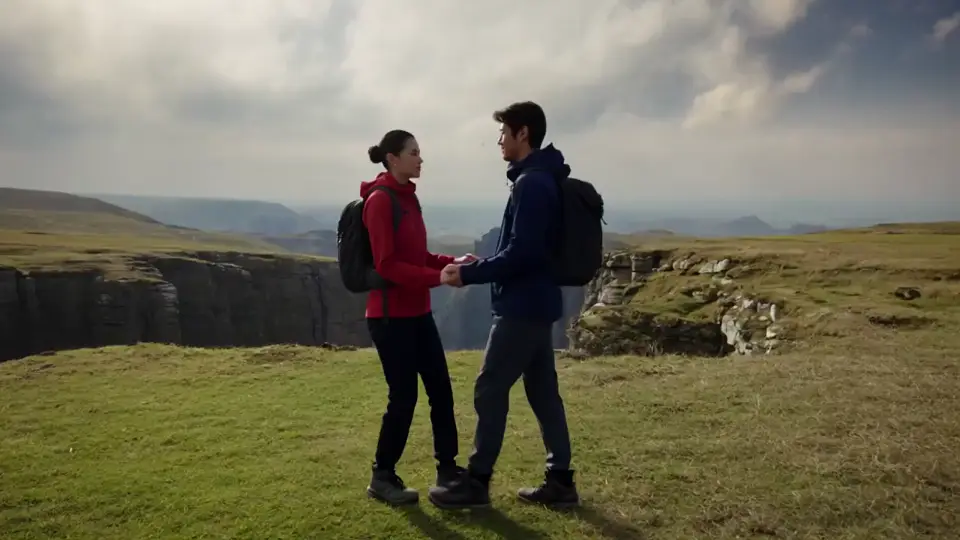
A conversation with room to breathe
For a Kling 4.0 AI video story, place two hikers in an open grassy landscape near a cliff. Their exchange carries the human moment while the setting gives it scale.
Kling 4.0 video tools for every starting point
Start with a written idea, build from a reference image, or bring your next project into an online video generator. Each starting point suits a different creative task.
Kling 4.0 text to video
For campaign concepts and scenes not yet photographed, develop a Kling 4.0 AI video brief from a written idea. Describe the subject, visual style, and movement to explore an original direction.
Kling 4.0 image to video
An existing image gives your concept a visual anchor. Use a product photo, illustration, or character frame to explore motion while keeping a clear reference for the look you want.
Kling 4.0 online video generator
Bring planning and creation into the same browser session on the Kling 4.0 page. Choose Flash or Pro to explore the available inputs, tune your scene settings, and review the credit estimate before creating.
Why use the Kling 4.0 AI video generator?
Turn a brief into visible action
Use the Kling 4.0 AI video generator to develop a product launch, social post, or story. Describe the subject, camera, and mood to give your idea a visible starting point.
Get more from an image you already have
Bring a product photo or a character frame into your video workflow. Choose the movement and camera direction, then compare the result with your original composition.
Find the stronger version
Refine your Kling 4.0 video brief one choice at a time. Change a gesture, camera path, or pace, then compare takes to find what communicates your idea best.
Create with the Kling 4.0 video generator in three steps
Choose your starting point
Start in the Kling 4.0 AI video generator with text or an image. Choose one subject and a clear composition before adding movement.
Direct the action
Describe one main movement, the camera path, and the ending. Choose the available duration and format, then review the displayed credit cost.
Create, review, and refine
Review your take in the Kling 4.0 video generator. Download the version you like or change one detail and create another.
Get to know Kling 4.0
Explore Kling 4.0's announced approach to keyframes, visual references, and longer sequences, then shape your next product, social, or story scene from text or an image.
Kling 4.0 video modes and access
Compare Kling AI's announced Kling 4.0 and Flash capabilities with the Flash and Pro creation options available on this page.
Kling 4.0 references and keyframes
See the announced plan for up to 10 keyframes and 15 multimodal references in the full model, separate from the controls available on this page.
Kling 4.0 access, pricing, and API
Follow Kling AI's access, pricing, and API updates, then check this page for its available settings and credit estimate.
Kling 4.0 and your 4K video workflow
Kling 4.0 names the AI video model; 4K describes output resolution. Start with Kling 4.0 to develop your scene, then choose the workflow and resolution that suit your final delivery.
For a 4K project, open the dedicated 4K generator below, or select 4K in the Multi Shot workspace. Check the available settings before creating and confirm the downloaded file’s dimensions before publishing.
Kling 4.0 Pricing: Simple & Transparent Plans
Choose the perfect Kling 4.0 plan for your video creation needs with advanced AI technology.
Basic
360 credits each month, ideal for consistent creators.
- 360 credits monthly (≈36 videos)
- Access to Draft Mode (20x faster)
- Commercial-ready output
- Email support
Pro
Popular1520 credits and priority processing for growing teams.
- 1520 credits monthly (≈132 videos)
- Priority processing queues
- 16-bit HDR & EXR export
- Priority support
Studio
3600 credits, fastest queues, and dedicated assistance.
- 3600 credits monthly (≈360 videos)
- Fastest Omni One generation
- Dedicated account manager
- Full commercial rights
Your Kling 4.0 video questions, answered
Flash and Pro are the creation modes offered on this site. Choose one to see the inputs, settings, and credit estimate available here. The guide separately explains official Kling 4.0 model capabilities and access.
Yes. Choose the image input and upload a supported file. Use your prompt to describe subject movement, camera movement, and anything that should stay unchanged. Check the upload guidance before starting.
For a Kling 4.0 video brief, choose one subject and one main action. Add lighting, a camera move, and an ending. Keep the action within your selected duration.
Choose Flash or Pro to see the credit estimate for its selected settings before submission. Sign in to check your balance. This quote covers the site's selected mode; it does not establish official Kling 4.0 pricing.
Your result appears in this generator when generation finishes. You can download it and find the task in your history. If a task cannot finish, follow the message shown before submitting another attempt.
No. Kling 4.0 is a model name, while 4K refers to video resolution. Using the Kling 4.0 AI video generator does not by itself mean every output is 4K; check the resolution offered by your selected workflow.
Use the dedicated 4K generator linked in the 4K workflow section, or open Multi Shot and select its 4K mode. Review the available settings and credit cost, then check the downloaded video dimensions.
Bring your next idea to the Kling 4.0 AI video generator
Explore Kling 4.0 and bring your next AI video idea to life. Start with text or an image, create a first take, and refine the scene you want.