Kling AI Video Generator
From text and images to videos you can preview and refine
Use the Kling AI Video Generator to explore text-to-video and image-to-video workflows. Choose a model, describe your scene, then preview and download the result from the same workspace.
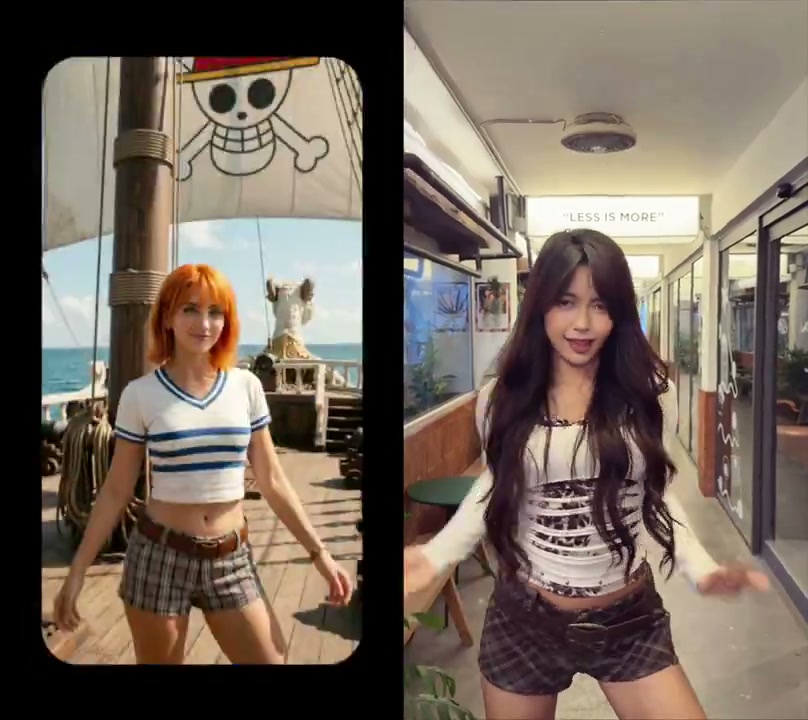
Follow a motion reference
Pair a reference video with a character image when the action matters more than a text description. Choose a clear movement and keep the subject visible.
Explore Motion Control AI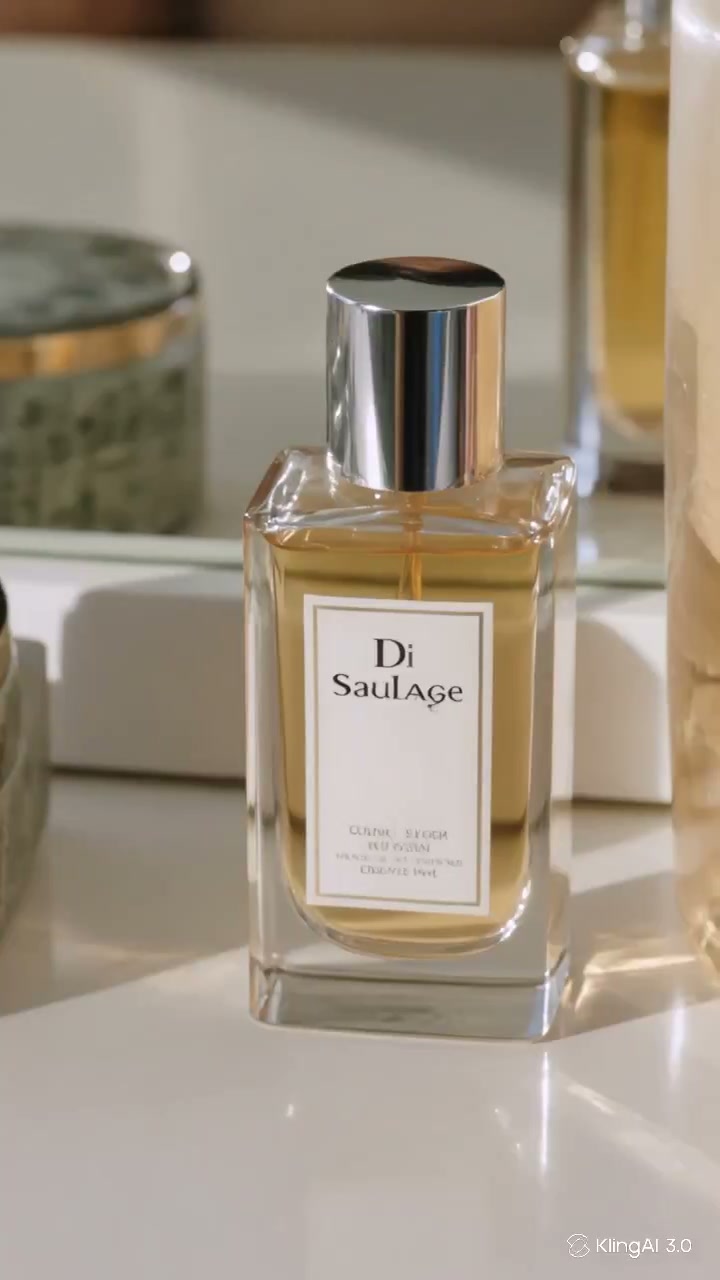
Develop a product or campaign idea
Start from a product image or a written brief. Explore camera movement and scene variations, then review the result before using it in your campaign.
Explore Kling models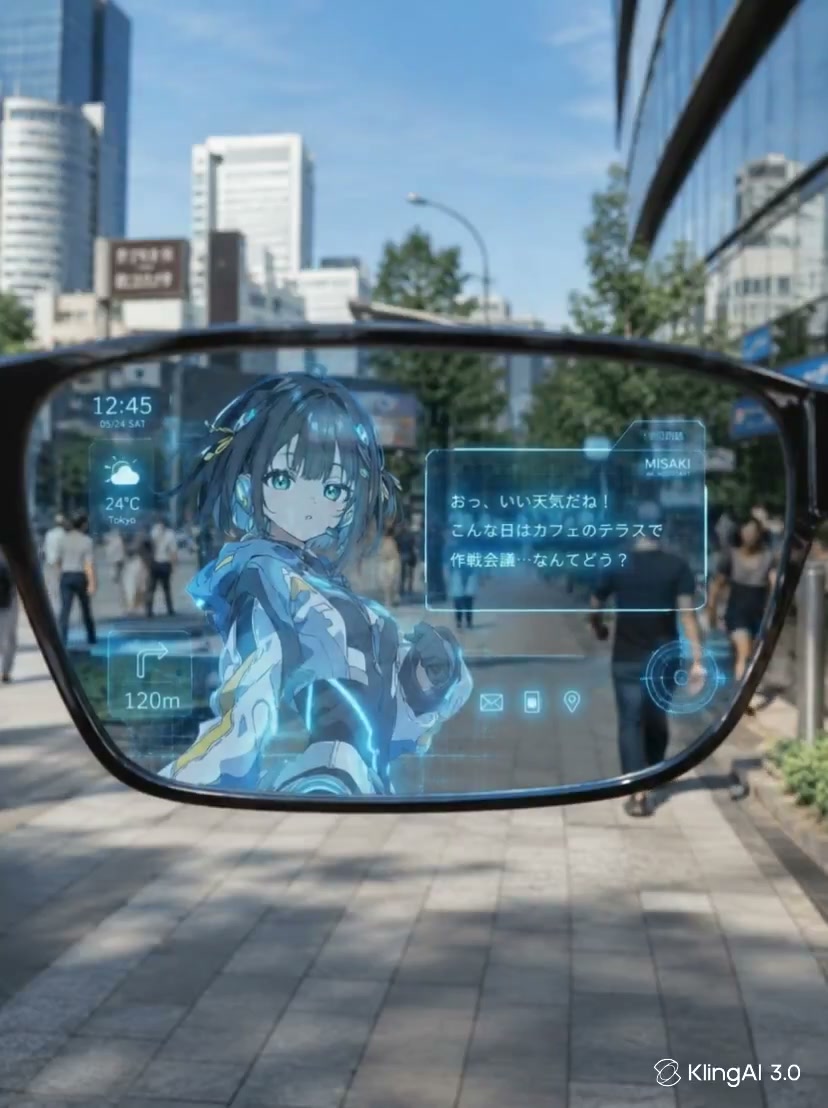
Describe framing and camera movement
State whether the shot should stay still, move closer or follow the subject. Check the result and refine one instruction at a time.
Start creatingText to video
Input
Image to video
Input
Motion transfer
Available controls
Your videos
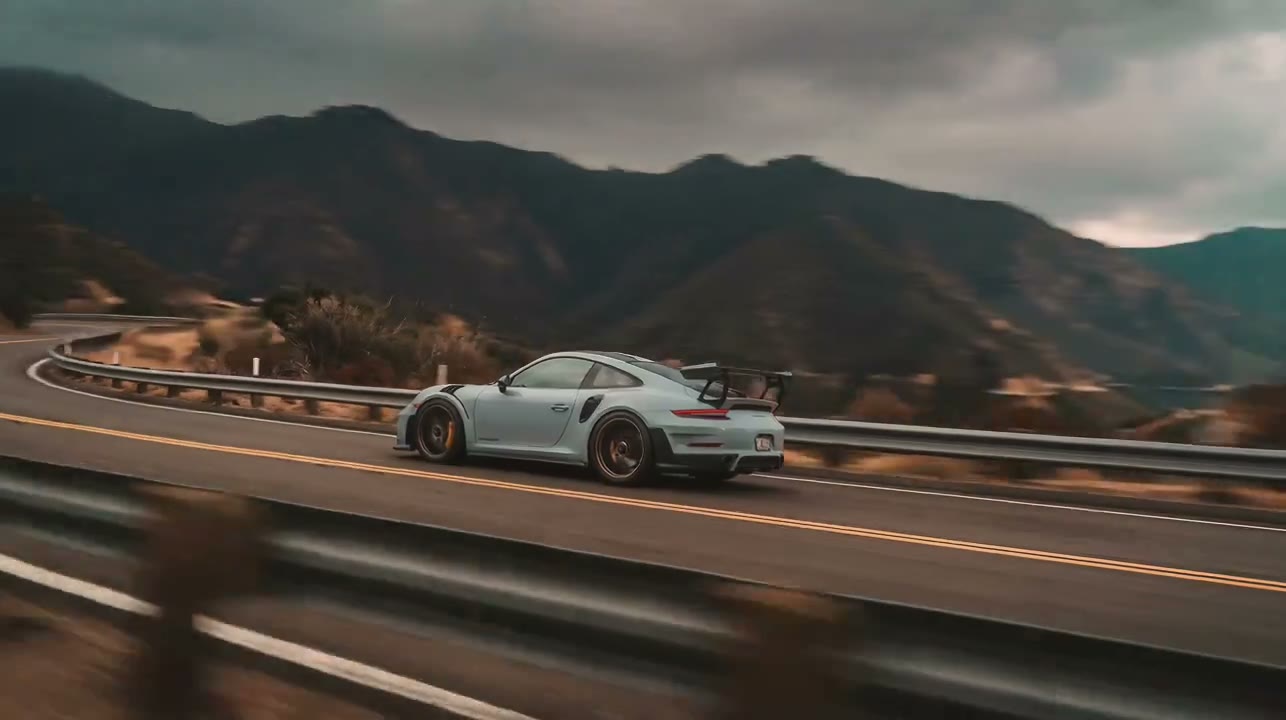
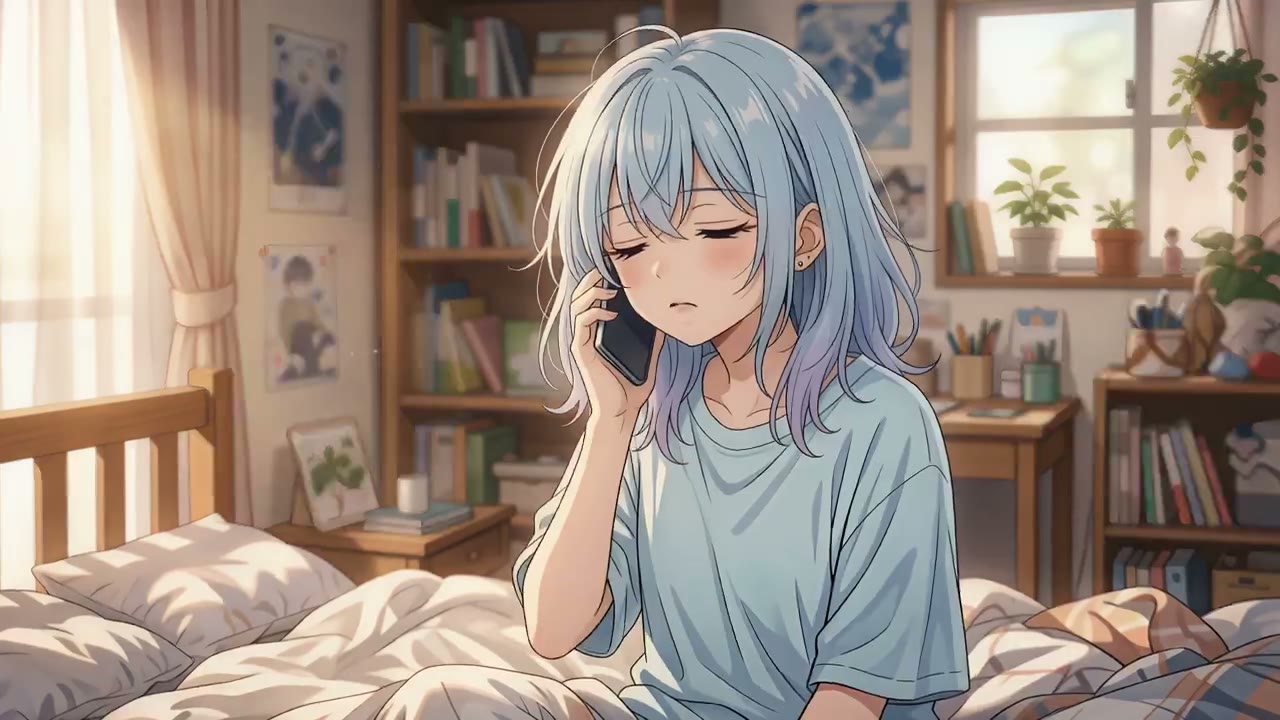
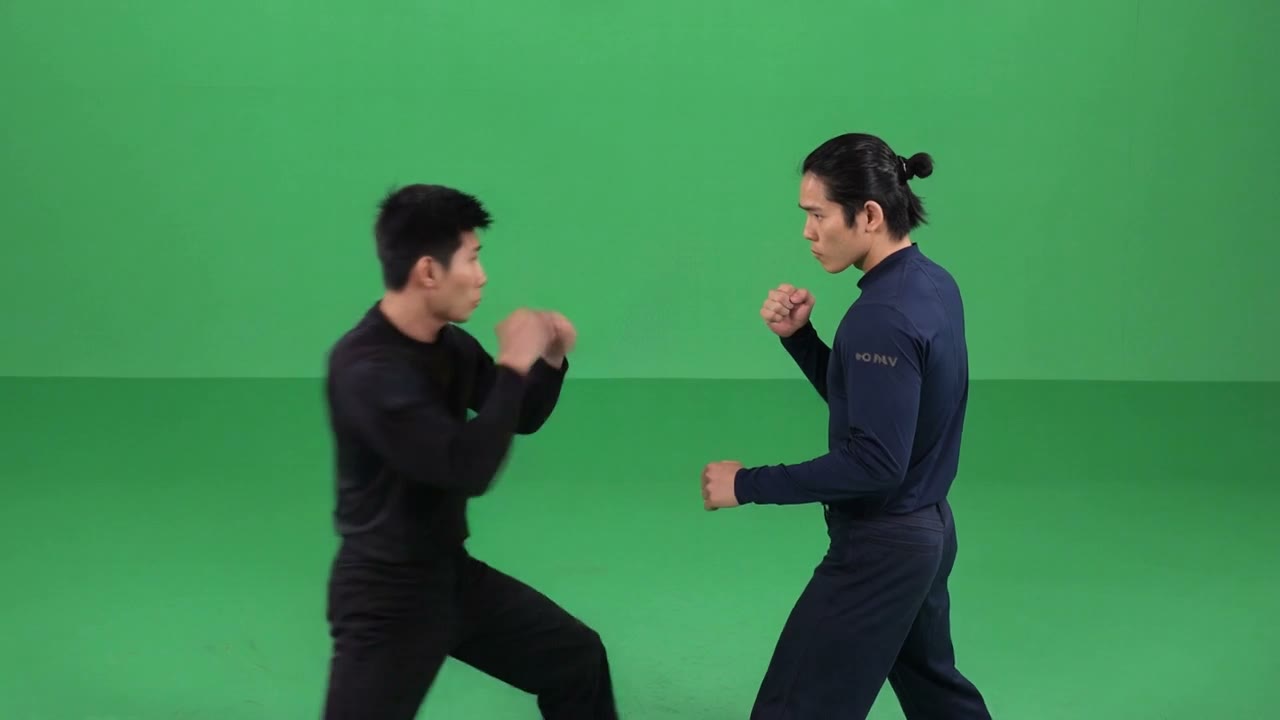
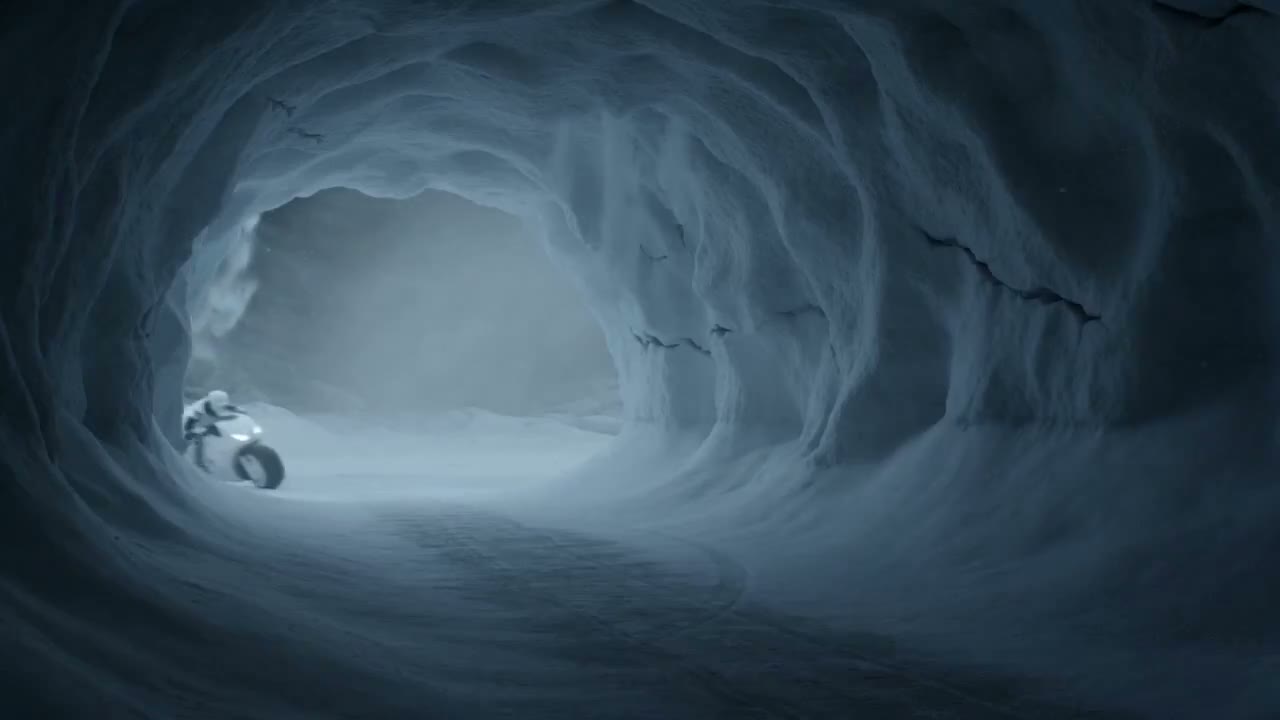

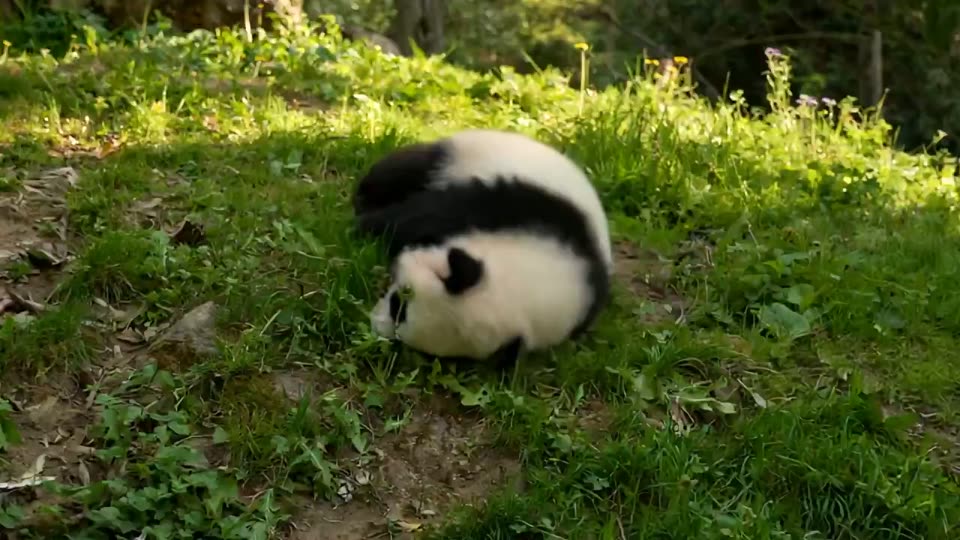
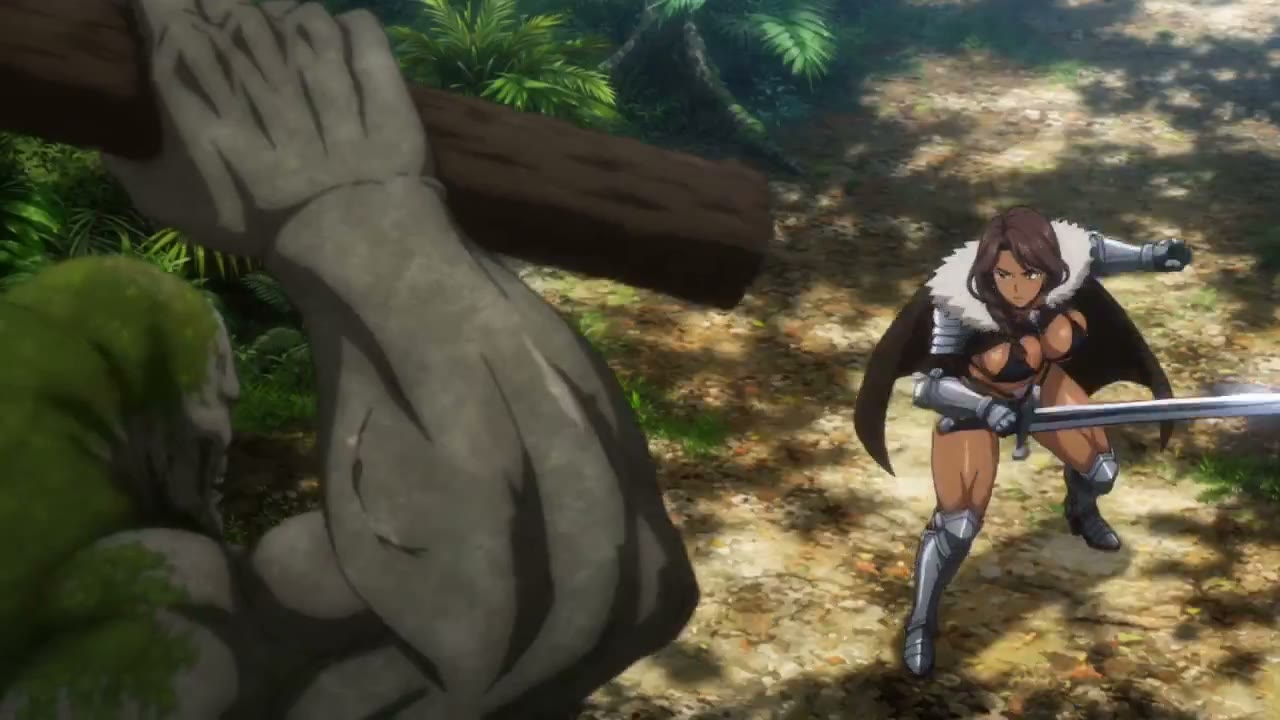
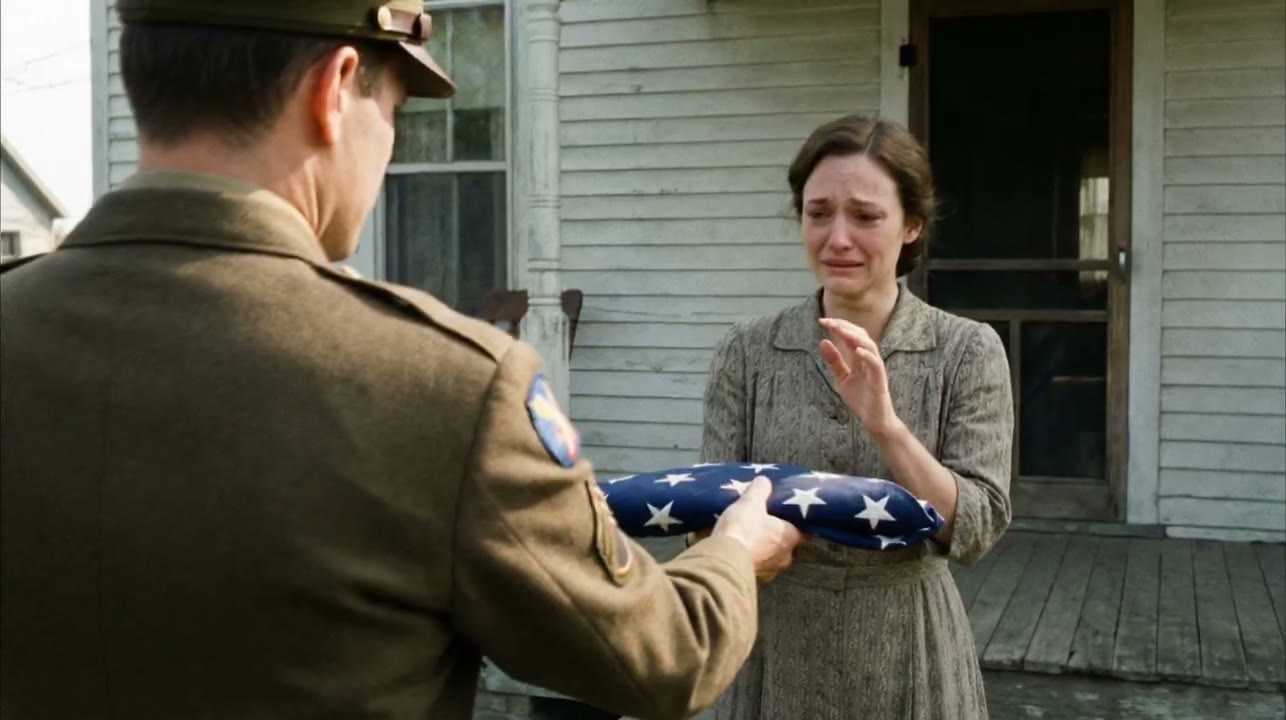
What is Kling AI?
Kling AI brings video creation workflows together: develop a written scene or work from a visual reference with Kling 4.0 text-to-video and image-to-video, and use Motion Control AI when an existing performance should guide the movement. When your starting point is a character or product image, the Kling O4 reference-preparation approach helps you record its defining details before describing the movement.
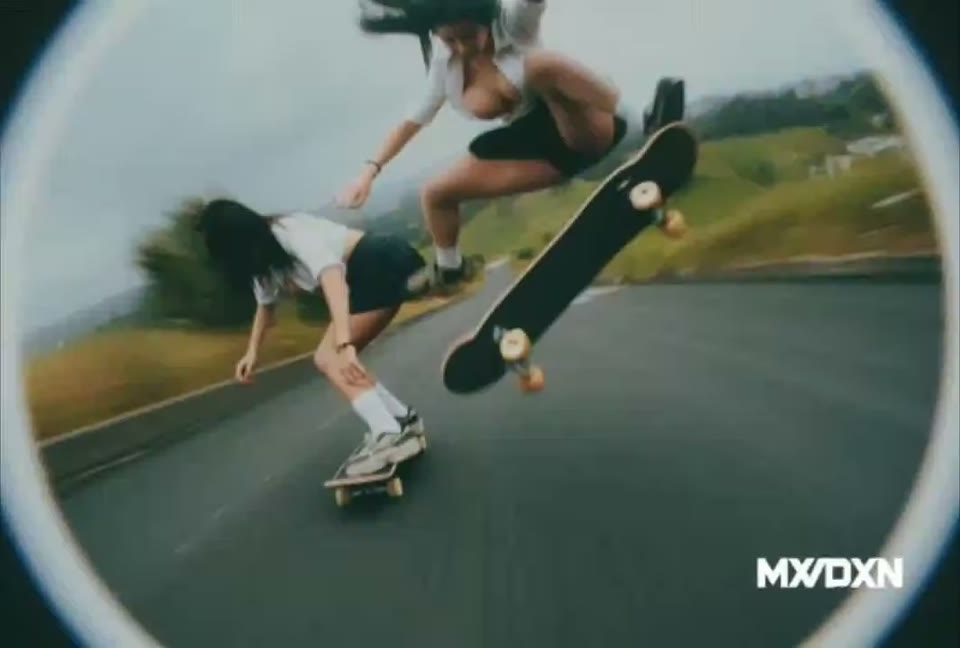
Create short social video concepts
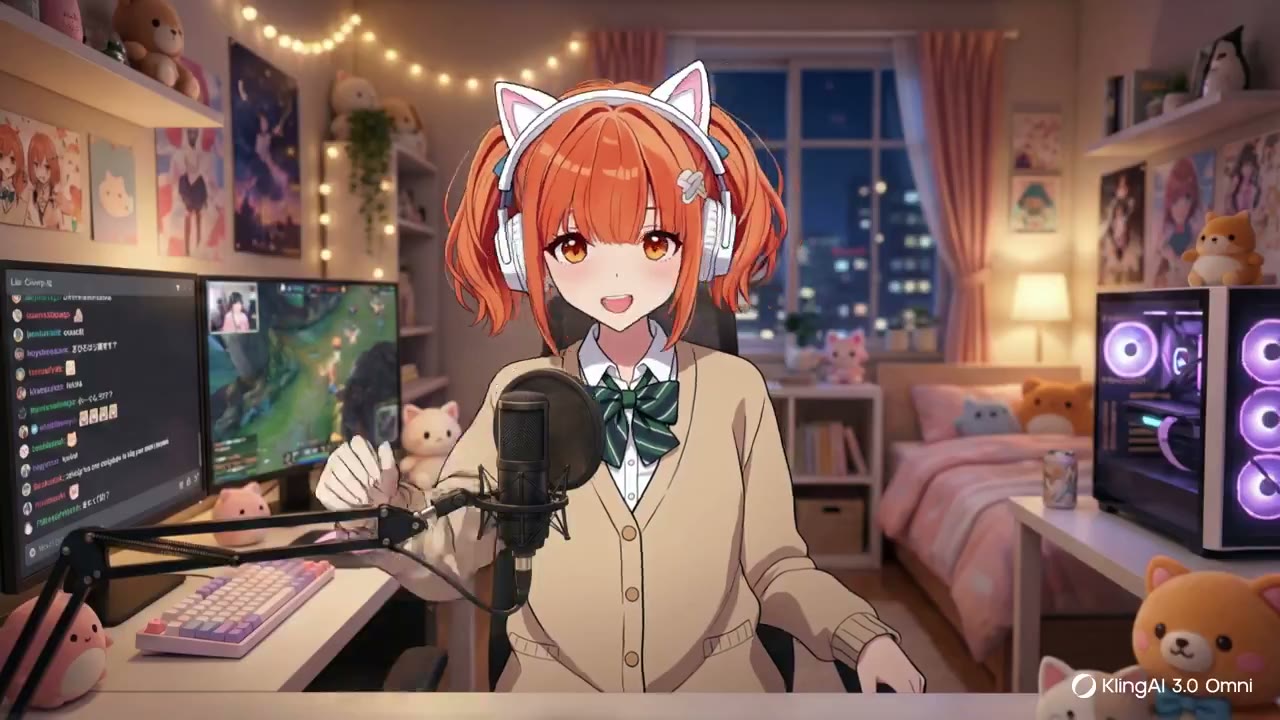
Explore character introductions, expressive gestures and short scenes. Choose a composition that fits the platform where you plan to share your edit.
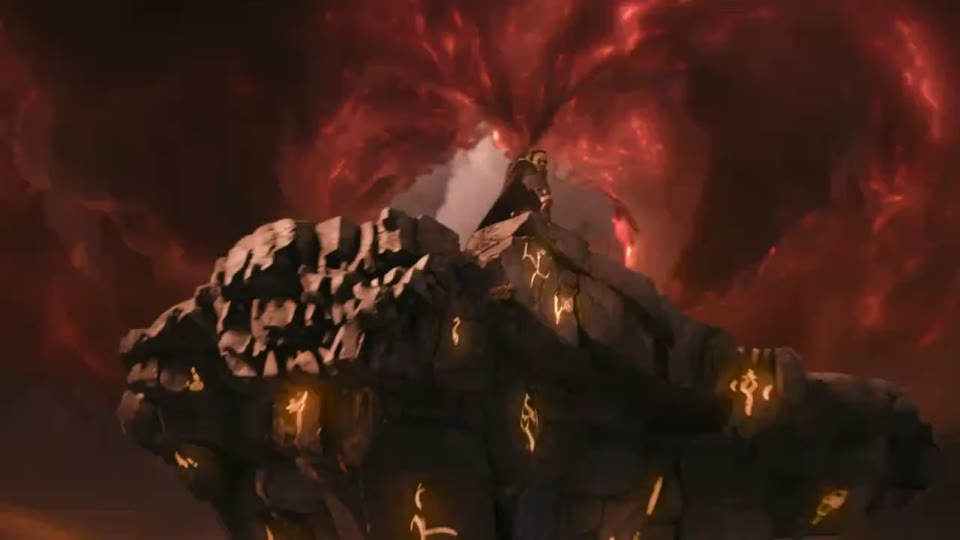
Develop a product or campaign idea
Start from a product image or a written brief. Explore camera movement and scene variations, then review the result before using it in your campaign.
Match the workflow to your brief. Set the available duration, format and generation options before submitting, then compare the result with the scene you intended.
Text to video
Write the subject, action and setting. Add an image when your chosen workflow calls for one.
Choose settings
Choose the available model, aspect ratio, duration and output options. Review the displayed credit estimate.
Download video
Watch the result, compare it with your brief and download the clip. Refine the prompt if you want another version.
Start with a written scene
Describe the subject, action, setting and camera movement. Keep the first prompt focused on one clear moment so you can judge the result against your brief.
Text to video
Give your scene a visual reference
Use an image to establish the character, product or composition where the selected model supports image input. Describe the motion you want to add.
Image to video
Turn a brief into a visual sequence
Match the workflow to your brief. Set the available duration, format and generation options before submitting, then compare the result with the scene you intended.
Start with a written scene
Describe the subject, action, setting and camera movement. Keep the first prompt focused on one clear moment so you can judge the result against your brief.
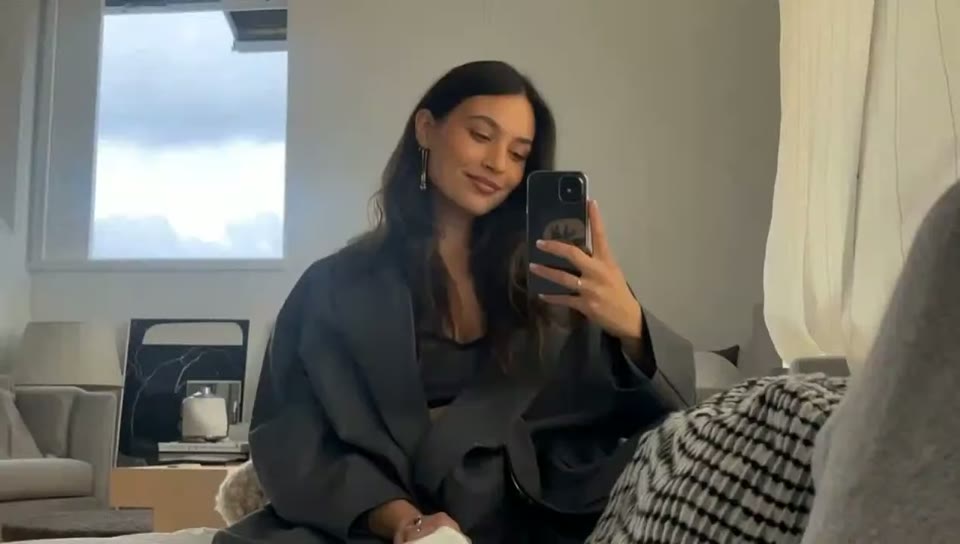
Give your scene a visual reference
Use an image to establish the character, product or composition where the selected model supports image input. Describe the motion you want to add.
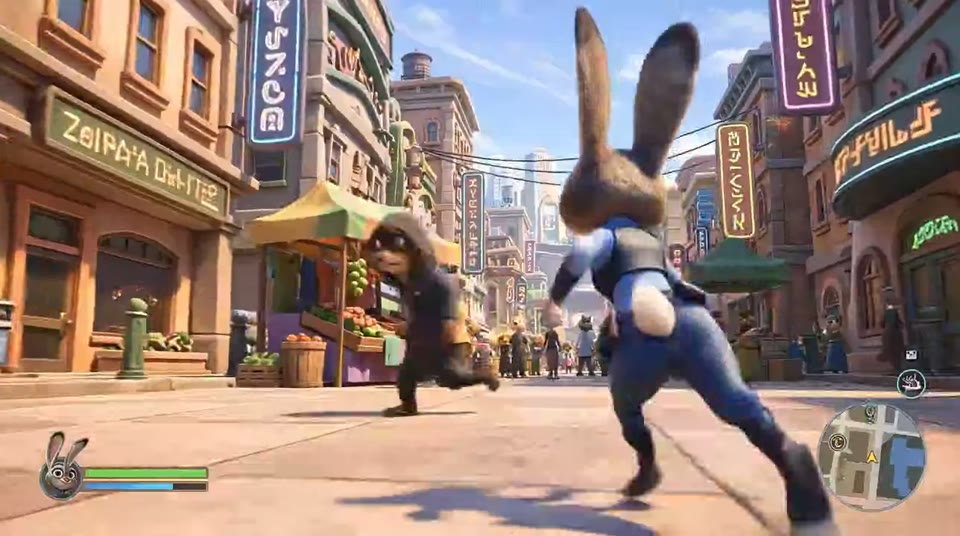
Describe framing and camera movement
State whether the shot should stay still, move closer or follow the subject. Check the result and refine one instruction at a time.
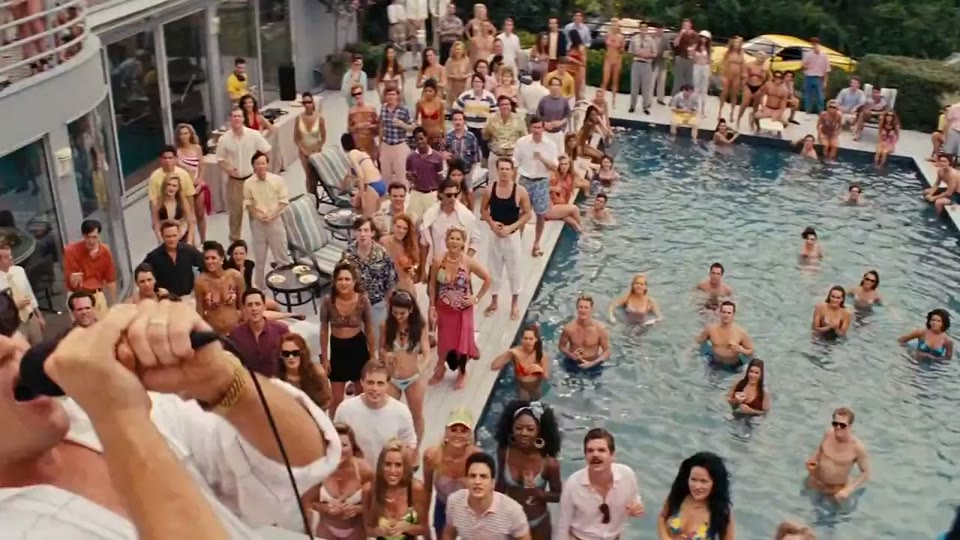
Explore a visual direction
Describe lighting, color, atmosphere and composition. Keep the visual direction consistent across prompts you plan to edit into the same sequence.
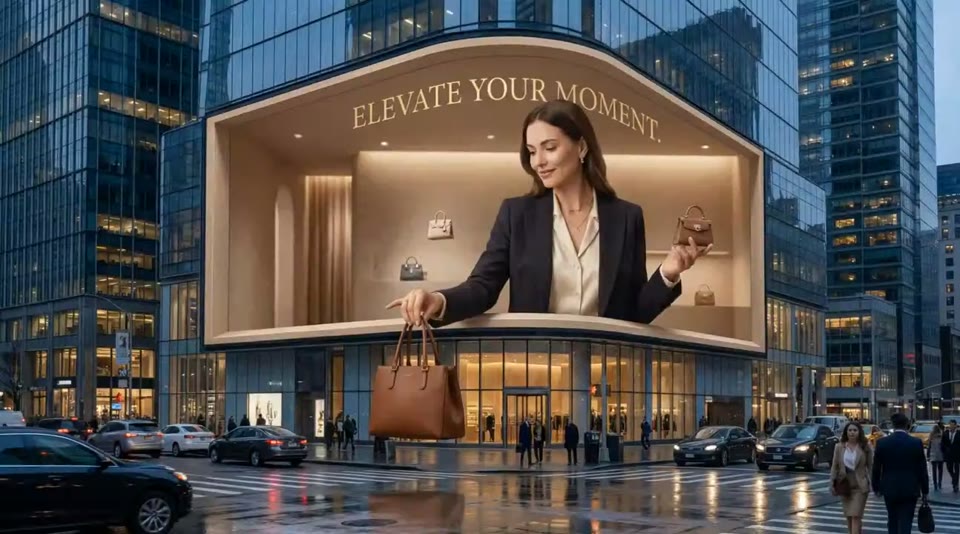
How to use the Kling AI Video Generator
Match the workflow to your brief. Set the available duration, format and generation options before submitting, then compare the result with the scene you intended.
Describe your shot
Write the subject, action and setting. Add an image when your chosen workflow calls for one.
InputText to videoSelect a model and options
Choose the available model, aspect ratio, duration and output options. Review the displayed credit estimate.
Choose settingsAvailable controlsCheck your prompt and generate
Sign in, complete the prompt check when requested, then create the video. Follow progress in the results panel.
Create videoPreview resultsPreview and download
Watch the result, compare it with your brief and download the clip. Refine the prompt if you want another version.
OutputDownload video
Build a video around your idea
Match the workflow to your brief. Set the available duration, format and generation options before submitting, then compare the result with the scene you intended.
Plan one shot at a time
+
Break a story into a small set of clear actions. Use the multi-shot and draft tools when you want to develop a sequence from individual ideas.
Develop a product or campaign idea
+
Start from a product image or a written brief. Explore camera movement and scene variations, then review the result before using it in your campaign.
Create short social video concepts
Explore character introductions, expressive gestures and short scenes. Choose a composition that fits the platform where you plan to share your edit.
Review before you download
Preview the whole clip and check motion, subject details and the ending. Download the version that works for your project or adjust the inputs and generate again.
Choose the tools your project needs
From a first idea to a finished clip
Plan one shot at a time
Break a story into a small set of clear actions. Use the multi-shot and draft tools when you want to develop a sequence from individual ideas.
Check the cost before creating
Use the credit estimate shown by the selected generator. Cost and available controls can change with model, duration and output settings.
Follow a motion reference
Pair a reference video with a character image when the action matters more than a text description. Choose a clear movement and keep the subject visible.
Kling AI · View pricing
Use the credit estimate shown by the selected generator. Cost and available controls can change with model, duration and output settings.
Kling 3.0 Pro
Ideal for creators and professionals
- 1,380 Credits
- Native 1080p & Audio Sync
- Priority processing
- 16-bit HDR & EXR Export
- Priority support
- Commercial video license
- Access to GPT Image 2.5 Flare & Sunburst
- Kling 3.1 Turbo · 4–15s; 6–15s requires an available balance of at least 100 credits
Kling 3.0 Max
PopularFor studios and power users
- 4,500 Credits
- Native 1080p & Audio Sync
- Fastest generation speed
- Permanent video storage
- Full commercial rights
- Dedicated account manager
- Access to GPT Image 2.5 Flare & Sunburst
- Kling 3.1 Turbo · 4–15s; 6–15s requires an available balance of at least 100 credits
Kling 3.0 Ultra
For enterprise & studio teams
- 10,400 Credits
- Native 1080p & Audio Sync
- Fastest generation speed
- Permanent video storage
- Full commercial rights
- Dedicated account manager
- Priority support
- Access to GPT Image 2.5 Flare & Sunburst
- Kling 3.1 Turbo · 4–15s; 6–15s requires an available balance of at least 100 credits
What is Kling AI · Questions and answers
From text and images to videos you can preview and refine
Kling AI is a starting point for creating videos from text, images and movement references. This page brings the available video workflows and model choices into one workspace.
Yes. Select a text-to-video or image-to-video workflow supported by the model, then write the scene or add a reference image. The controls show which inputs the current model accepts.
Available duration, resolution, aspect ratio and reference controls depend on the model. Select a model first and use the options shown in the generator.
The generator displays an estimate based on your selected settings. Check your balance and the pricing page before generating if you need more credits.
Completed clips appear in the results panel. Open a clip to review it and use the download control to save a version for your editing workflow.
Use Motion Control AI when you have a reference video and want its action to guide a character image. Use text or image generation when you want to begin with a scene idea.
Create your next video
Choose a workflow, add your idea and review the result.