
How Magi-2 generates video and sound
Magi-2 is Sand AI’s multimodal video model. Text sets the scene, while images, video and audio can guide what appears, how it moves and what the viewer hears. The flagship generates picture and sound together, with clips up to 30 seconds at 1080p and 25 frames per second.
Published
In this guide
Choosing among the three Magi-2 video modes
For a new shot, start with a text prompt. If the opening composition is already set, give Magi-2 the first frame. Use a reference image when the subject needs a particular appearance but can enter later or be seen from another angle.
| Creative requirement | Mode | Inputs and trade-offs |
|---|---|---|
| Design a shot from scratch | Magi-2 text-to-video | In Magi-2, describe the subject, movement, camera and sound. Choose the aspect ratio. This works for timing studies. Bring a product photo if the packaging must match a real design. |
| Start with an approved composition | Magi-2 first and last frames | For a Magi-2 generation, upload the first image. Its proportions set the output frame. Add an end image if the final pose matters. Similar camera angles and subject sizes leave a clearer path between the two images. |
| Combine appearance, motion or sound references | Magi-2 multimodal references | When working with Magi-2, add at least one image, video or audio clip, then explain its role. A still can supply the product design while the shot opens from another angle. |
To keep the opening and closing compositions fixed, place your two stills in the first and last slots of the Magi-2 video generator.
In Magi-2, in image mode the first frame determines the aspect ratio. Text and reference modes let you choose it. All three modes offer durations from 4 to 30 seconds. Turn sound off for a silent study of motion and cuts.
Choosing references for Magi-2
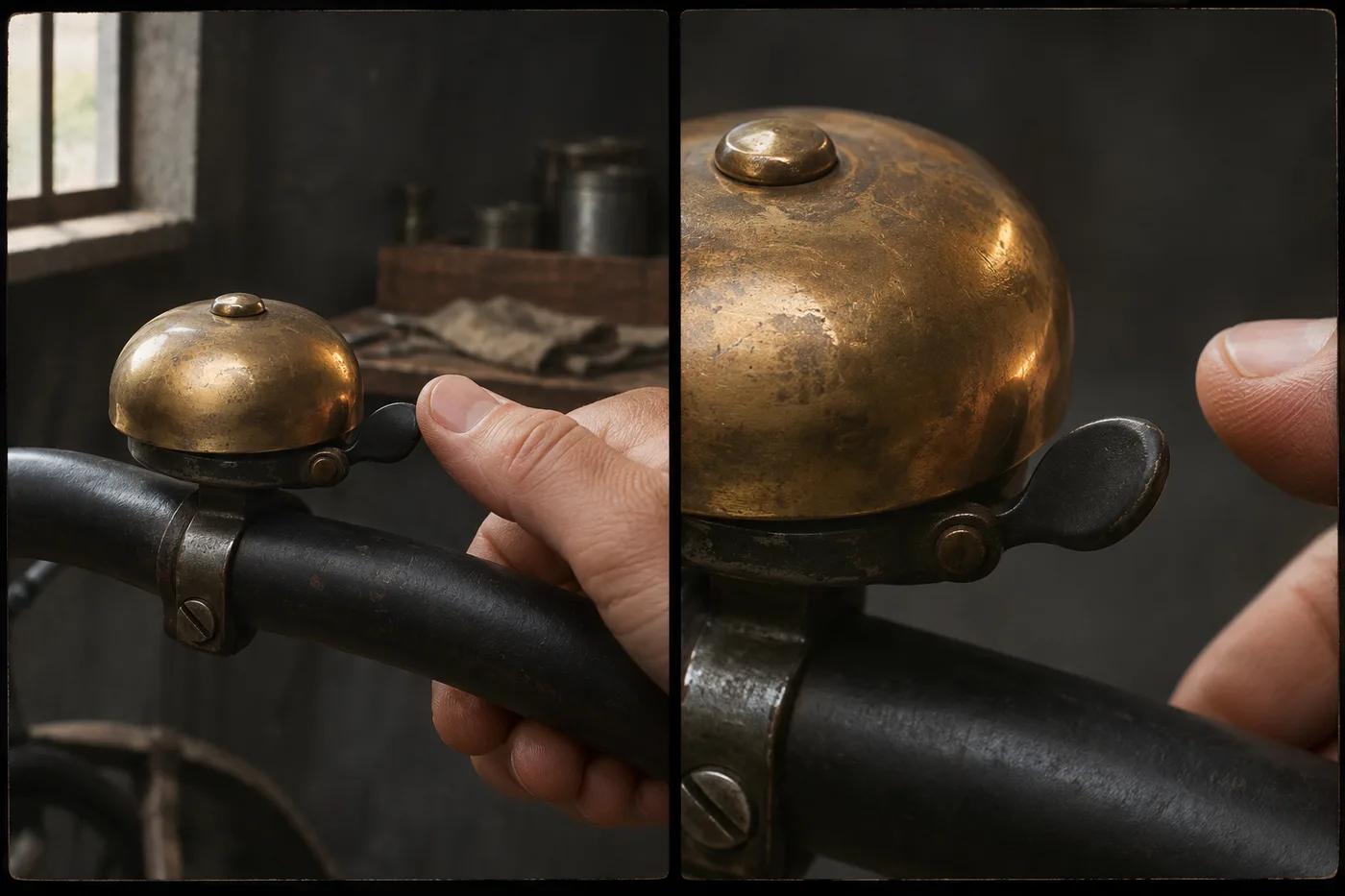
A Magi-2 reference prompt can draw on up to 20 files in one generation. For a product shot, use a photo for the shape of the bell, a clip for the movement of the lever and a recording for the tone of the ring. Name the detail to carry over from each.
In Magi-2, each reference video or audio clip must run for 2–30 seconds. Video references can total 30 seconds, and audio references have their own 30-second allowance. An 18-second video and a 13-second video need at least one second trimmed between them.
- Magi-2 · Images · up to 10
- In Magi-2, Use a well-lit product photograph to establish the dome, mount and lever. A second angle is useful when the camera will move around the object.
- Magi-2 · Video · up to 5
- For a Magi-2 generation, choose the short passage that shows the thumb pressing and releasing the lever. Describe which movement should carry over if the reference contains a camera move as well.
- Magi-2 · Audio · up to 5
- Isolate a single ring with a short tail. A clean recording makes it easier to describe the metallic strike separately from traffic or room tone.
Sound and motion in Magi-2
Magi-2 models sound alongside the moving image. A prompt can specify dialogue, ambient noise or a sound caused by an action. For the bell, pin the attack to the release of the lever. At review, listen for that first transient and check where the thumb is in the same frame.
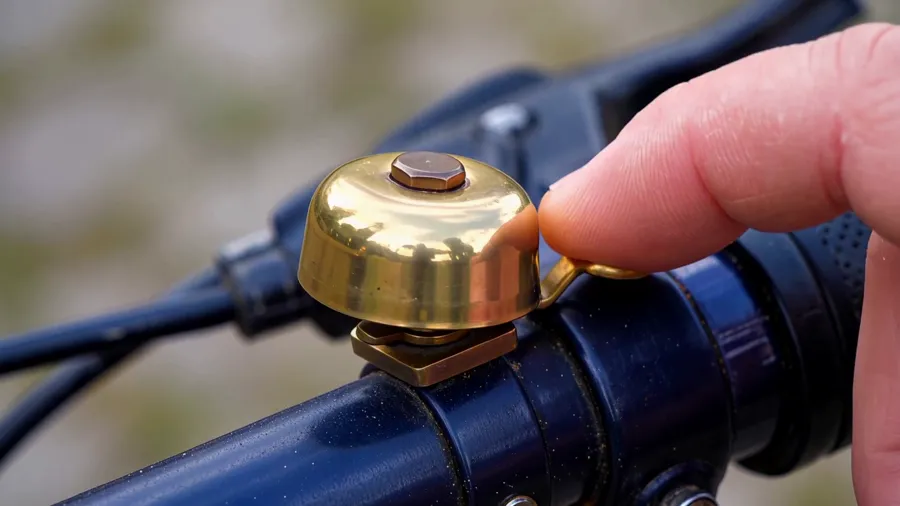
A six-second shot plan for Magi-2
For a Magi-2 generation, allocate a time range to each change of framing and name the sound cue where it belongs. The following shot list is an editorial example you can adapt to a keyboard, a latch or another object with a distinct click.
- 00:00 – 00:02
Establish the object
Hold a medium shot of the handlebar. The lever is at rest and only the room tone is audible.
- 00:02 – 00:04
Specify the cut and the cue
Cut to the lever. The thumb pushes it down and lets go. Place one clear ring at release.
- 00:04 – 00:06
Leave time for the decay
Keep the close-up steady as the hand withdraws. Let the existing ring fade into the room tone.
Maintaining continuity between Magi-2 shots
To edit the bell sequence as two clips, end the wide shot with the finger poised over the lever. Begin the close-up from the same side of the handlebar with the finger still poised. Keep the strike in the second shot so the cut does not introduce a second ring.
Three Magi-2 prompts to try
When working with Magi-2, choose the mode, duration, framing and sound setting before copying a prompt. For a second take, change one instruction and keep the settings. That makes it easier to judge whether the difference comes from the action, framing or sound.
Magi-2 text-to-video — a line spoken on camera
The Magi-2 dialogue test uses text input, six seconds, 16:9 and sound on. Check that the spoken line matches the person shown on camera.
Locked medium close-up of a mechanic holding a brass bicycle bell at a workbench. Hold on the bell for two seconds. The mechanic looks at the camera and says, “The bell has a brass dome.” Both hands stay still during the line. Only quiet room tone underneath.
- What to check on playback
- In Magi-2, start playback at the first mouth movement. Check whether the whole line is audible and the lips follow the words. If the last word is clipped, shorten the opening hold and leave room after the line.
Magi-2 first and last frames — a hinged box opening
In Magi-2’s first-and-last-frame mode, use the closed box below for the opening image and the open box for the final image. Choose six seconds with sound off so you can check whether the base stays still as the lid turns.
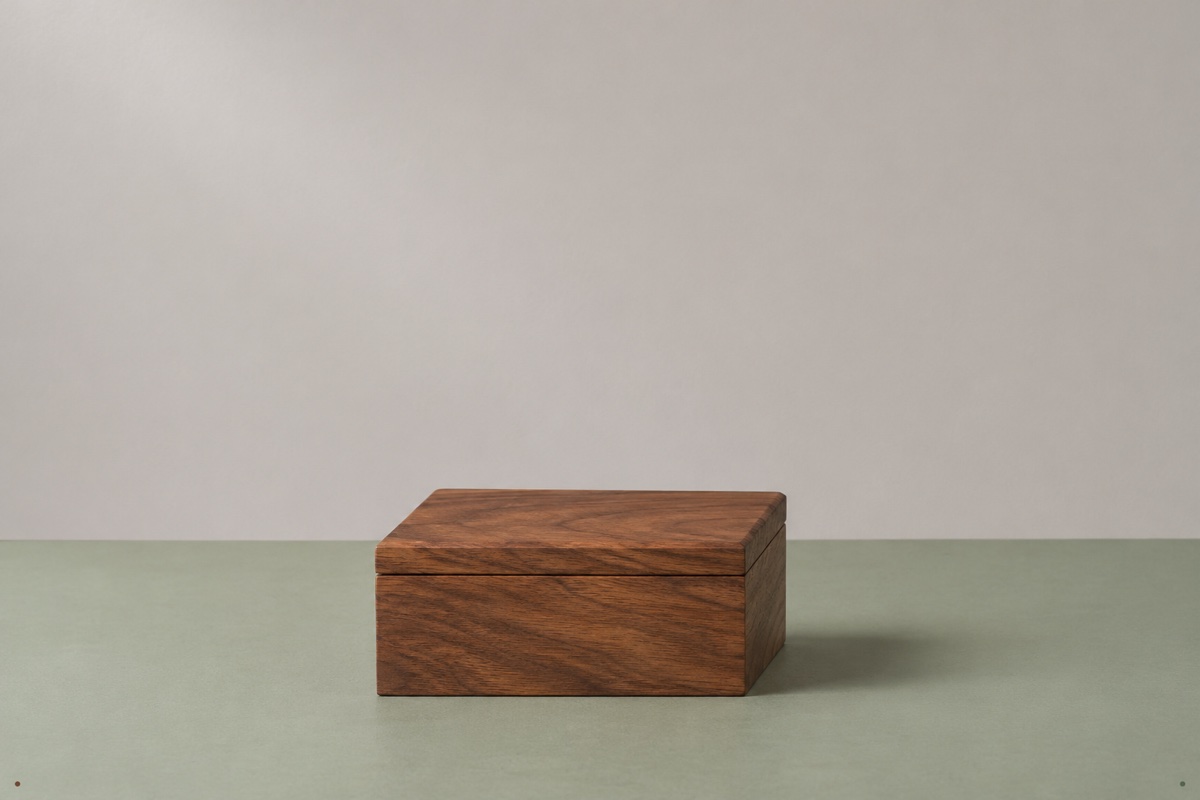 Download first frame: closed wooden box
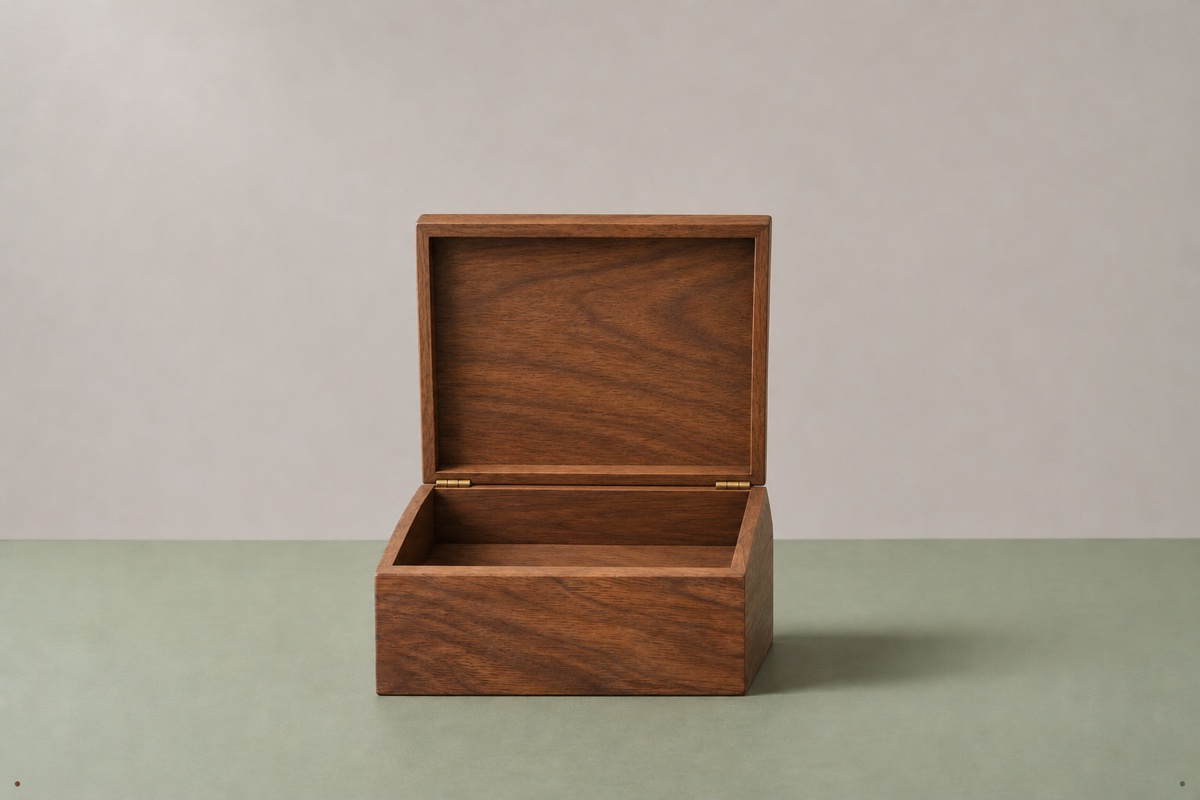 Download last frame: open wooden box
Locked camera. The base of the wooden box stays the same distance from the edge of the table. The lid turns on its rear hinges until it reaches the angle in the final image. Hold still for the last second. Keep the wood grain and lighting consistent.
- What to check on playback
- For a Magi-2 generation, compare the first frame, midpoint and last frame. The front corner of the base should stay put while the lid rotates. If the base slides, check the crop on the two source images first.
Magi-2 multimodal references — matching a product and its sound
For the Magi-2 product reference, add a bell photo and a 2–30-second recording of one ring. Select reference mode, six seconds, 16:9 and sound on. Each tag names the first file of its type.
Use @image_1 for the shape, material and lever position of the bell. Start on the handlebar, then cut to the hand. The bell rings once when the thumb releases the lever. Match the tone of @audio_1. Hold on the bell while the sound decays.
- What to check on playback
- When working with Magi-2, watch on mute to check the shape and lever, then listen for the first strike. If the recording includes a second hit, trim it and compare how the ring fits a single release.
The Seedance 2.5 prompt guide has more examples of placing motion, dialogue and sound cues on a timeline.
Diagnosing a Magi-2 take
When a Magi-2 take departs from the prompt, locate the first frame or sound where the difference appears. Change the corresponding input and keep the other settings fixed so you can compare the two takes.
For a photo pair of your own, the Wan 3.0 image-to-video guide shows how to align framing, crop and subject position.
- The product changes between shots
- In Magi-2, compare its outline, material and markings at the same scale. If two photos show different product versions, keep the accurate product reference and describe the background in words.
- A single action produces two sounds
- For a Magi-2 generation, listen to the reference for a second strike, then count the actions in the prompt. Isolate one clean hit and attach it to either pressing or releasing the lever.
- The cut comes before the action finishes
- When working with Magi-2, check the subject’s position in the last frame before the cut. Specify the visible end state ahead of the cut, add a short hold, then see if the action reads in full.
- An object slides between the end frames
- In Magi-2, compare the tabletop edge and base in both input photos. If the fixed lines already disagree, match the crop and camera angle before trying the same motion with a locked camera.
Magi-2 flagship and Magi-2 Preview
Sand AI released Magi-2 Preview for research in August 2026. The flagship Magi-2 followed on November 24. The two editions have different parameter counts and clip lengths.
| Specification | Magi-2 | Magi-2 Preview |
|---|---|---|
| Total parameters | 480 billion | About 114 billion |
| Active parameters per token | About 28 billion | About 6 billion |
| Clip duration | Up to 30 seconds | 10 seconds in the published pipeline |
The Magi-2 parameter counts describe model scale. Duration and input types are more useful when planning a shot. Use the flagship specifications for a sequence longer than ten seconds or a brief with several reference clips.
Sand AI’s Magi-2 research releaseMagi-2 questions
Magi-2 accepts images, video and audio in a single generation. If their contents overlap, specify which file controls the subject, motion or sound.
A Magi-2 prompt can specify a cut and a camera move separately. A cut sets the time to switch shots. Within a two-second close-up, the camera can stay still or move slowly toward the subject.
Write the words, identify the speaker and indicate when the line starts. For a close-up, review the first mouth movement against the first audible syllable.
Sand AI describes targeted editing of existing footage for the flagship model. The Magi-2 video generator offers text, frame and reference modes. A reference clip guides motion or framing in a newly generated shot.
Try the shot with your own material
To try the shot plan, prepare the reference that best defines the subject and carry the timed action into the video generator.