Clone Cut AI Generator: Animate Your Character with Video Motion
Bring a still character image to life with the movement from your video. Upload both references to Clone Cut AI, choose character orientation and background, and generate a 720p or 1080p clip without animating each frame by hand. Start with a complete example to explore the result, then review the credit estimate before creating your own version.
Video inspiration
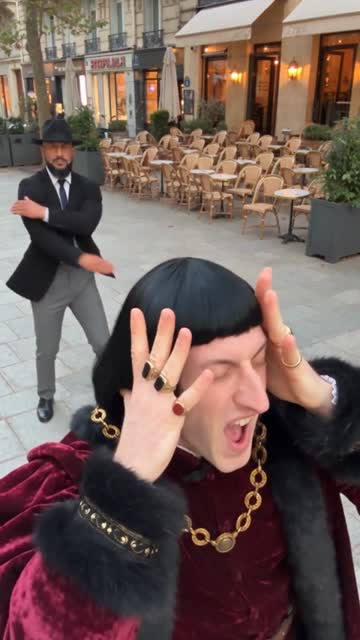
Terrace dance
Two performers trade foreground positions before moving into full-body dance steps.
Clone Cut AI Video Generator
Transfer motion from a video to your reference character. Choose the character orientation and background source.
Source video
MP4 or MOV · up to 100 MiB · 3–30 seconds · both dimensions >340 px · ratio 2:5–5:2
Target Character Image
JPG or PNG · up to 10 MiB · both dimensions >340 px · ratio 2:5–5:2
Loading Clone Cut AI settings...
Videos and tasks
Examples 23
Street walk
0:15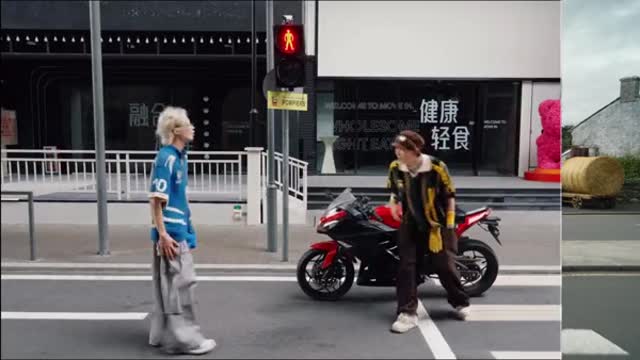
Street relay
0:14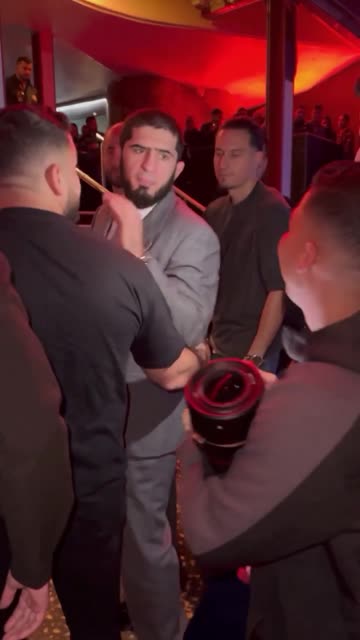
Through the crowd
0:15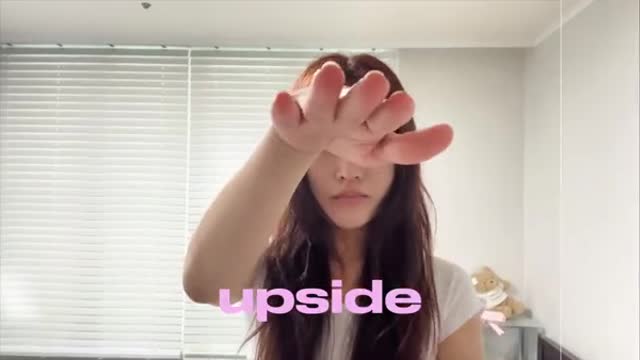
Hand-cover transitions
0:09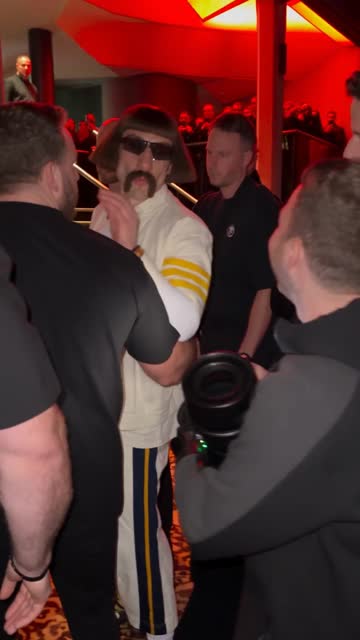
Stylized crowd walk
0:15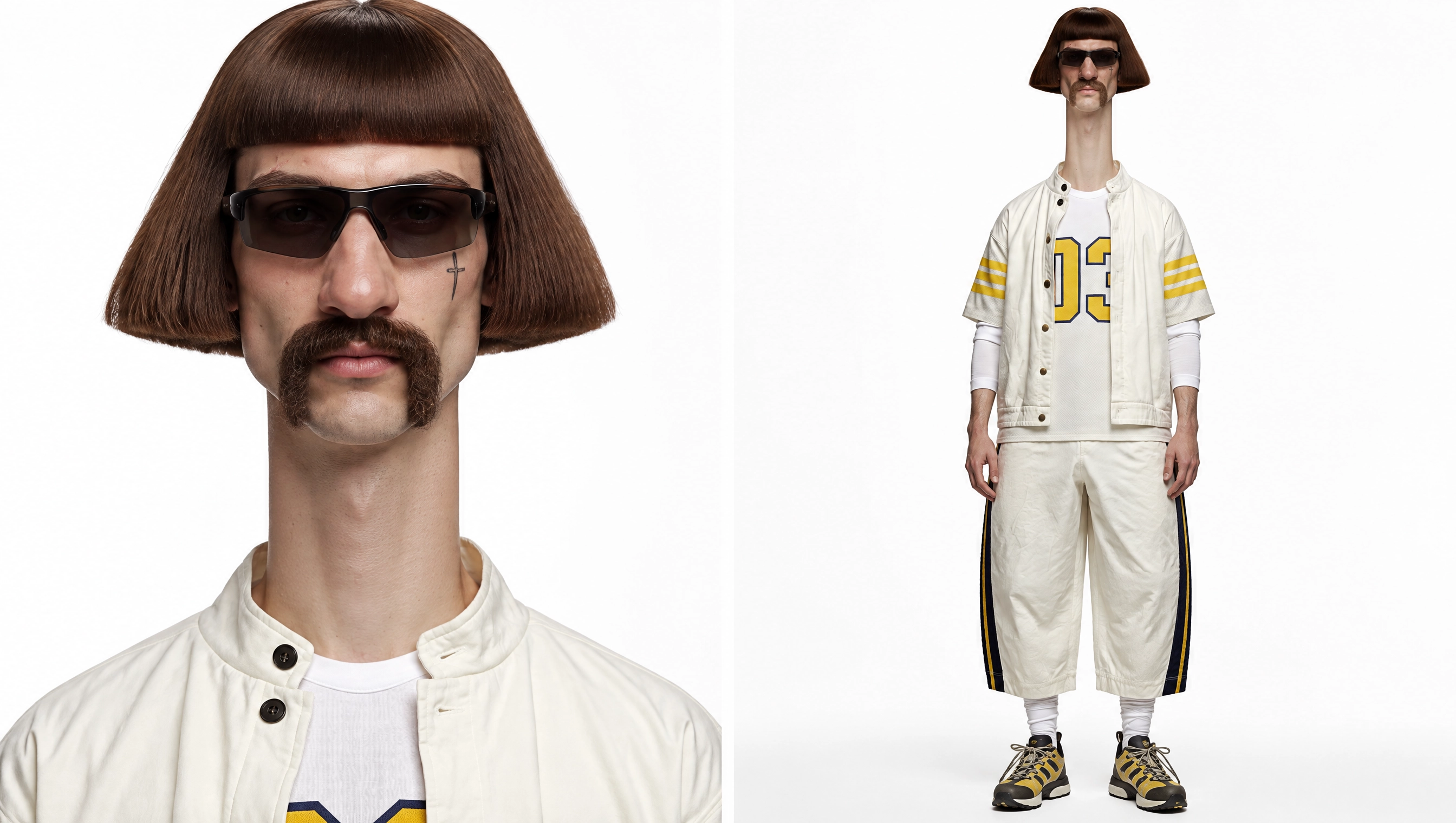
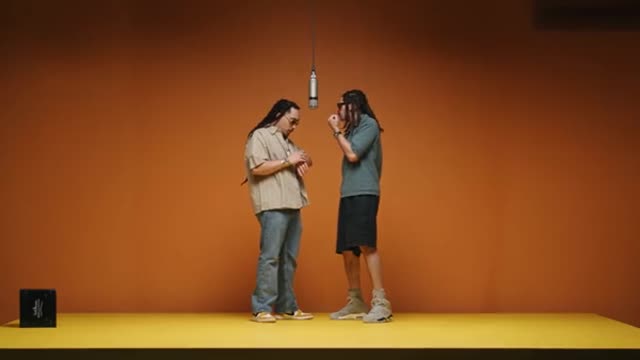
Studio performance
0:24Terrace dance
0:20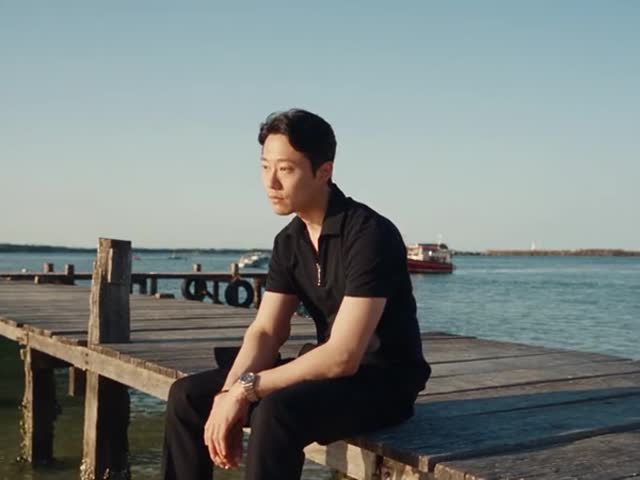
Waterfront story
0:28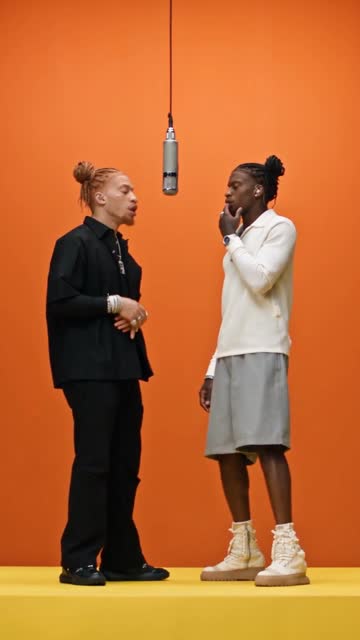
Studio duet
0:30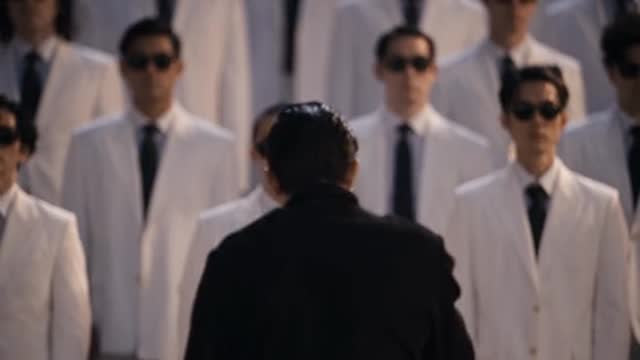
White-clad choreography
0:27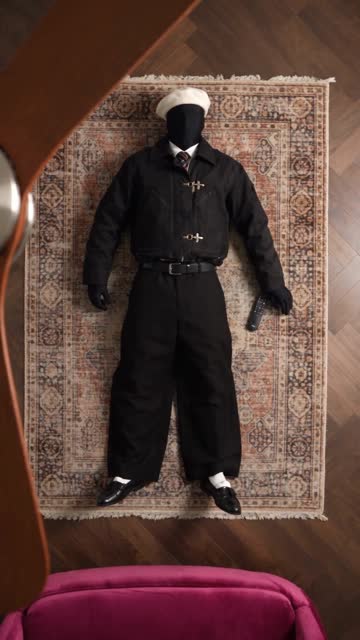
Outfit transitions
0:13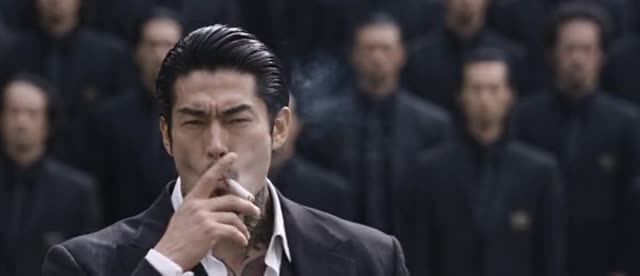
Synchronized formation
0:28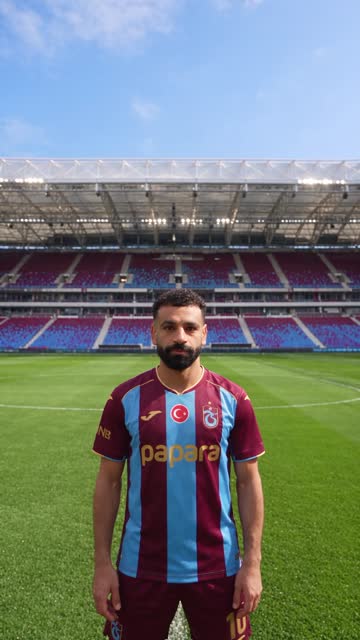
Stadium orbit
0:07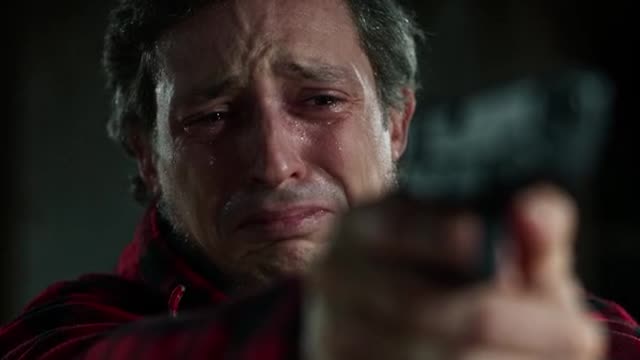
Cinematic moments
0:24
Night car orbit
0:09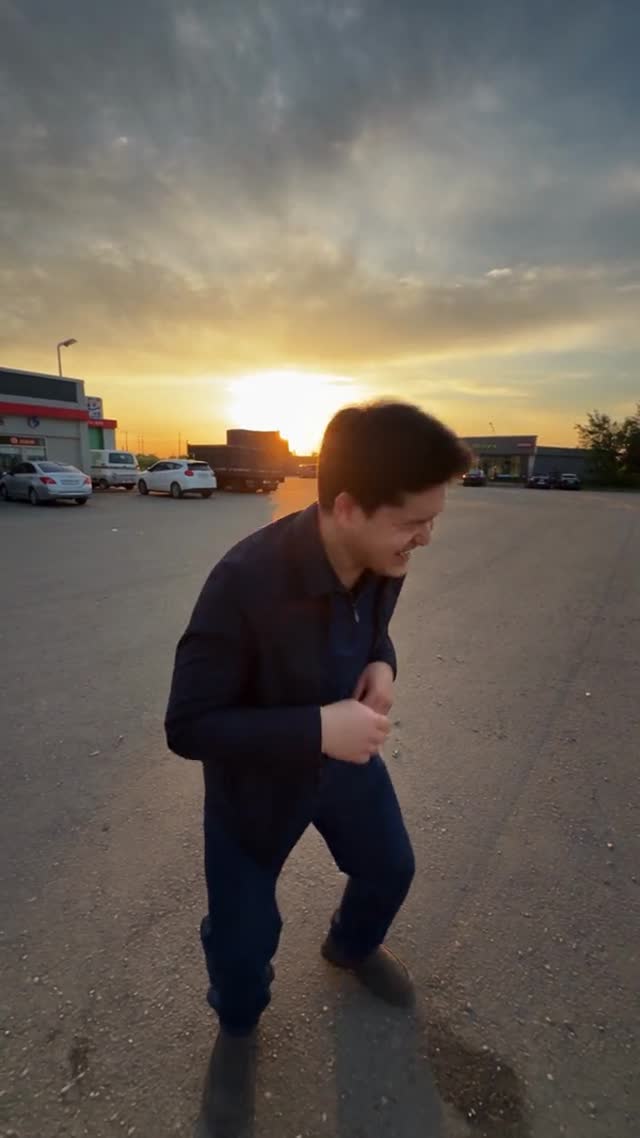
Gesture match cuts
0:16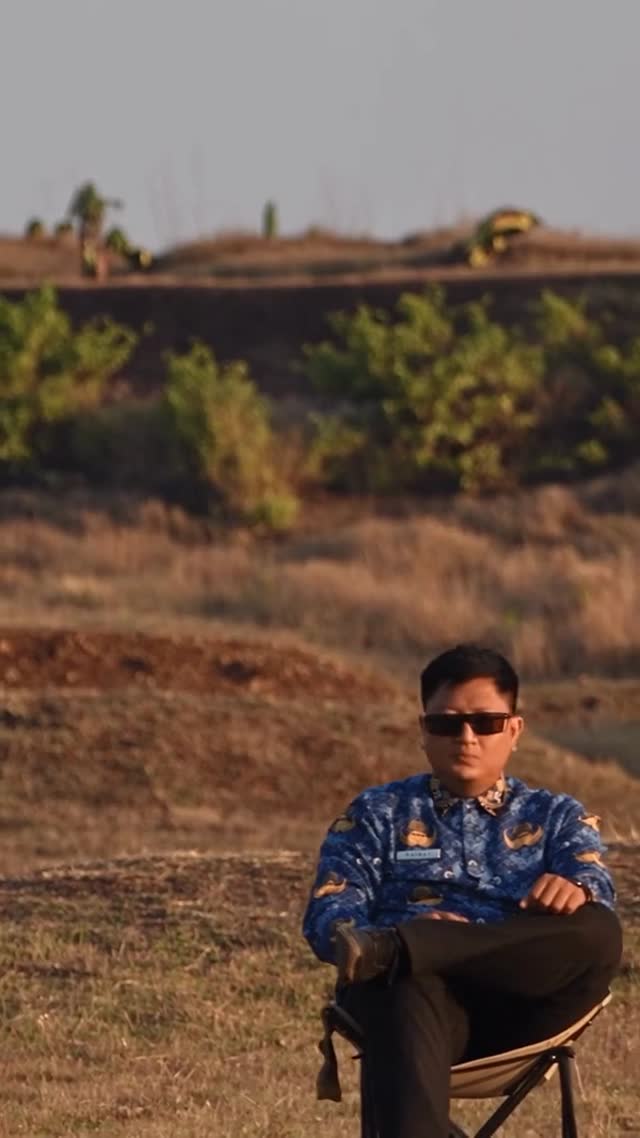
Off-road jump
0:12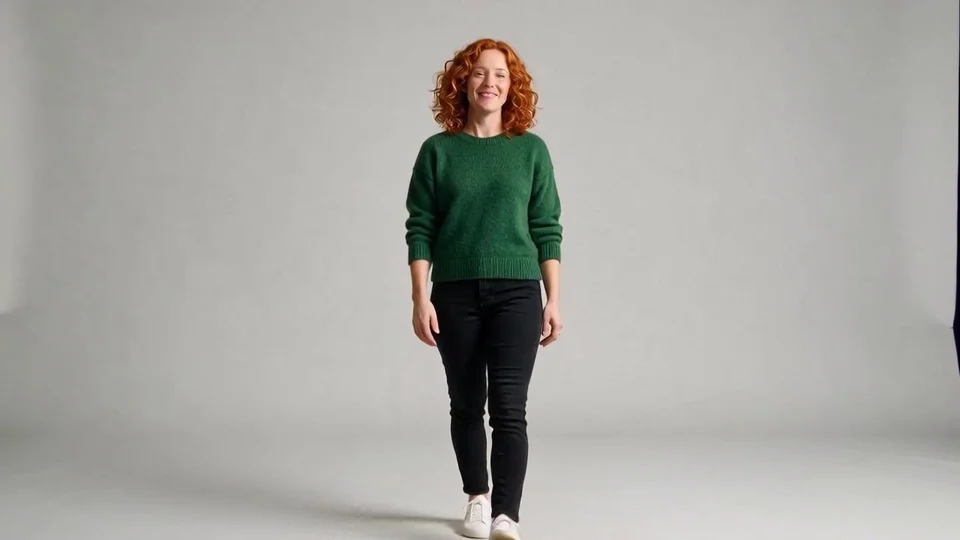
Person 1
Source video · Target Character Image
Source video
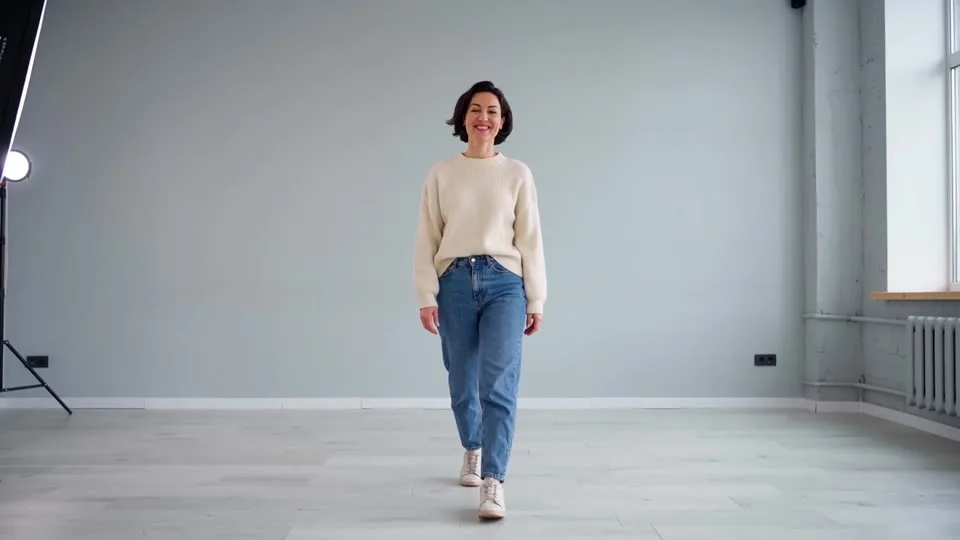
Target Character Image
Person 2
Source video · Target Character Image
Source video
Target Character Image
Motion 1
Source video · Target Character Image
Source video
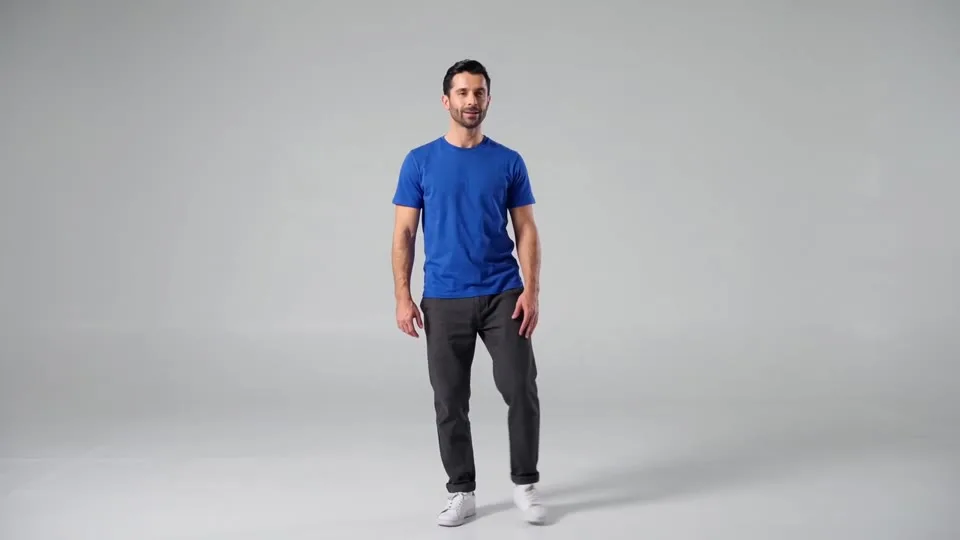
Target Character Image
Motion 2
Source video · Target Character Image
Source video
Target Character Image
Background 1
Source video · Target Character Image
Source video
Target Character Image
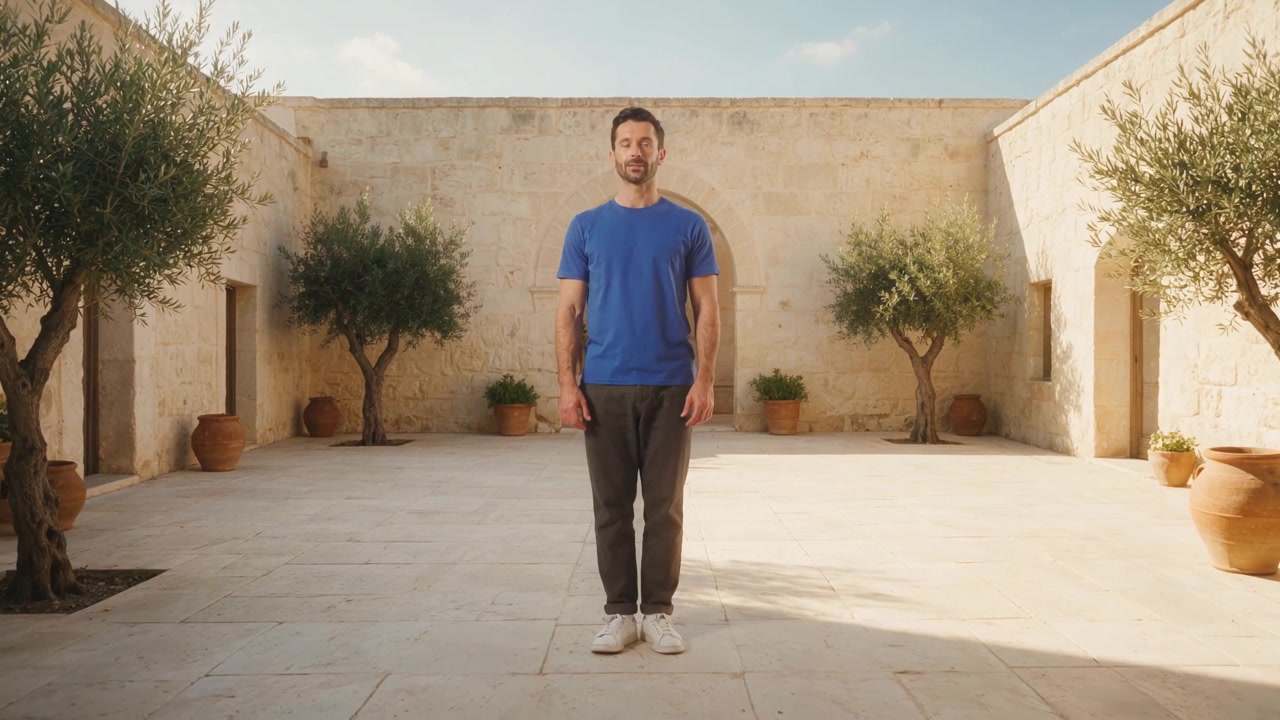
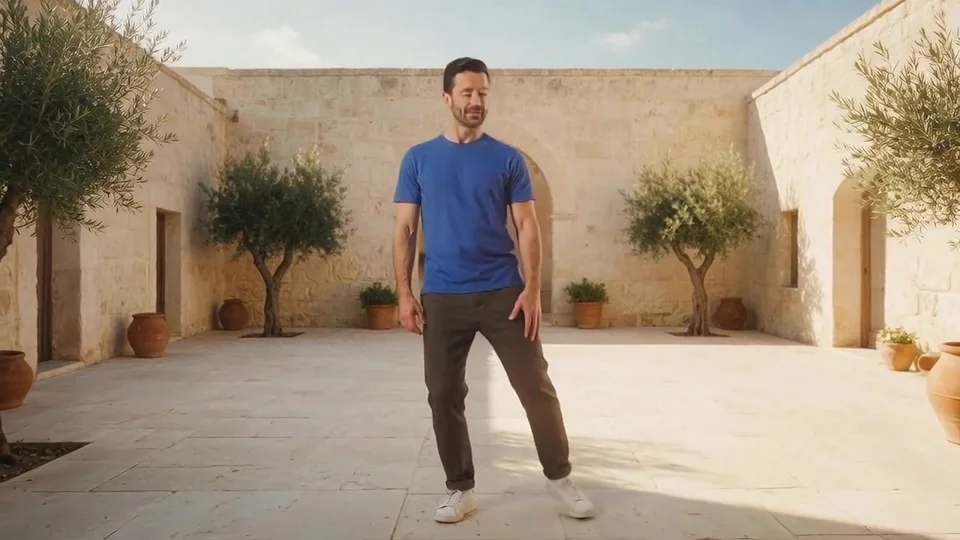
Background 2
Source video · Target Character Image
Source video
Target Character Image
Prepare the edit, then generate
Pair one motion video with one reference image in the same workspace.
Clone Cut AI uses Kling 3.0 Motion Control. Select 720p or 1080p, choose character orientation and background source, and add an optional scene instruction. The credit estimate follows the detected video duration.
Video inspiration library
Explore character performances, dance, transitions and camera movement to find a direction for your next video.
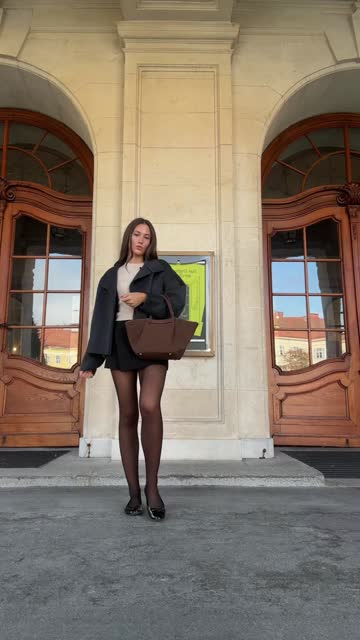
Street walk
0:15A full-body walk moves toward and away from a fixed camera, keeping the outfit in view.
Street relay
0:14Several performers take turns approaching the camera against the same street backdrop.
Through the crowd
0:15A handheld camera follows a central figure through a red-lit crowd and passing photographers.
Hand-cover transitions
0:09A hand crossing the lens connects changes of character and location.
Stylized crowd walk
0:15A stylized character moves through a busy crowd with close handheld tracking.
Studio performance
0:24Two performers use microphones in an orange studio, with expressive faces and hand gestures.
Terrace dance
0:20Two performers trade foreground positions before moving into full-body dance steps.
Waterfront story
0:28A two-person waterfront story moves through different framings and changing light.
Studio duet
0:30Close-ups and full-body views alternate during a two-person microphone performance.
White-clad choreography
0:27A large group in white moves through changing dance formations around a central performer.
Outfit transitions
0:13An overhead shot uses passing obstructions to reveal a series of outfit changes.
Synchronized formation
0:28Rows of black-clad performers bow together in a wide, symmetrical composition.
Stadium orbit
0:07A fast orbit moves between close and full-body views of a stationary athlete.
Cinematic moments
0:24Expressive indoor scenes lead into outdoor moments between two characters.
Night car orbit
0:09A night-time car sequence combines quick orbits, whip pans and bodywork close-ups.
Gesture match cuts
0:16Repeated gestures connect selfie-style shots across people, places and vehicles.
Off-road jump
0:12An off-road vehicle jumps behind a seated foreground figure in a fixed-camera shot.
From source to new scene
Compare the original clip, reference image and generated result. Load a complete example to try its prompt and settings.
Character 01
Output settings
720p · 3s
Video orientation · Video background
Scene instruction
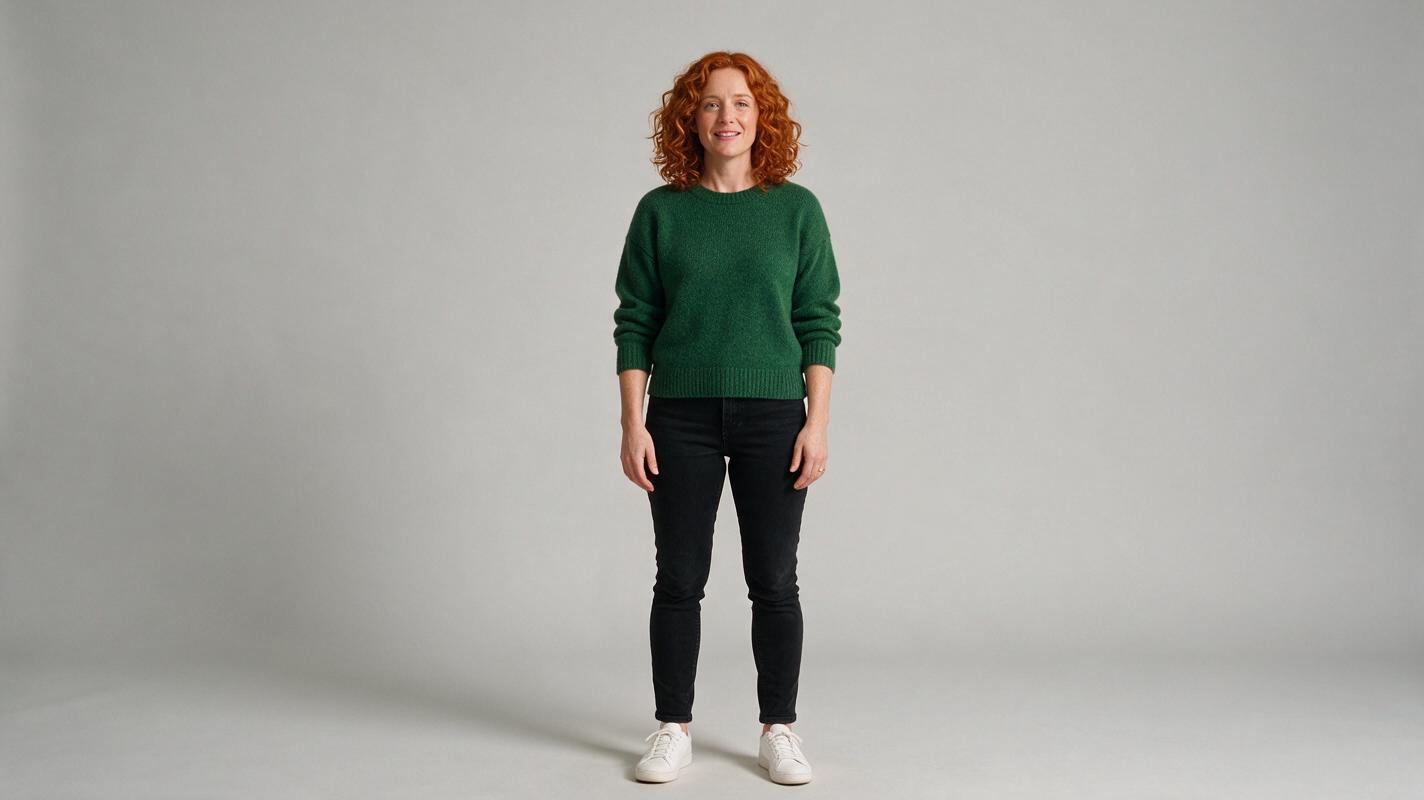
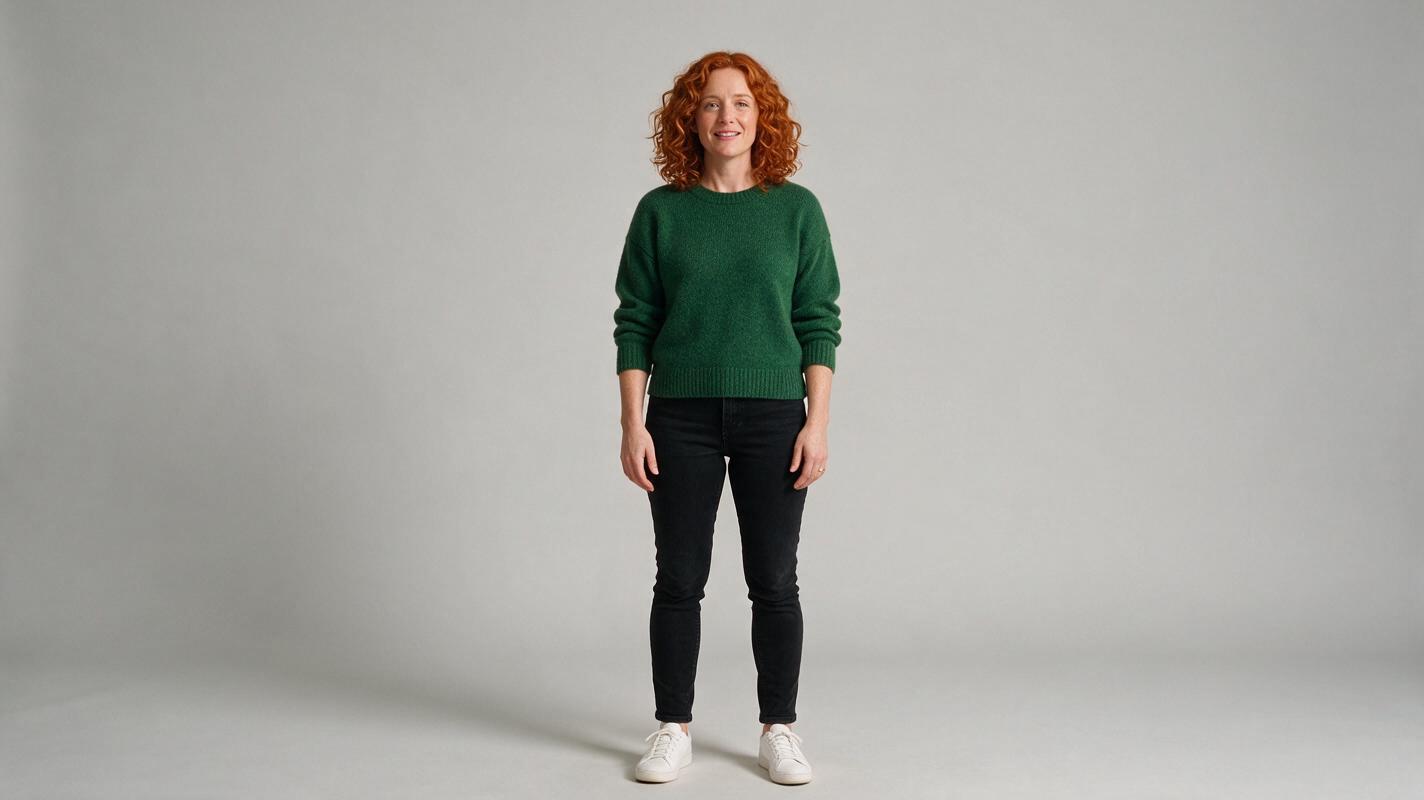
The adult woman in the reference image follows the walking steps and small right-hand wave of the motion video. Preserve her curly auburn hair, forest green sweater, black jeans and white shoes. Keep the gray studio background and natural continuous motion.
Character 02
Output settings
720p · 3s
Video orientation · Video background
Scene instruction
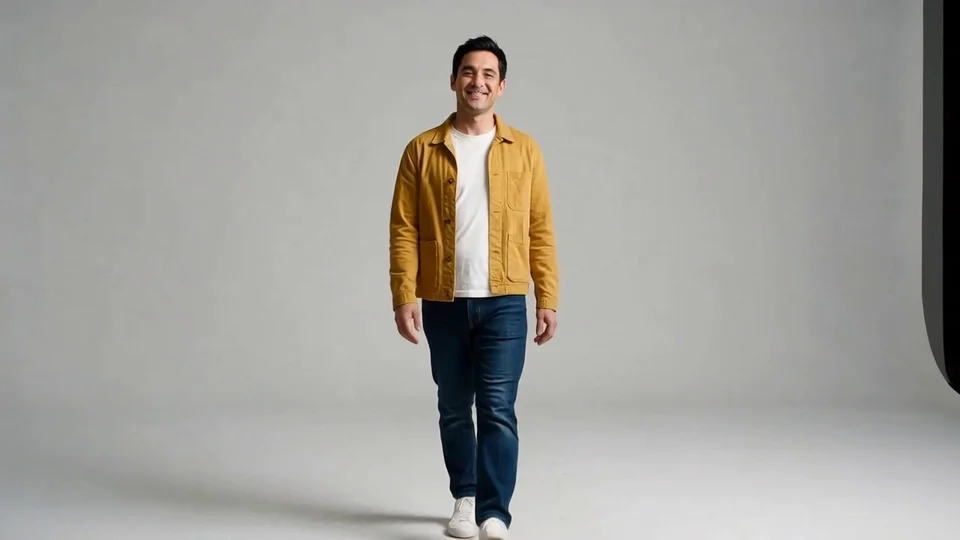
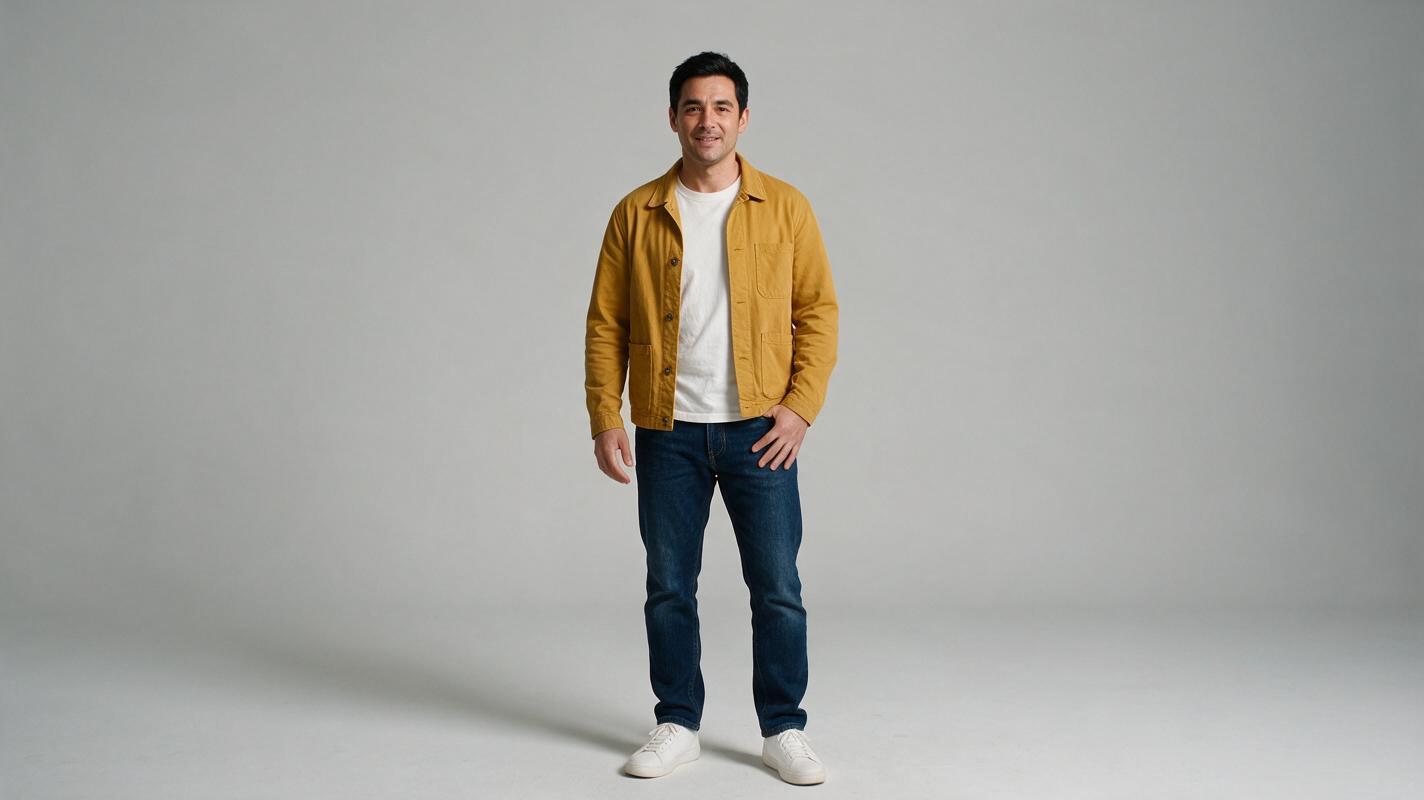
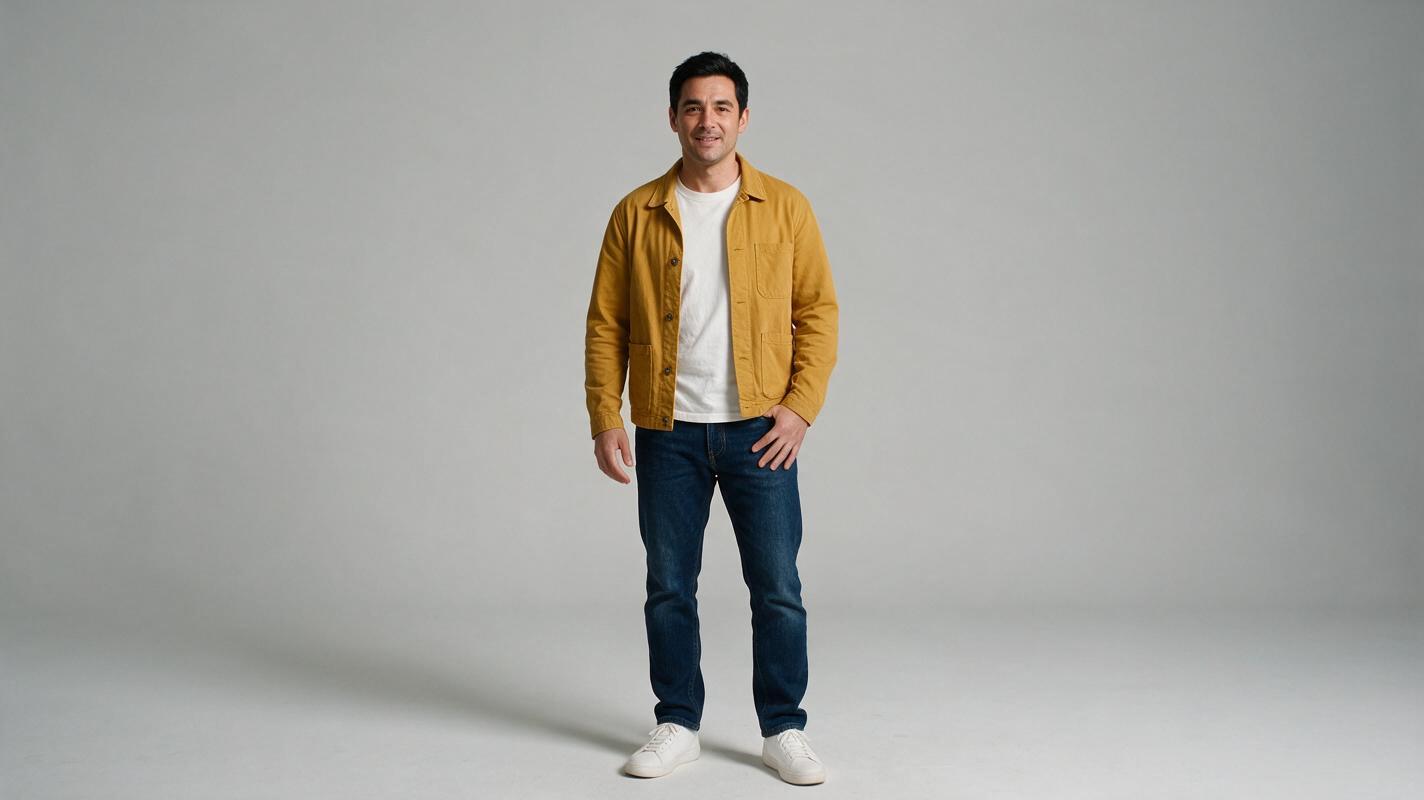
The adult man in the reference image follows the walking steps and small right-hand wave of the motion video. Preserve his short black hair, mustard yellow jacket, white shirt and blue jeans. Keep the gray studio background and natural continuous motion.
Motion transfer 03
Output settings
720p · 3s
Video orientation · Video background
Scene instruction
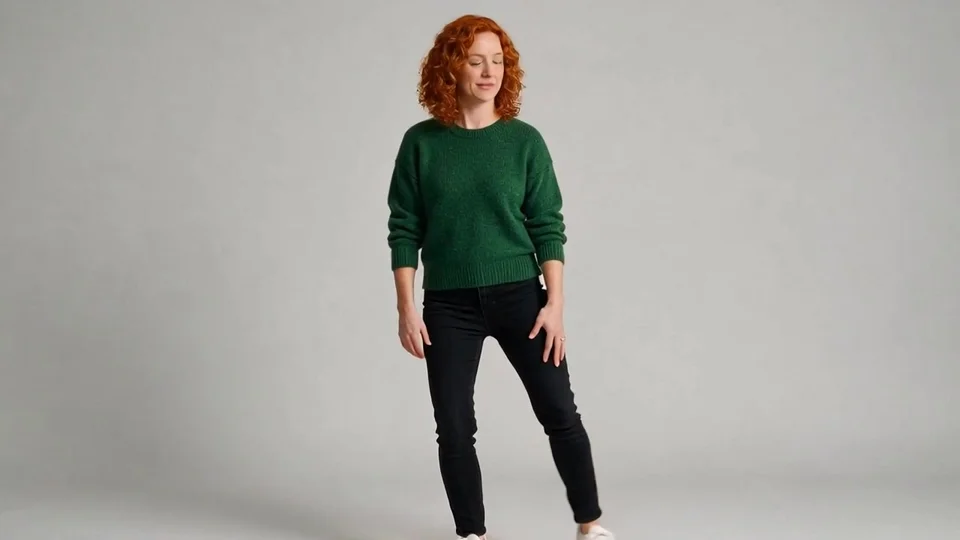
The adult woman in the reference image performs the relaxed side step from the motion video. Keep her curly auburn hair, forest green sweater and black jeans consistent. Match the visible footwork and arm movement in one continuous shot with the gray studio background.
Motion transfer 04
Output settings
720p · 3s
Video orientation · Video background
Scene instruction
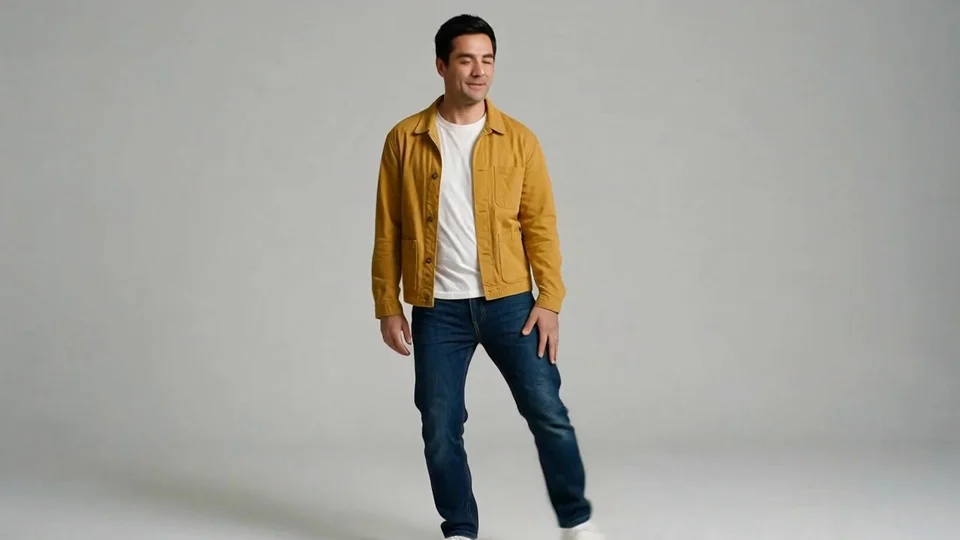
The adult man in the reference image performs the relaxed side step from the motion video. Keep his mustard yellow jacket, white shirt and blue jeans consistent. Match the visible footwork and arm movement in one continuous shot with the gray studio background.
Background 05
Output settings
720p · 3s
Video orientation · Image background
Scene instruction
The blue-shirted adult man in the reference image performs the relaxed side step from the motion video. Preserve the sunny stone courtyard, olive trees and warm light from the reference image. Keep his clothing and face stable, with natural ground contact and one continuous shot.
Background 06
Output settings
720p · 3s
Video orientation · Image background
Scene instruction
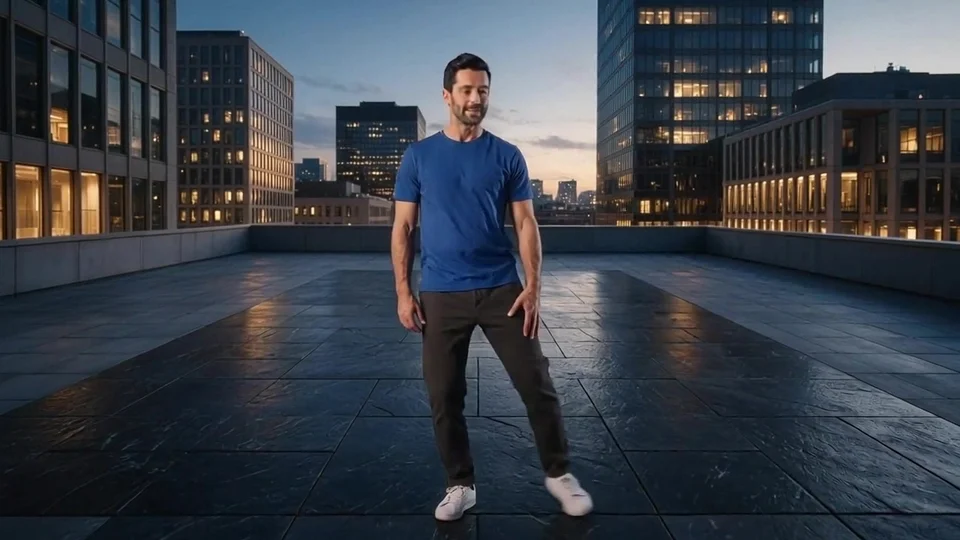
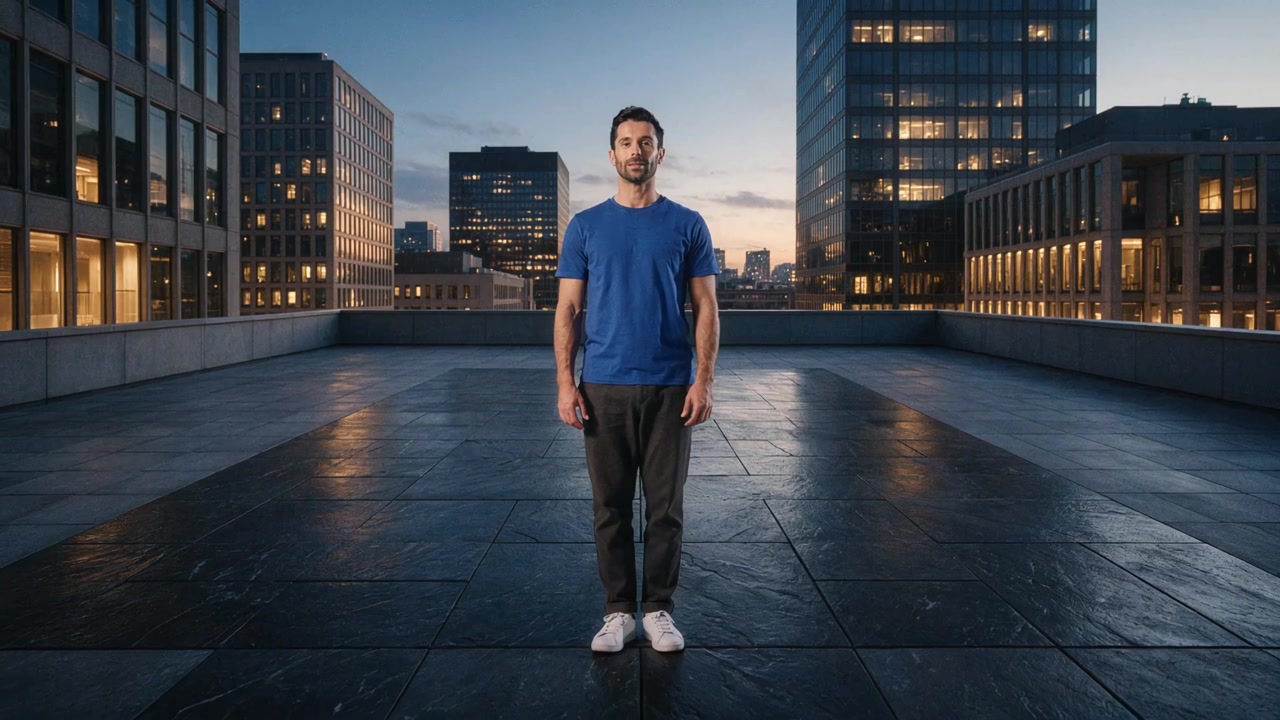
The blue-shirted adult man in the reference image performs the relaxed side step from the motion video. Preserve the rooftop terrace, city skyline and blue-hour lighting from the reference image. Keep his clothing and face stable, with natural ground contact and one continuous shot.
How to make a Clone Cut AI video
Combine one motion clip with one character image, then choose how they guide the result.
Upload your source
Upload one MP4 or MOV with a clearly visible performer. Use 3–30 seconds, or no more than 10 seconds when following image orientation.
Add a visual reference
Add one JPEG or PNG showing the character clearly. Match the visible body and framing to the movement in the video.
Choose orientation and background
Select 720p or 1080p, character orientation and the background source. An optional instruction can clarify the scene; duration follows the video.
Generate and compare
Check the displayed credit estimate, submit once, then compare the output with the source. Download the take you want to keep.
Before you press generate
- Clone Cut AI needs one motion video and one reference image; the scene instruction is optional.
- Use JPEG or PNG up to 10 MiB and MP4 or MOV up to 100 MiB. Both dimensions must exceed 340 pixels; the aspect ratio must be between 2:5 and 5:2.
- Video orientation accepts 3–30 seconds. Image orientation accepts 3–10 seconds. Output duration follows the source video.
- Review the live estimate before creating. Credits depend on resolution and detected video duration rounded up to whole seconds.
Prepare a clear Clone Cut AI input
The Clone Cut AI motion-transfer guide and examples show how the video and character image work together. Prepare that input pair before adjusting the output controls.
Give every reference a purpose
Use video for Clone Cut AI motion and an image for appearance. If you need a new character, prepare a reference image with Seedream 5.0 Pro. Choose a clear performer and compatible framing so Clone Cut AI can use the visible pose and body for the source movement.
Check duration and framing together
Clone Cut AI reads the video duration; the output follows that source length. Use a 3–30 second clip with video orientation, or 3–10 seconds with image orientation. The Clone Cut AI estimate rounds the detected duration up to whole seconds, so review it before generating.
Review a Clone Cut AI result before another attempt
Watch the entire Clone Cut AI clip and identify one visible issue. Change the instruction that addresses it, keeping the useful parts of the brief.
The scene changes more than intended
Check the Clone Cut AI background source: video retains the original setting, while image uses the reference setting. Review the Motion Control 3.0 orientation and background options, then remove conflicting instructions. Keep the Clone Cut AI input pair unchanged when comparing settings.
A detail drifts during movement
Inspect the Clone Cut AI result at turns, contact points and occlusions. Simplify the requested change or use a clearer reference image. Compare the next Clone Cut AI take against the same moment in the source so you can see whether the revision actually helped.
Continue a Clone Cut AI task without duplicate submissions
Clone Cut AI keeps progress and results with the signed-in account. When a response is unclear, check the existing task before starting another paid generation.
When upload or generation reports an error
Read the Clone Cut AI message and fix the stated input, upload or balance problem. Your written instruction remains available. If Clone Cut AI already has a task in progress, follow its status instead of repeatedly pressing create; a slow response does not necessarily mean no task exists.
When returning after sign-in or credits
Clone Cut AI returns to the same language and workspace. Confirm the retained instruction and settings, then reselect any local files marked as missing. Review the updated Clone Cut AI estimate before submitting. Loading a public example fills both references and their settings without starting a paid task.
Clone Cut AI questions
What does Clone Cut AI do with my video?
Clone Cut AI transfers motion from one video to the character in one reference image using Kling 3.0 Motion Control. You can choose character orientation and whether the background comes from the video or image.
Does Clone Cut AI copy the original exactly?
Clone Cut AI generates a new performance guided by the source. Identity details, timing and movement can vary. Compare the whole clip, including turns and hand movements, before choosing a result.
Which resolutions does Clone Cut AI support?
Clone Cut AI offers 720p and 1080p. The live credit estimate uses the chosen resolution and detected source duration rounded up to whole seconds. Output length follows the motion video.
Can Clone Cut AI work without a source video?
This Clone Cut AI workflow requires both one video and one image. Use a clear 3–30 second motion clip, or 3–10 seconds for image orientation. Text is optional guidance, not a substitute for either input.
How do I change the background in Clone Cut AI?
Select the image as the Clone Cut AI background source and provide a character image in the intended setting. Select video to use the original setting. Check the result for lighting, perspective and contact with the ground.
Where does Clone Cut AI return after sign-in or a credit purchase?
Clone Cut AI returns to the same language and workspace. Your written draft and settings stay with the account. If local files cannot survive the redirect, the workspace asks you to select them again.
Make the next version your own
Bring a motion video and a character image for the next take.