
ZenCreator AI Image & Video Generator
Create images and videos from your ideas, with prompts and references that guide the result.
ZenCreator AI image studio
Describe the image you want or guide it with a reference.
Sign in to use batch and repeat generation.
Six starting points for ZenCreator AI
Choose a ZenCreator AI photo brief or motion idea. Review the prompt, then add a suitable reference if your video input mode requires one.
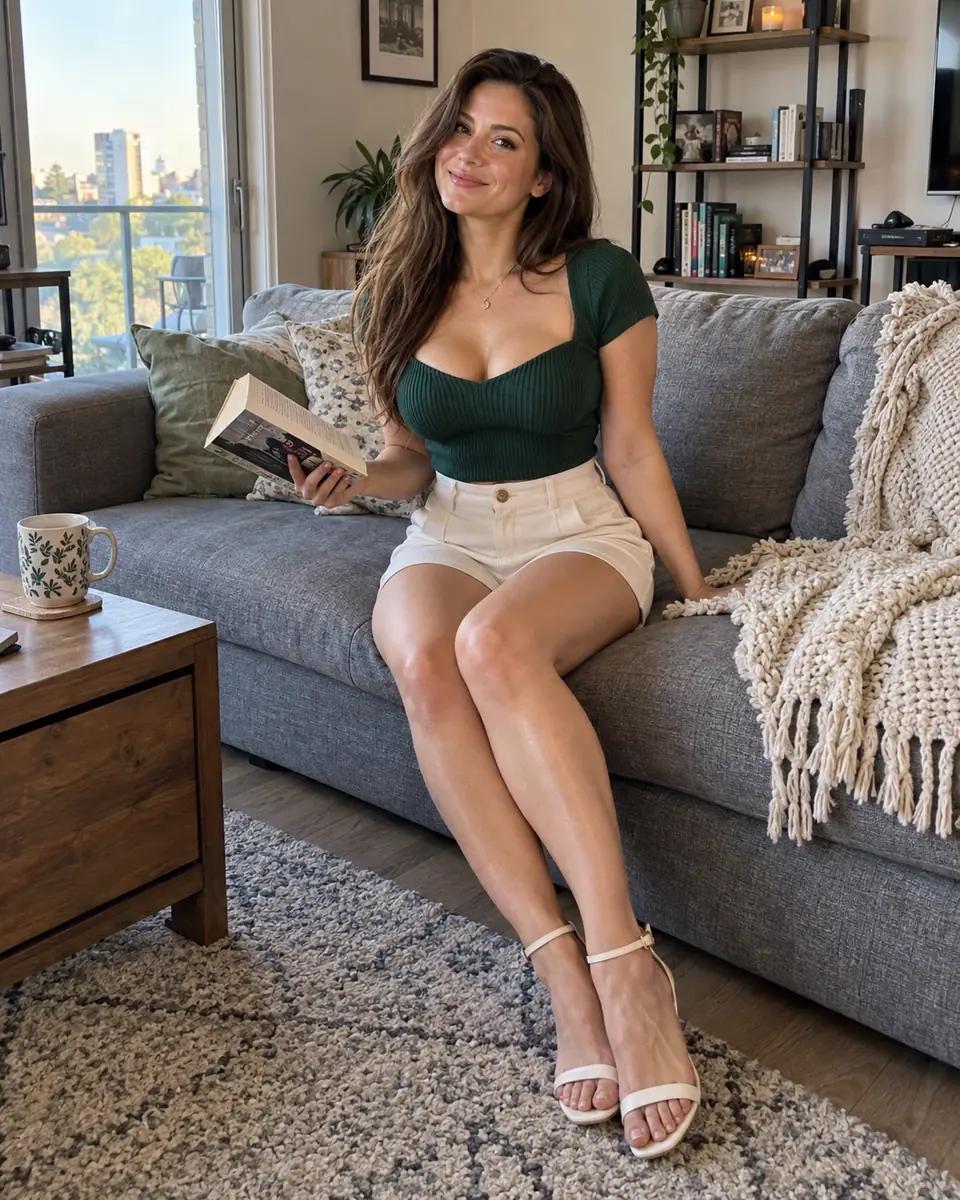
Sofa portrait
A fitted top, relaxed pose and window light make this ZenCreator AI portrait. Leave room for both hands.
Your ZenCreator AI image brief
A fictional 28-year-old woman in a fitted forest-green top and cream high-waisted shorts, seated naturally on an ordinary living-room sofa, one hand resting on a cushion, afternoon window light, casual phone photograph, realistic skin texture.
Check the result for natural hands and a relaxed shoulder line.
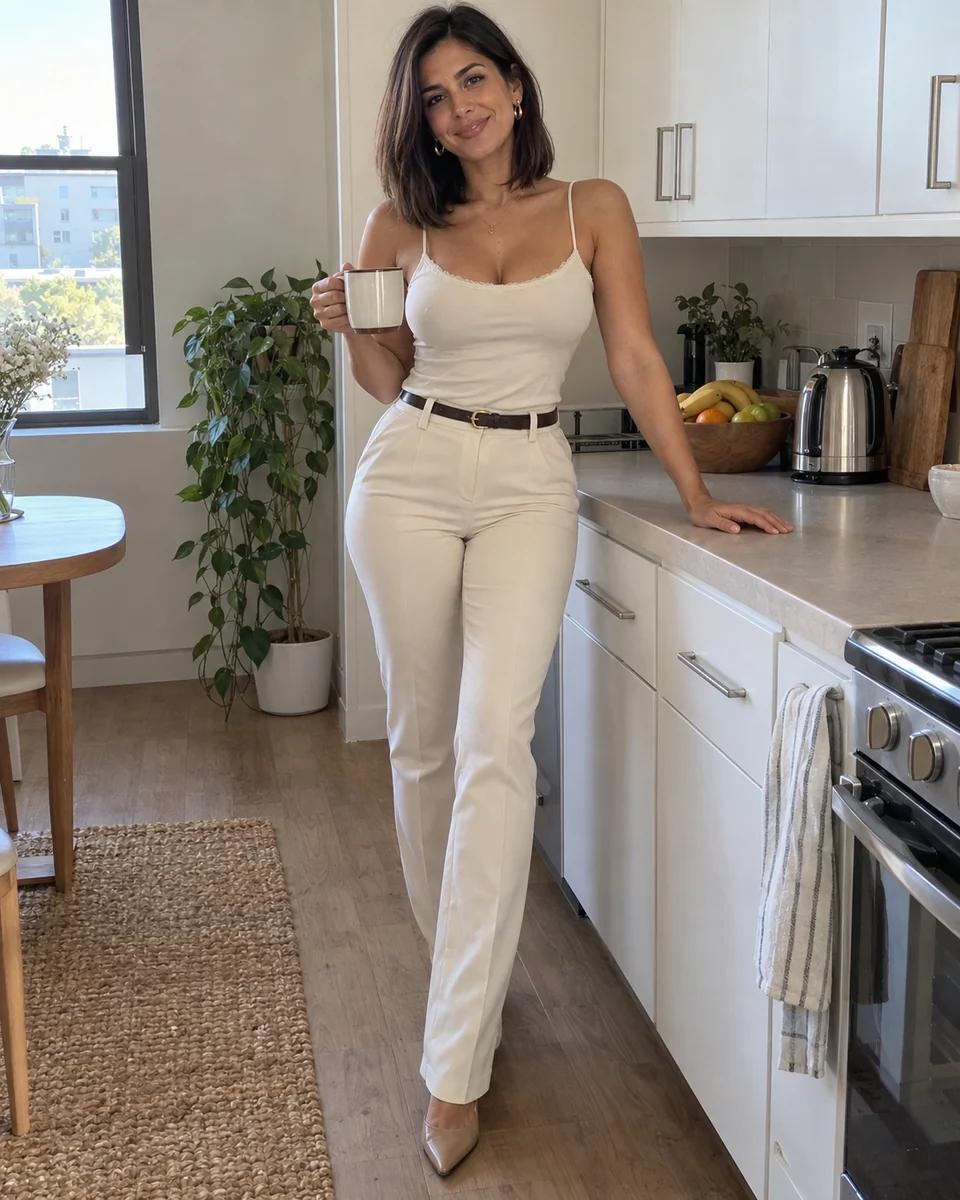
Kitchen morning
A casual camisole and coffee mug give the ZenCreator AI scene a believable morning setting.
Your ZenCreator AI image brief
A fictional 30-year-old woman wearing a fitted cream camisole and high-waisted trousers, holding a coffee mug beside a small kitchen counter, soft morning daylight, a dish towel and fruit bowl in the background, candid phone photo.
Check the result for a consistent mug shape and relaxed fingers.
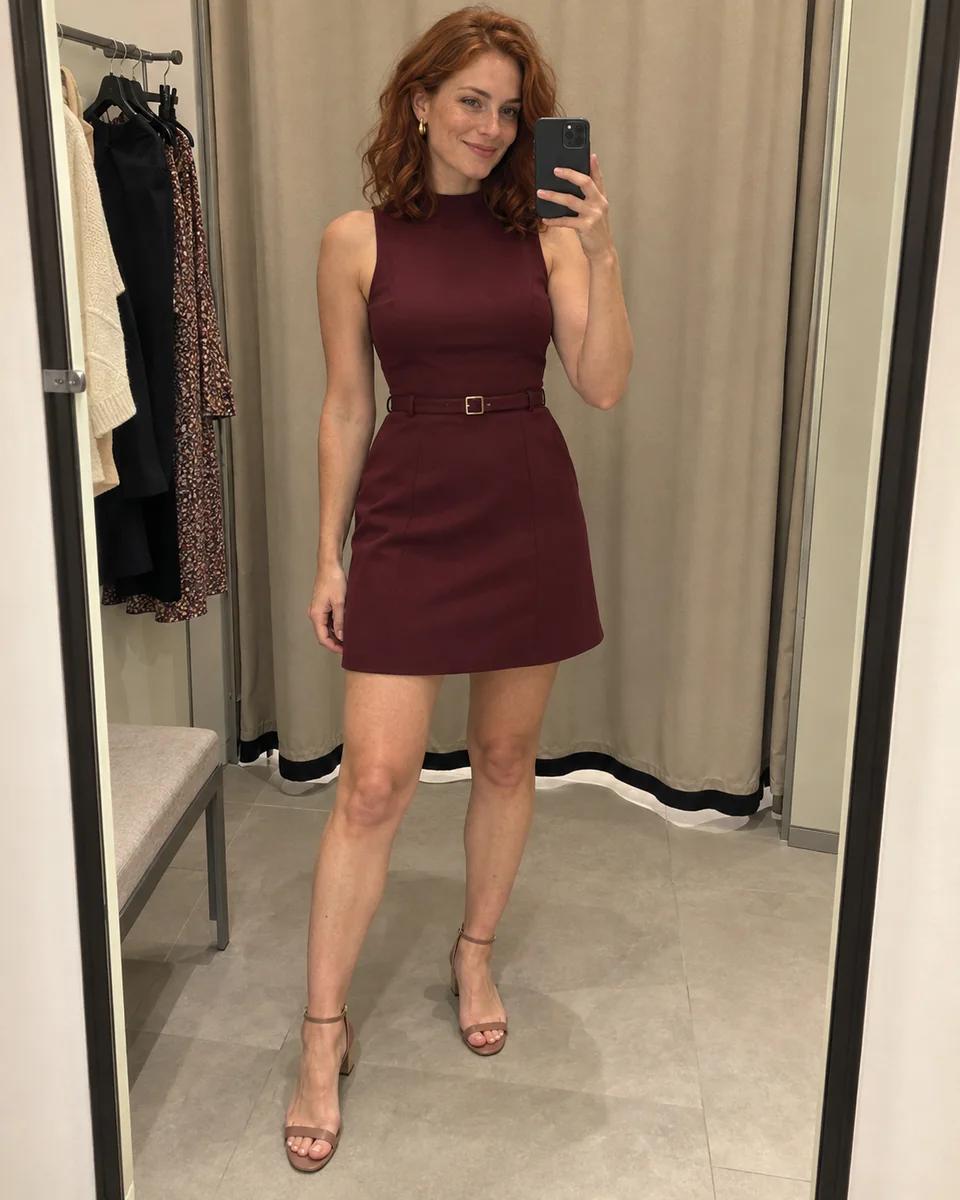
Fitting-room outfit
Keep the outfit readable with a simple mirror angle. The ZenCreator AI silhouette is the priority.
Your ZenCreator AI image brief
A fictional 27-year-old woman wearing a fitted burgundy day dress in a simple shopping-center fitting room, taking a casual full-length mirror selfie, neutral indoor lighting, casual phone in one hand, believable reflections and fabric.
Check the result for consistent reflections and a clear dress hem.
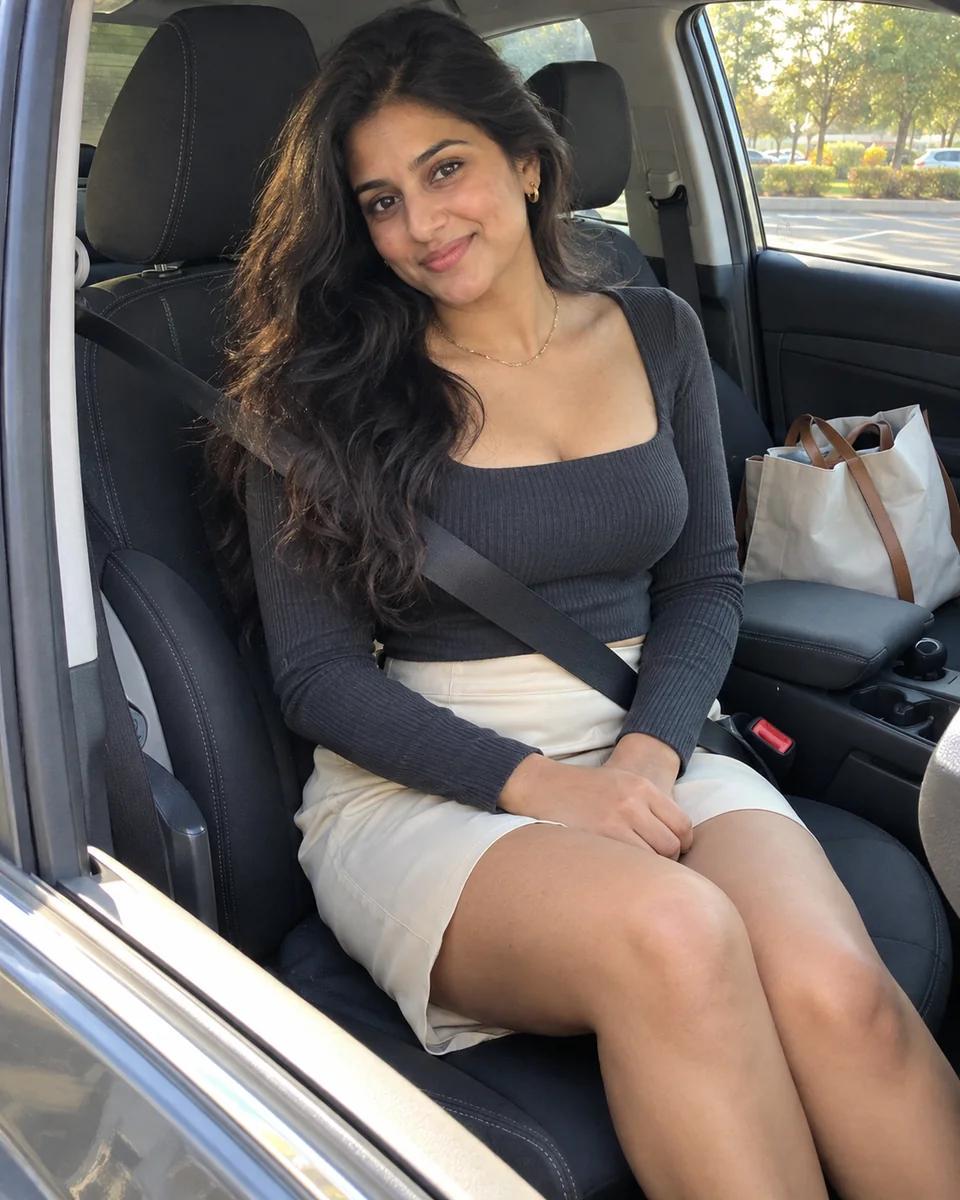
Passenger-seat photo
A parked car and side light create a close ZenCreator AI composition around the face and shoulders.
Your ZenCreator AI image brief
A fictional 32-year-old woman in a fitted charcoal ribbed top, sitting in the passenger seat of a parked car, soft late-afternoon light through the side window, relaxed expression, ordinary street outside, casual phone photograph.
Check the result for a stable seat outline and natural facial proportions.
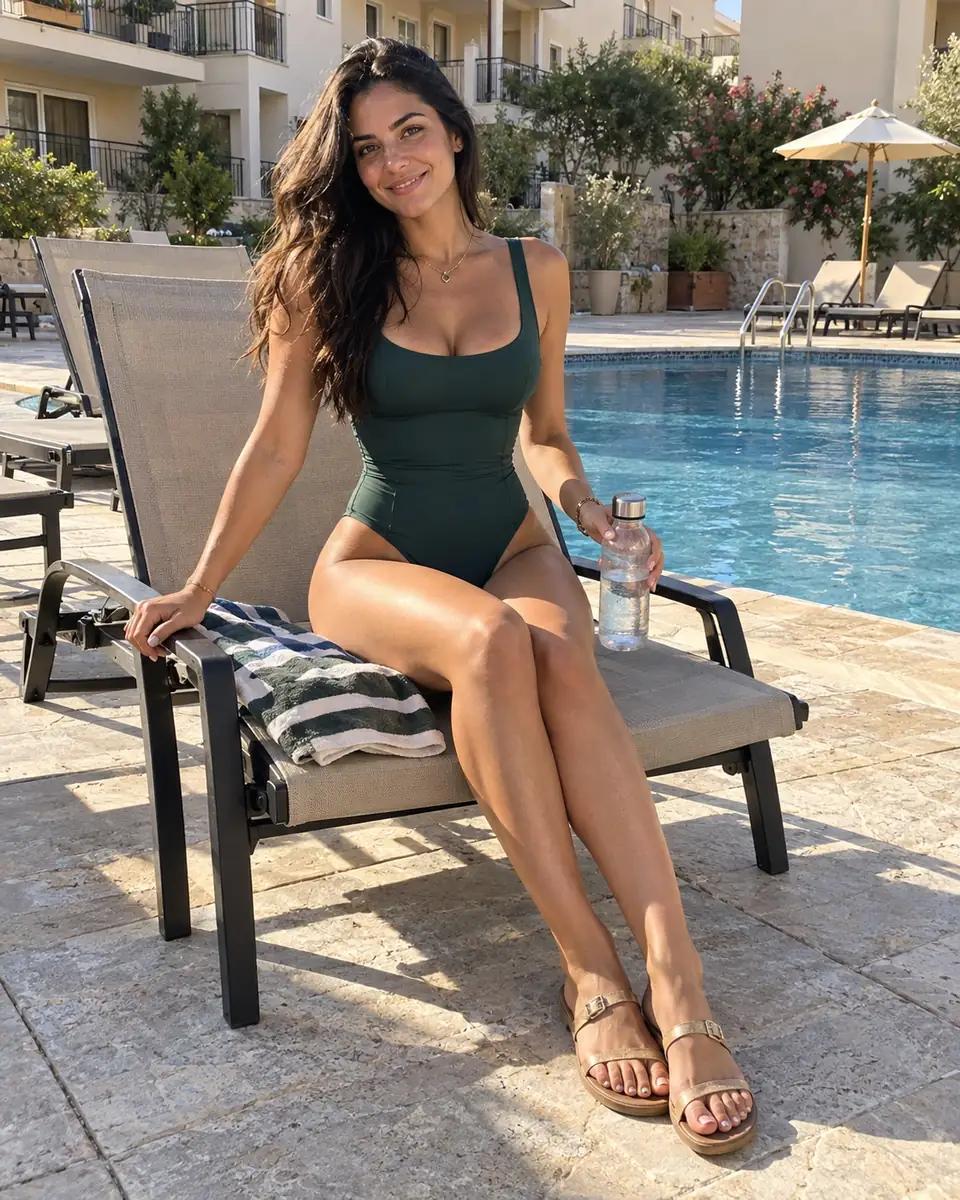
Poolside break
A simple swimsuit and towel describe a relaxed ZenCreator AI holiday moment with a comfortable posture.
Your ZenCreator AI image brief
A fictional 29-year-old woman in a simple dark-green one-piece swimsuit, seated comfortably on a poolside chair with a towel, modest holiday apartment pool in the background, soft late-afternoon sun, candid travel photograph, natural proportions.
Check the result for believable limbs, fabric edges and water reflections.
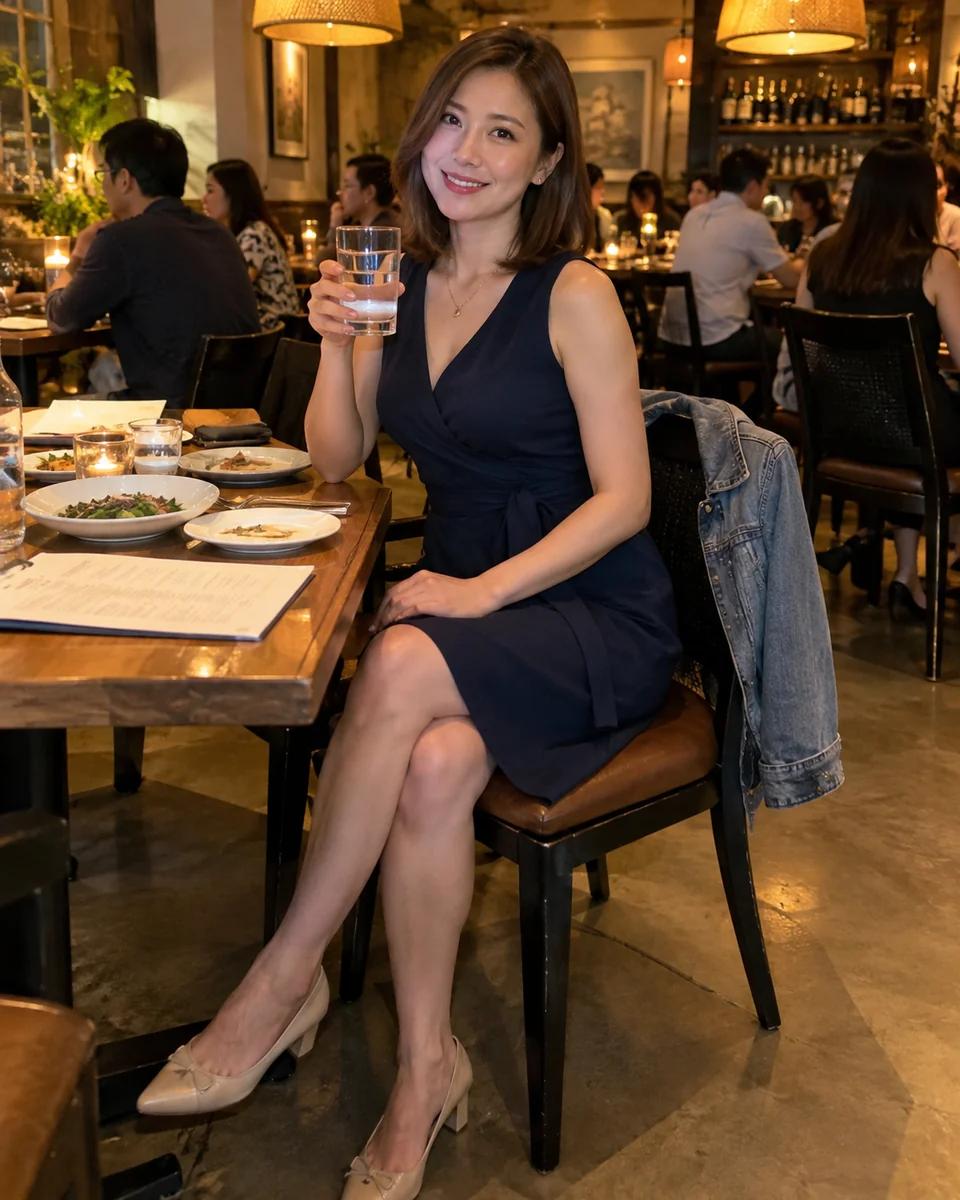
Dinner outfit
A restaurant table gives the ZenCreator AI photo a clear occasion. Animate a small glance.
Your ZenCreator AI image brief
A fictional 33-year-old woman in a simple fitted navy dress at a neighborhood restaurant table, warm pendant light, a water glass and menu nearby, looking naturally toward a friend behind the phone, candid evening photograph.
Check the result for consistent eyes, hands and glass outlines.
Prepare a useful ZenCreator AI input
A clear starting point makes a ZenCreator AI result easier to evaluate. Decide what the image or clip must communicate before changing settings.
Start from the asset you need
Decide whether your ZenCreator AI project needs an image, a reference-based variation or a clip. The ZenCreator AI feature guide explains how these creative workflows fit together.
Give your reference a clear role
Use a sharp image and describe what it should guide: subject, composition, materials or visual style. For a ZenCreator AI task, separate details to retain from changes to make.
Plan what changes over time
For a ZenCreator AI clip, describe the scene and subject action, then add camera direction. Compare the video-led input choices in Senzia AI when you are deciding how to begin.
Set ZenCreator AI controls for the result you need
Use the options shown by the active tool. ZenCreator AI image and video tasks use different settings, so check them again after changing modes.
Frame for the final placement
Choose a ratio that suits the destination: a post, thumbnail, product page or wider scene. Leave space for any text you will add. The ZenCreator AI prompt and aspect ratio should describe the same composition.
Choose video duration deliberately
Give one action time to begin and settle. Durations and resolutions depend on the active configuration. Check the ZenCreator AI settings instead of assuming every example uses the same size.
Read the credit estimate
Check the cost and account balance before submitting. Open plans and credits when needed. Choosing a ZenCreator AI example fills the brief without automatically submitting a paid task.
Create in the ZenCreator AI workspace
Work through a single ZenCreator AI idea from input to review, keeping the useful parts of your brief as you refine it.
- 01
Pick a mode and brief
Choose image or video, then write a prompt or select an example. Review replacement confirmation when editing. Add a reference if your ZenCreator AI input mode requires one.
- 02
Review settings before creating
Check framing, available quality options and the credit estimate. Sign in if requested and submit once. Follow ZenCreator AI task progress without resubmitting after switching modes.
- 03
Inspect your result
Inspect details or watch the complete clip before downloading. Change one instruction for the next ZenCreator AI attempt. Preserve a working prompt rather than rebuilding the whole brief.
Improve a ZenCreator AI result with one change
Use the visible problem to choose your next instruction. A focused edit makes the next ZenCreator AI attempt more informative.
The composition misses the brief
Clarify the focal subject and reduce competing elements. Adjust the crop or describe the relationship between objects. Keep the style and lighting stable so you can judge whether the next ZenCreator AI composition solves the problem.
The clip changes too much
Use one small action and keep the camera stationary. Remove simultaneous zoom, walking and hand gestures. A simpler ZenCreator AI motion brief gives the reference more room to guide the subject and scene.
The task does not complete
Read the inline message, check the input mode and required references, and review your balance or settings. Retry only after addressing the visible issue. Keep your ZenCreator AI prompt so you can continue without rebuilding the brief.
ZenCreator AI generator questions
Answers about using the ZenCreator AI image and video workspace, selecting examples and reviewing results.
How do I use a ZenCreator AI example?
Choose a photo or motion prompt and adjust its details. A ZenCreator AI example fills your brief without starting generation automatically. Video input modes may require a reference image too.
Will switching ZenCreator AI modes erase my prompt?
Image and video briefs are kept separately. Return to either mode without intentionally replacing its text. Confirm before an example overwrites an edited ZenCreator AI brief.
Can I upload my own ZenCreator AI reference?
Yes, when the active input mode supports references. Use an image you have permission to use and follow the displayed file requirements. Choose a clear subject for your ZenCreator AI reference.
Why does ZenCreator AI ask me to sign in?
Generation uses account credits and task history. Sign in to check your balance and submit. ZenCreator AI prompts stay separate from other workspaces; local attachments may need selecting again after returning.
What if the ZenCreator AI result looks different from the example?
Examples describe a direction, not an identical result. Prompts, references and settings affect the output. Inspect your ZenCreator AI result and adjust one detail while keeping the strongest parts.
Where can I check ZenCreator AI costs and results?
The workspace shows the estimate before submission, then task progress and results. Review these before another ZenCreator AI task. The pricing page lists account plans and credit options.
Create your next asset with ZenCreator AI ideas
Choose a format, set a focused brief and review the result against your creative goal.