
Senzia AI Image & Video Generator
Create videos from ideas or images, and build visual assets from a prompt or a reference.
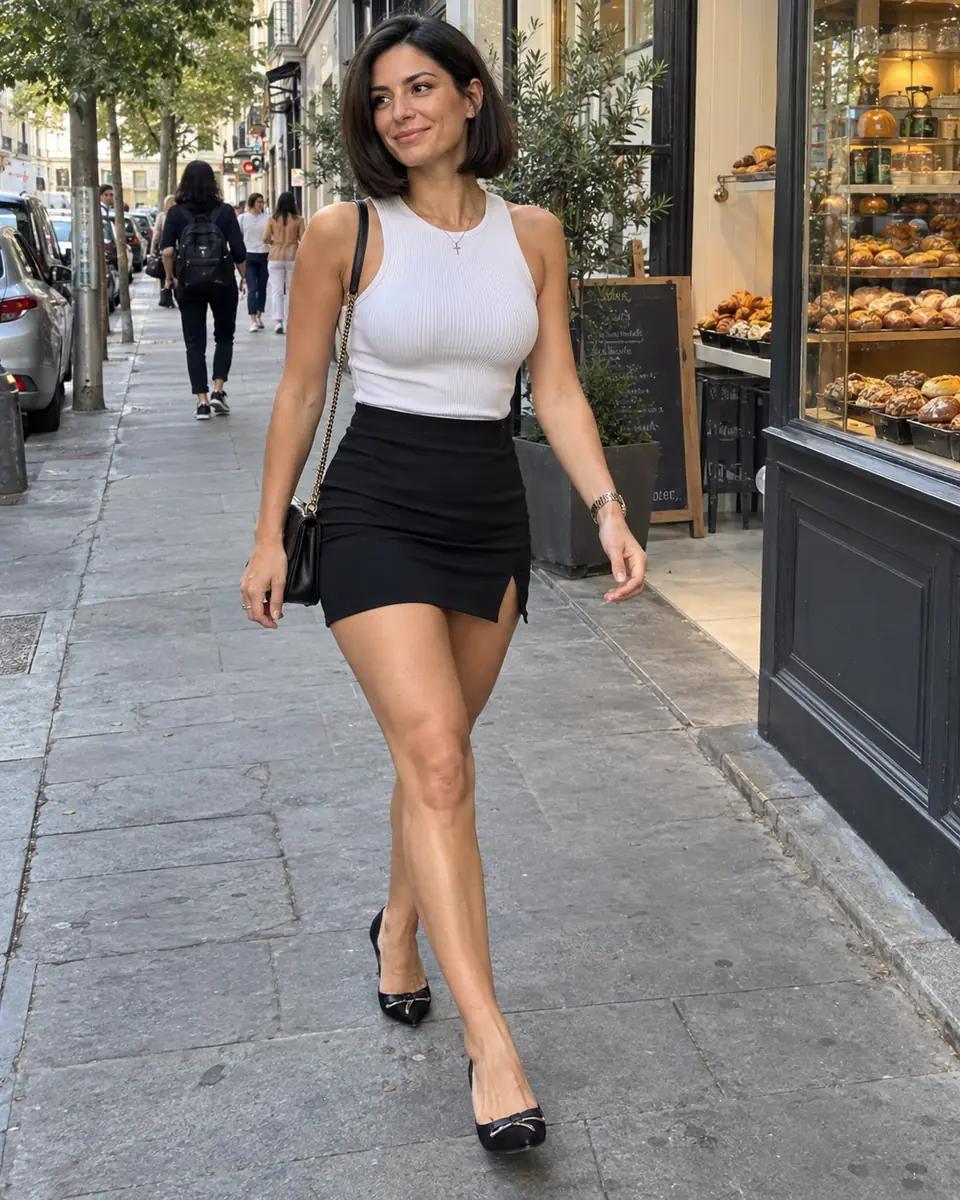
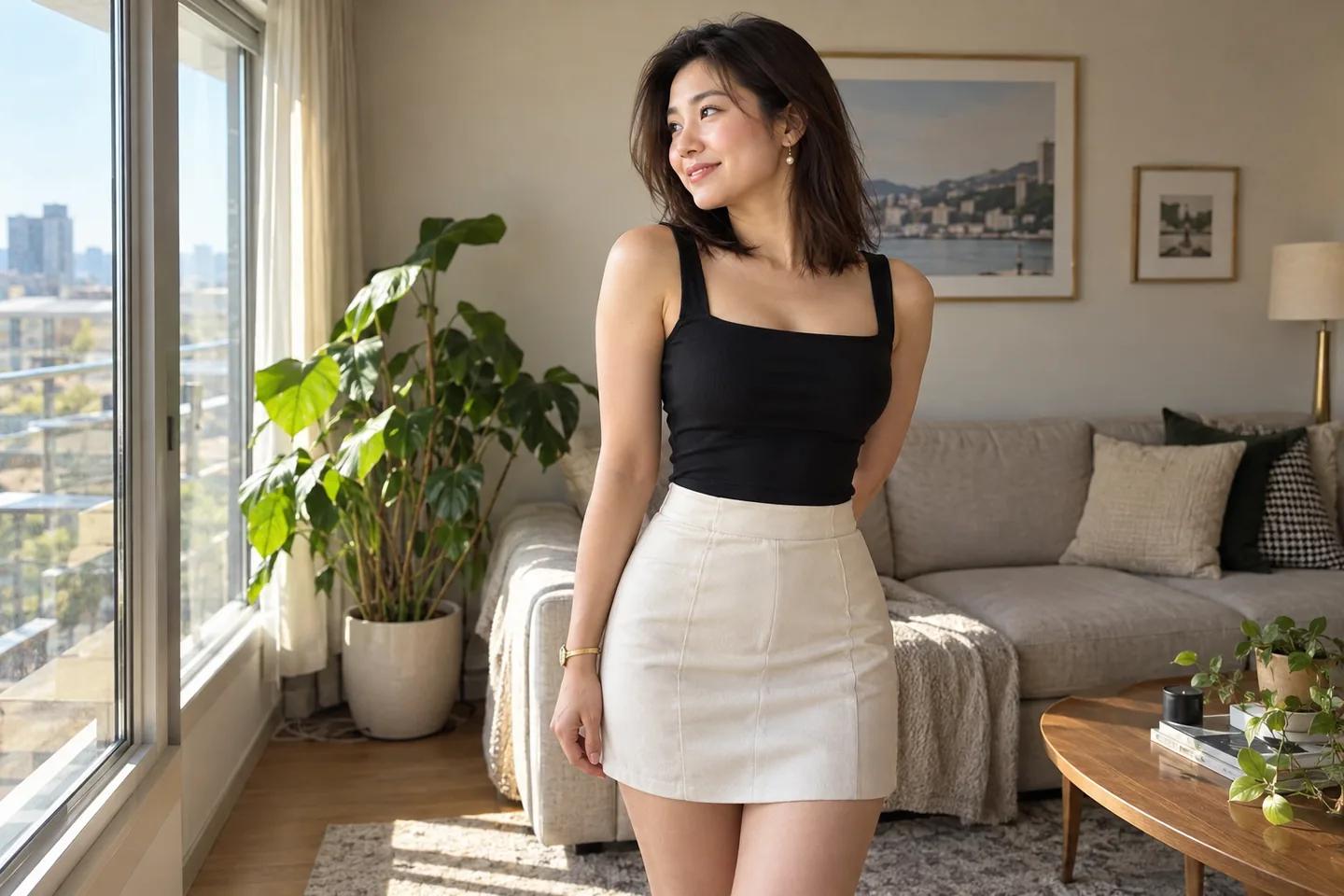
Senzia AI Video Studio
Senzia AI videosReview the entire clip before downloading or revising.
Six Senzia AI lifestyle examples to start from
These Senzia AI scenes show image and motion prompts for one creative direction. You can also write your own product, setting or story brief.
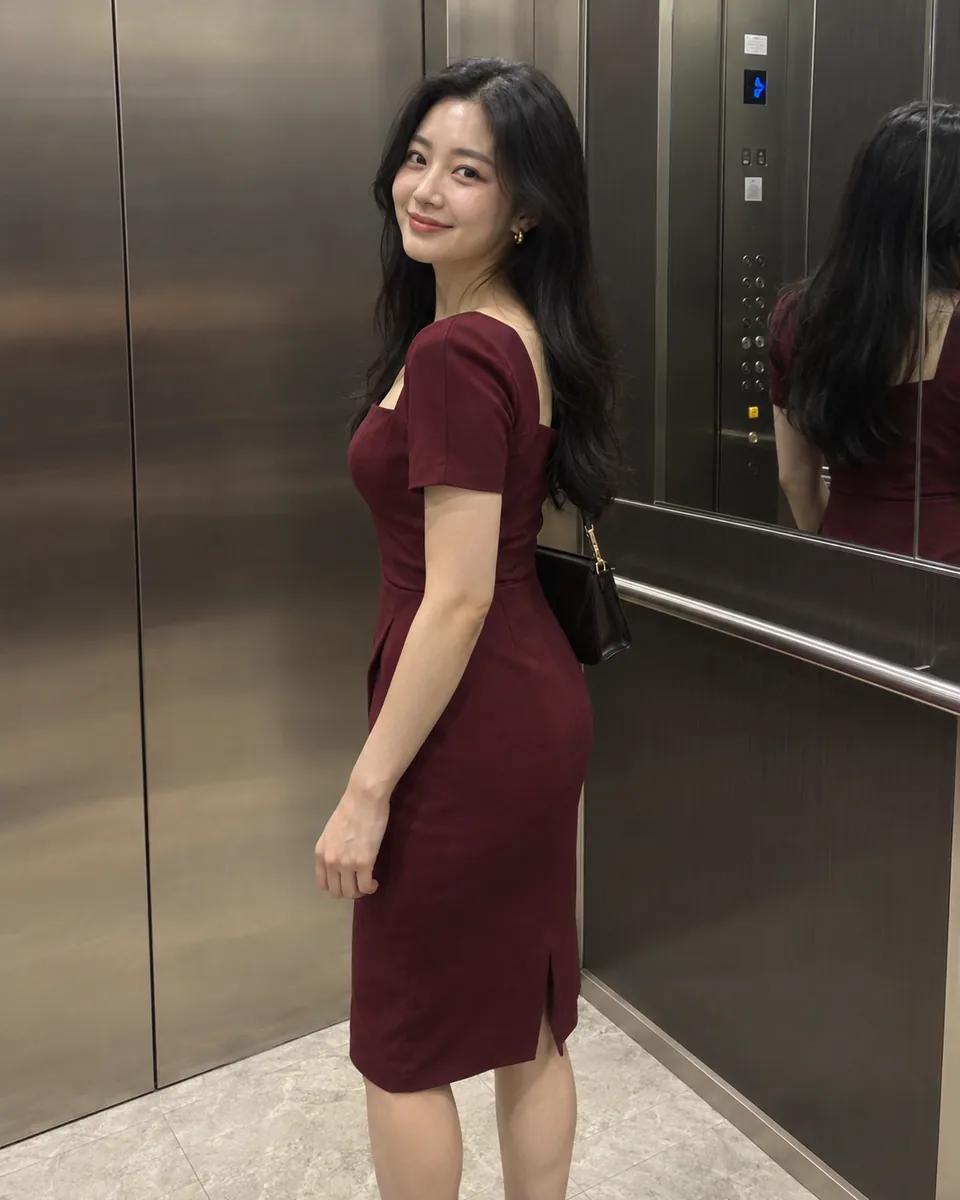
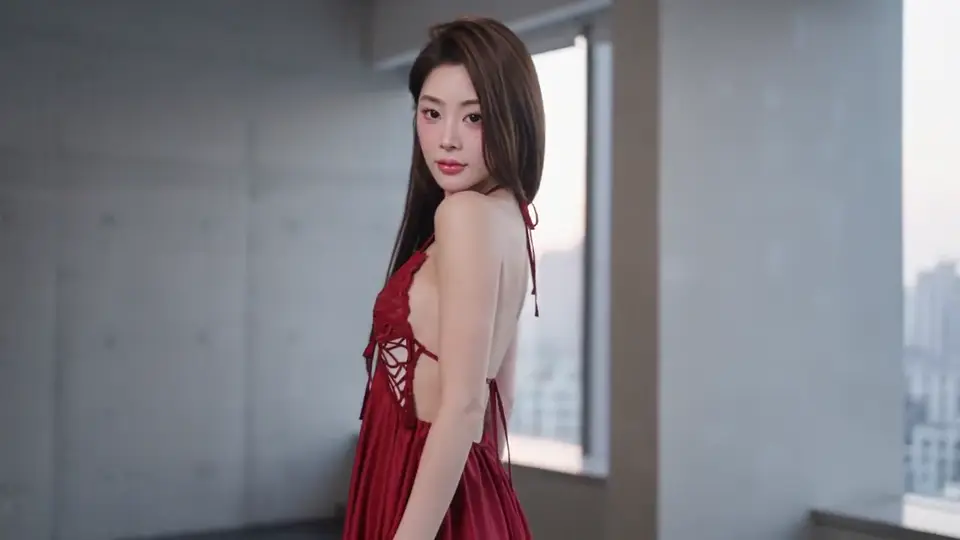
Senzia AI elevator glance
A brief shoulder glance gives the portrait a clear endpoint. Keep mirrors simple and the body comfortably framed.
Describe your Senzia AI video
She turns her head slowly toward the camera and pauses with a relaxed expression. Keep the body and camera steady.
Review face, shoulder and reflection alignment.
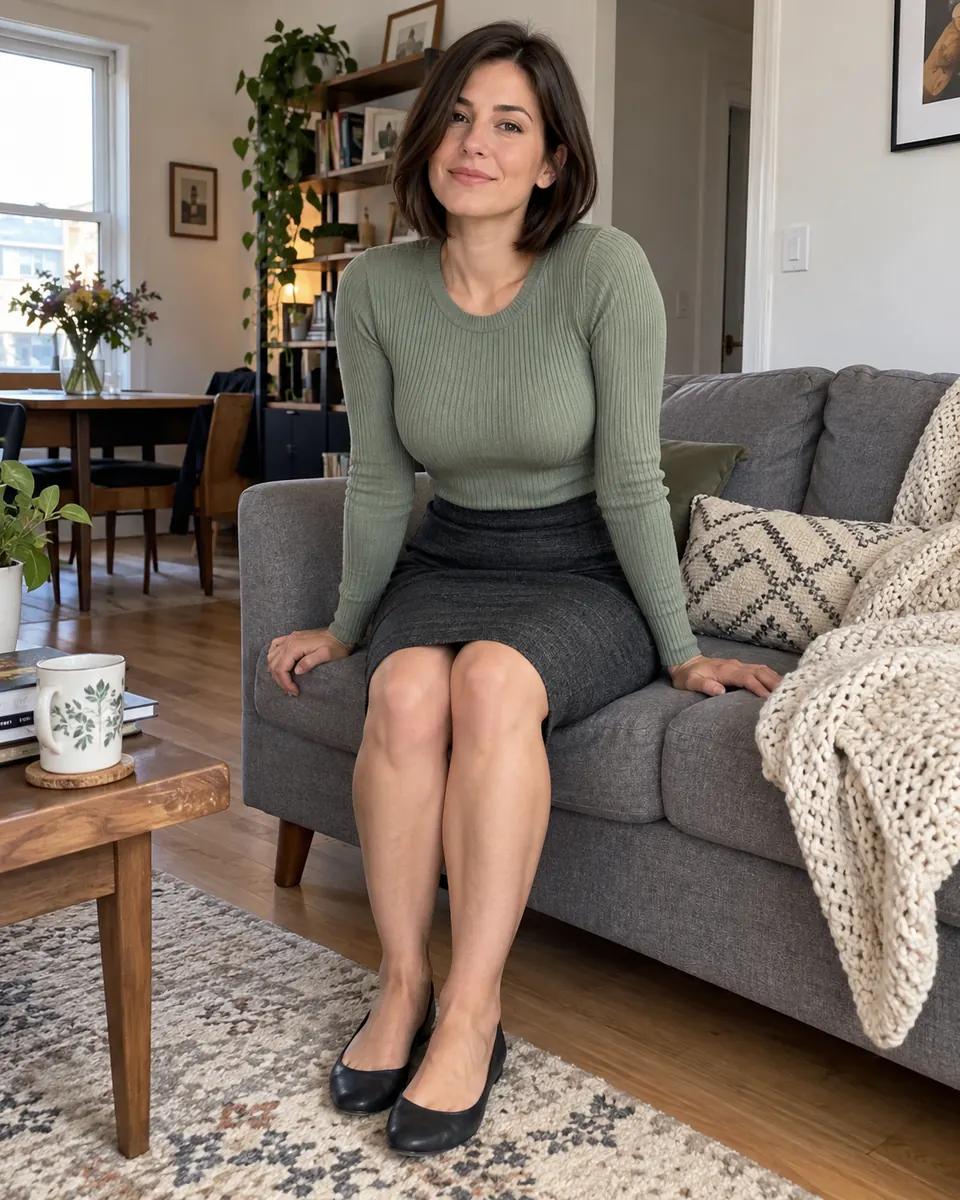
Senzia AI sofa rise
Begin with feet grounded. Here, a slow forward lean is easier to judge than sudden full-body movement.
Describe your Senzia AI video
She leans forward gently and begins to stand, keeping her hands relaxed by her sides. The camera remains still.
Check knees, hands and sofa contact as movement begins.
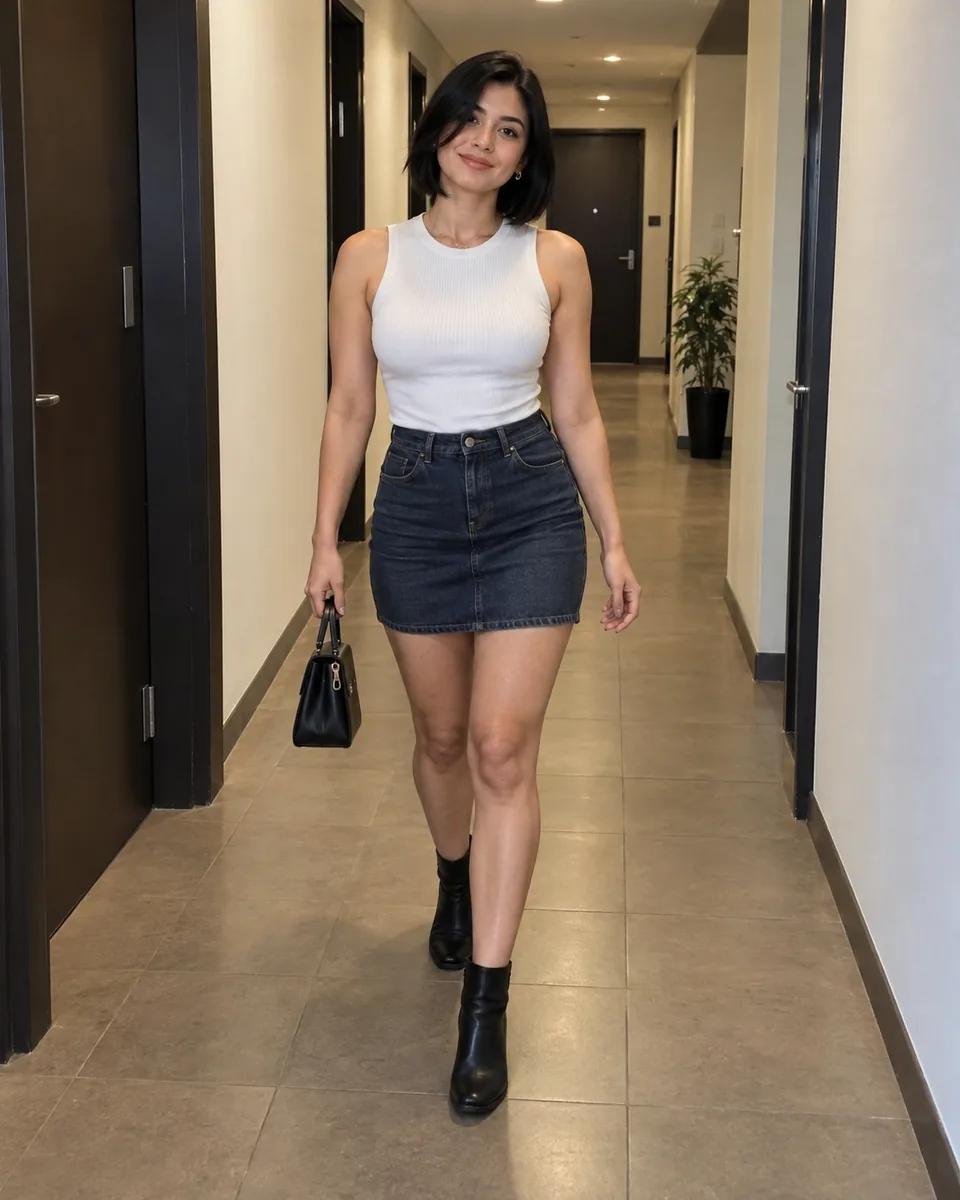
Senzia AI corridor walk
Leave walking space ahead. Ask for two relaxed steps with stable doorframes and a slow camera follow.
Describe your Senzia AI video
She takes two easy steps forward while the camera follows slowly at the same height. Keep the corridor lines stable.
Look for consistent stride, clothing and straight walls.
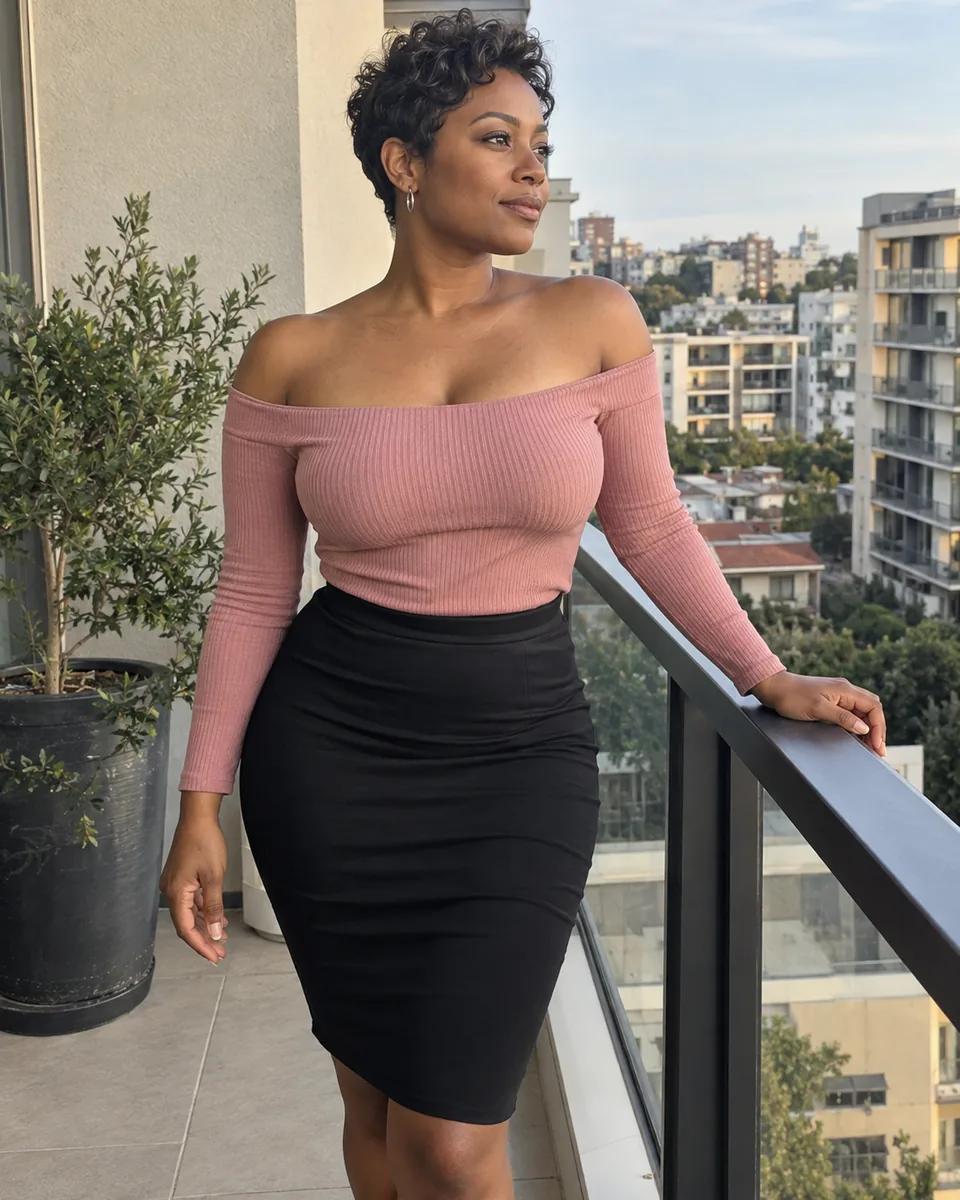
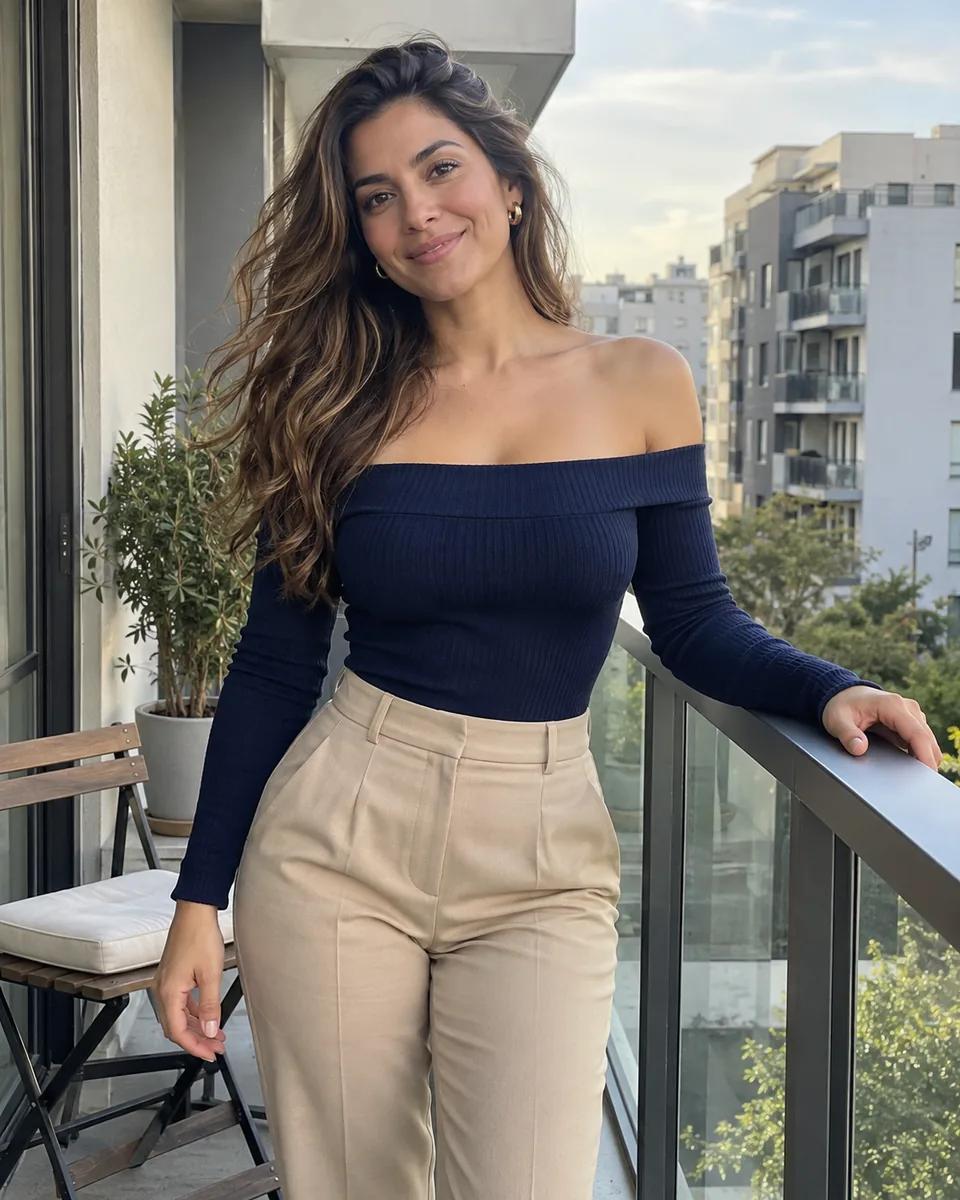
Senzia AI terrace pause
A light weight shift, breeze and distant glance give this terrace pose a natural direction.
Describe your Senzia AI video
She shifts her weight gently and looks across the terrace as a light breeze moves her hair. Keep the camera steady.
Review the hand on the railing and background edges.
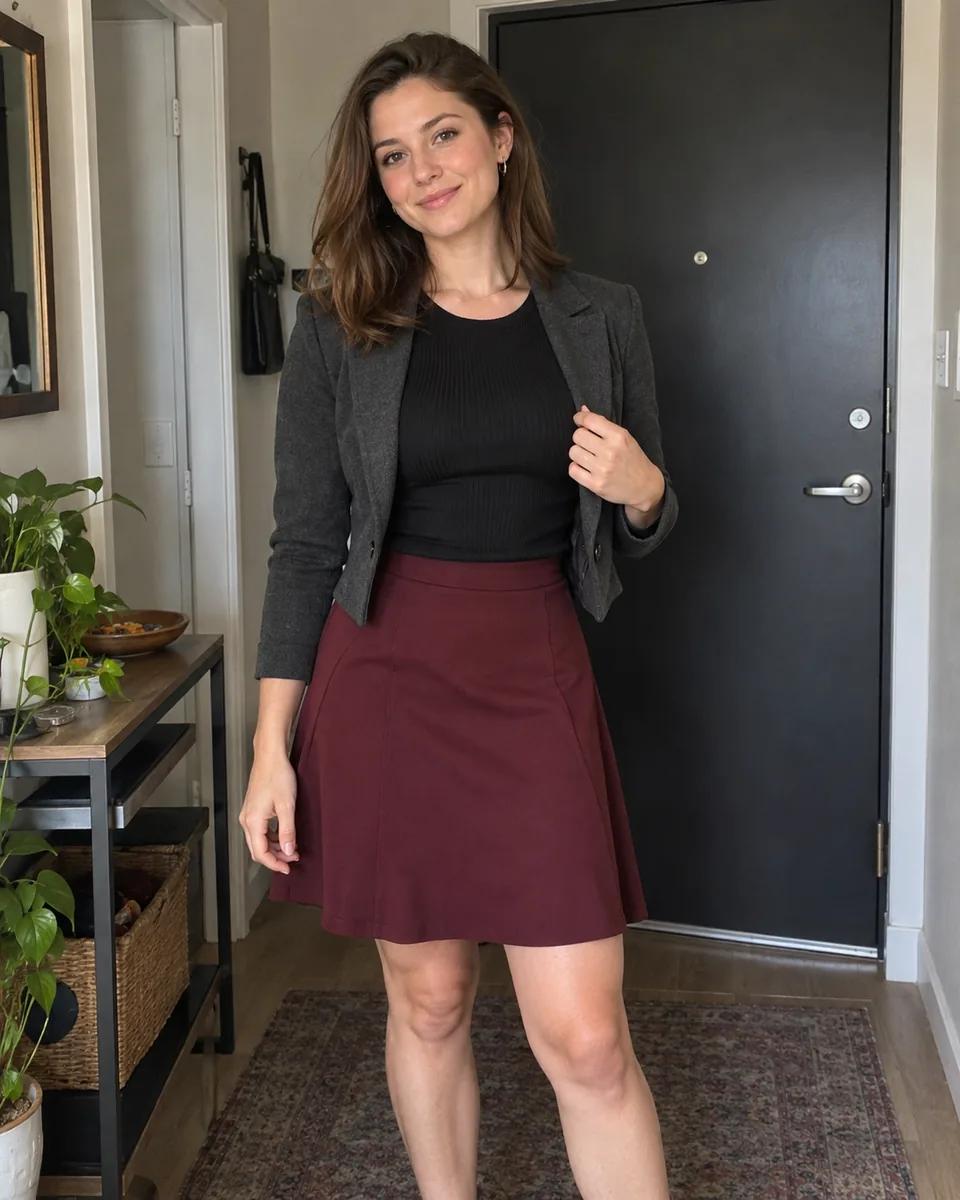
Senzia AI jacket adjustment
Keep the hand near a visible sleeve or lapel. One adjustment gives the scene a specific action without changing the outfit.
Describe your Senzia AI video
She smooths the jacket lapel with one hand, then lets the hand fall naturally. The camera makes a very gentle push-in.
Check fingers, lapel and the unchanged outfit.
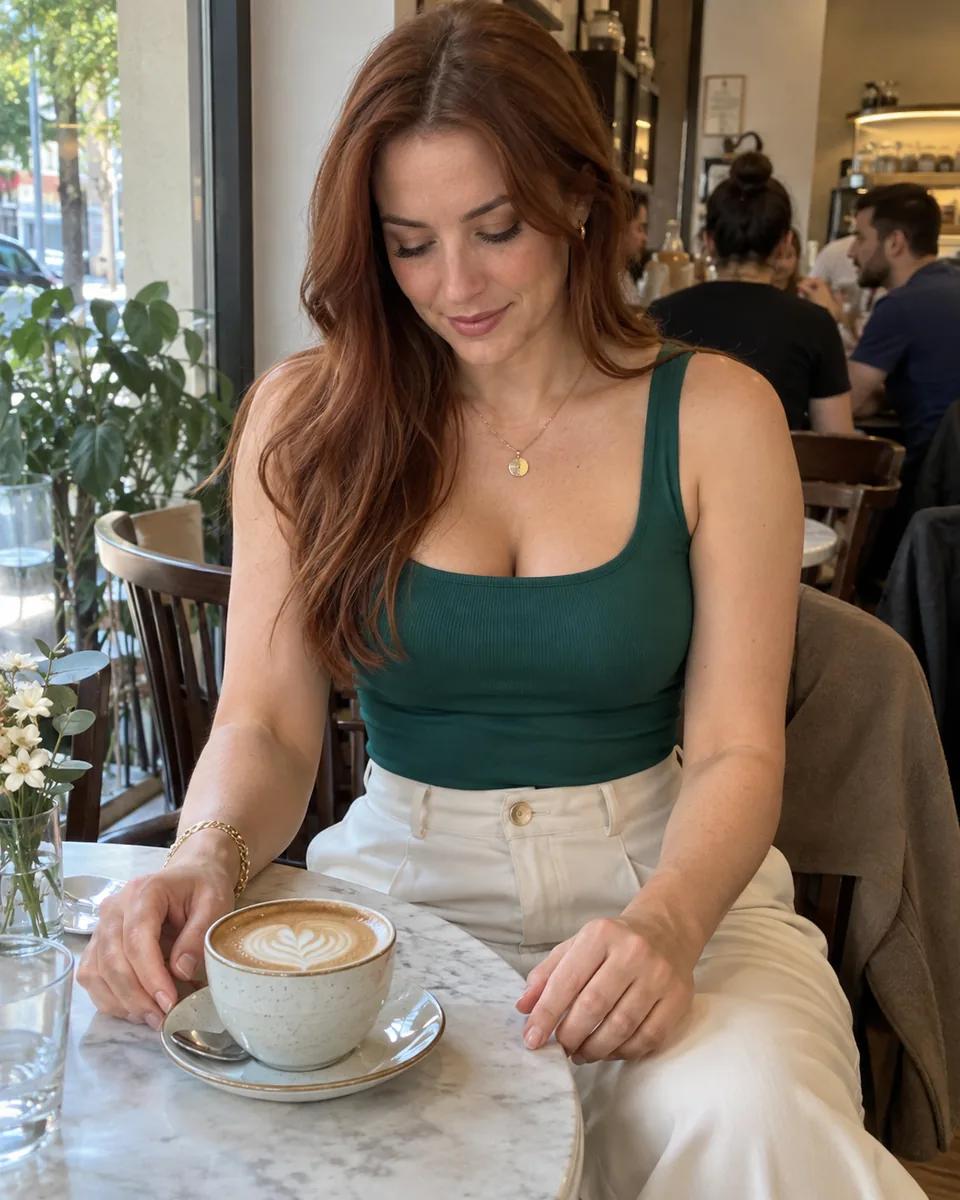
Senzia AI seated look-up
Start with a lowered gaze and space above the face. Ask for a slow look-up and quiet pause.
Describe your Senzia AI video
She lifts her gaze toward the camera and gives a small natural smile. Keep her hands and the frame steady.
Review eyes, expression and finger placement across the clip.
Prepare your Senzia AI input
Match your Senzia AI input to the output: a written scene, an existing image or a visual reference.
Write a complete Senzia AI text brief
For text-led creation, describe subject, place, composition and light; add action and camera for video. Products, landscapes and fictional scenes work too. The gallery shows one creative direction.
Choose the Senzia AI reference deliberately
Use an image when appearance or the opening composition matters. Select it explicitly and check the preview. For image-to-video, explain what happens next; for a new still, describe the change you want.
Check Senzia AI access and settings
Sign in when required, check available settings and read the credit estimate. The Senzia AI feature guide helps choose a workflow; plans and credits explains account options.
Shape the Senzia AI result with purposeful controls
Adjust the setting that supports your intended shot, then compare the next result against the same goal.
Senzia AI framing and output
Choose an available ratio for a vertical clip, square post or wider scene. Leave room for detail and movement, then check the selected tool’s actual options.
Senzia AI creative direction
Separate subject action from camera movement for video. Direct composition, materials and light for images. Keep one visual purpose and refine the weakest detail after checking the result.
Senzia AI revisions and credit use
Keep useful input and change one instruction per revision. Read the new estimate before resubmitting. Explore ZenCreator AI for another creative approach or plans and credits for account options.
Create in Senzia AI in three steps
Build a clear Senzia AI brief, submit with the settings you choose, then inspect the whole result.
- 01
1. Choose your Senzia AI mode
Choose video for movement or image for a still. Start with your own text or a gallery idea. Supported text-led video does not require a photo. Drafts stay separate by mode, and replacing edited text requires confirmation.
- 02
2. Review the Senzia AI input
Inspect the prompt, required input and any reference preview. Review output settings and the credit estimate before submitting. Follow task progress in the result area, and resolve access or configuration messages before retrying.
- 03
3. Check and refine Senzia AI output
Inspect the image or watch the complete video. Check framing, subject details, object shape and motion. Download a useful version. For another attempt, keep successful instructions and change the detail that missed your brief.
Improve a Senzia AI result with one useful change
Use the symptom you can see to decide what to change next.
Senzia AI misses the written idea
State the output, subject and setting first. Remove conflicting instructions, then describe the key detail. Include action for video or composition for images. Compare the next result against the same brief.
Senzia AI changes a hand or held object
Choose a starting frame with clear fingers and a separated object. Reduce the distance or speed of the movement, and avoid several contacts in the same brief. When the source pose is unclear, refine the still first.
Senzia AI framing does not suit the output
Choose a ratio with enough room for the intended use. Check reference cropping before uploading. Reduce camera movement if it pushes details outside the scene, and review the complete output.
Senzia AI generator questions
Practical answers for the workspace, examples and your next revision.
Can I use Senzia AI for both images and videos?
This Senzia AI workspace provides image and video modes through Kling3.io. Start with text or a supported reference, choose the output settings and review the estimate. Select the mode according to whether you need a still asset or a moving scene.
Does a Senzia AI case automatically upload its picture?
No. A motion idea fills the prompt; explicitly select the reference and check its preview before submitting. You can also use an image idea to create a new starting still.
Will Senzia AI keep my prompt when I switch modes?
Senzia AI keeps separate image and video drafts in the current browser session. A confirmation protects edited text when selecting another idea. Local files may need selecting again after sign-in or refresh.
Why does Senzia AI ask me to sign in or add credits?
Some tools require an authenticated account and enough credits. Not every generation is free. Read the displayed estimate and use the account or plans entry when access is needed.
What should I do if a Senzia AI task fails?
Read the error and check the prompt, required input, settings and account access. In Senzia AI page tasks, a simpler brief may help a generation issue; an access or configuration error needs resolving first. Do not repeatedly submit the same unresolved task.
Are Senzia AI gallery pictures finished video results?
The gallery illustrates starting scenes with image and motion ideas, rather than completed clips. Choose an idea, prepare your input and review the result returned by your own task.
Start your next Senzia AI video or image
Choose the mode, add text or a supported reference and review the settings for your creative goal.